

How to Install Fonts in Microsoft Word: Easy Step-by-Step Guide for Beginners
2026-02-10How to Use Absolute References in Excel: Step-by-Step Guide to Lock Cells in Formulas
2026-02-12How to Merge Multiple PDFs into One?
As someone who’s dealt with tons of documents in my daily work, I’ve often found myself needing to combine several PDF files into a single one. PDF merging, at its core, involves taking multiple Portable Document Format files—those universal documents that preserve formatting across devices—and stitching them together into one cohesive file. This process concatenates the pages from each PDF in the order you specify, without altering the content, layouts, or embedded elements like images and fonts. It’s essentially like binding separate chapters into a book, ensuring everything flows seamlessly. The concept breaks down into key elements: selecting source files, arranging their sequence, and generating a new output file that maintains the original quality and security features if any.
One common question I get is: Can I merge PDFs without installing software? Absolutely, yes—online tools like SmallPDF or ILovePDF allow you to do this for free directly in your browser, handling the process securely on their servers without needing downloads. Another frequent doubt is: Does merging PDFs reduce file quality or add watermarks? Not necessarily; reputable free tools preserve the original resolution and don’t add unwanted marks unless you’re using a limited trial version, but premium options or careful selection avoid this entirely.
The benefits of merging PDFs are numerous and have saved me countless hours. First, it streamlines organization by consolidating scattered files into one easy-to-manage document, reducing clutter on your device. Second, it enhances sharing efficiency—sending a single file instead of multiples simplifies emails and uploads, especially for reports or contracts. Third, it can even optimize storage space, as combined files often compress better without losing data integrity.
Step 1: Choose an Online Tool and Upload Files
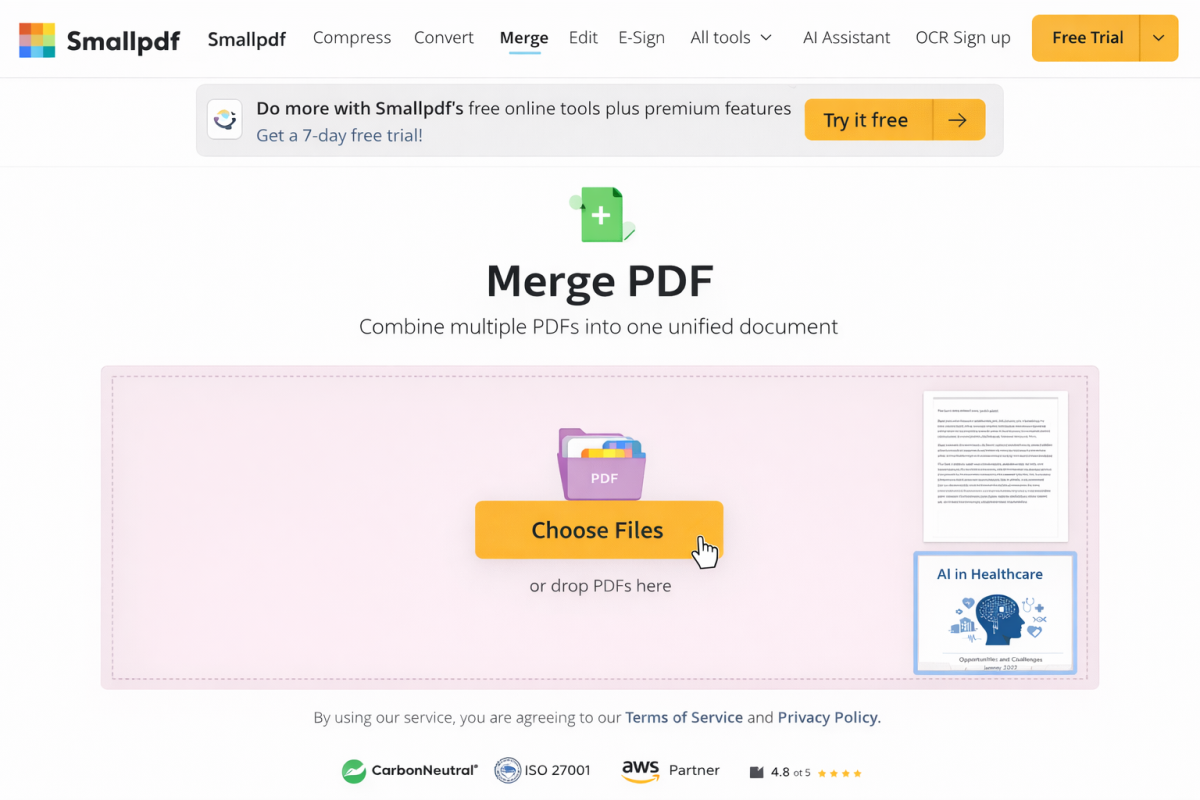
Navigate to a free site like SmallPDF.com/merge-pdf. Click “Choose Files” to select multiple PDFs from your computer, or drag and drop them into the upload area.
Step 2: Arrange the Order
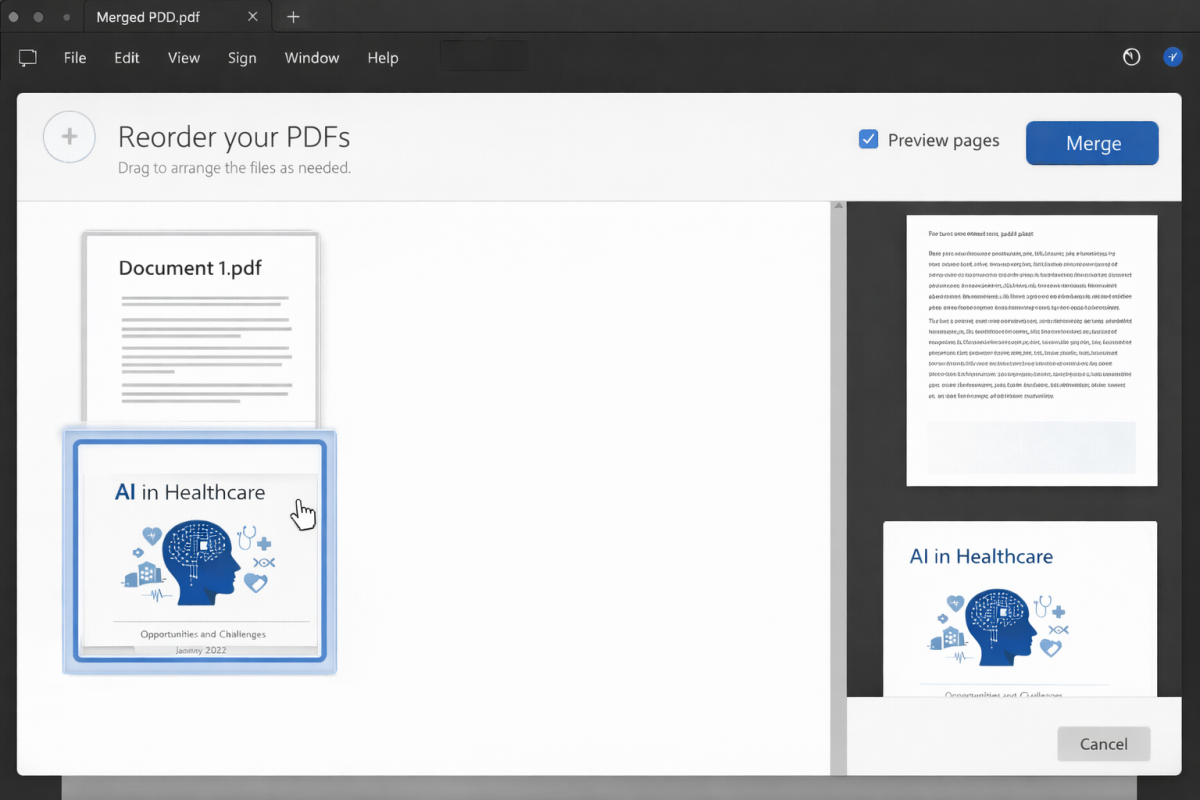
Once uploaded, drag the thumbnails to reorder the PDFs as needed. Preview pages if the tool allows to ensure sequence.
Step 3: Merge and Download
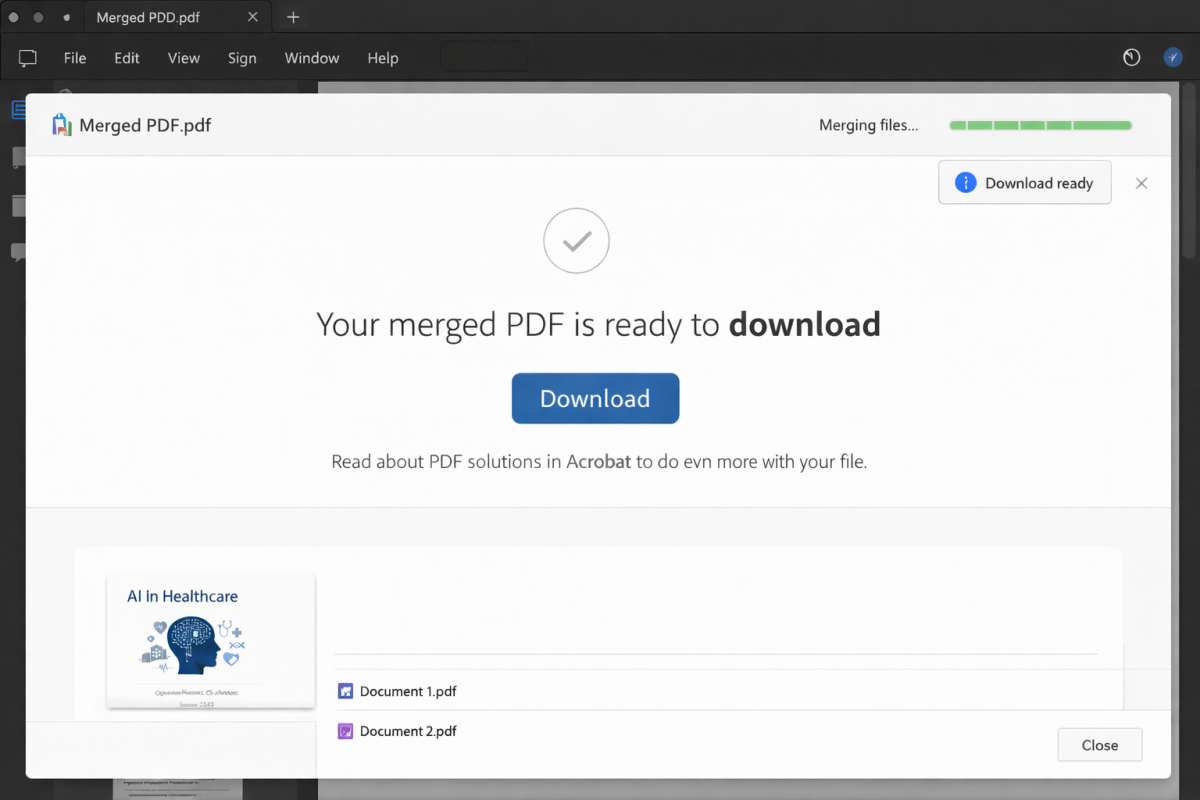
Hit the “Merge PDF” button and wait for processing. Then, download the combined file to your device.
Step 4: Verify the Result
Open the new PDF in any viewer to check page order and content integrity. If issues arise, repeat with adjustments.

In practice, when I merged five chapter PDFs for a book draft, the result was a flawless 200-page document ready for printing in under two minutes. Another time, combining scanned receipts into one expense report simplified my accounting submission, cutting email attachments from ten to one. Lastly, for a client presentation, merging slides and notes created a professional packet that impressed during the meeting, with no formatting glitches.
