

How to Easily Remove the Background Color Under Desktop Icons in Windows
2026-02-09How to Install Fonts in Microsoft Word: Easy Step-by-Step Guide for Beginners
2026-02-10How to Resize a Table in Microsoft Word: 3 Quick & Easy Methods
I’ve been using Microsoft Word for over a decade, and one of the most common frustrations I face is dealing with tables that are either too wide, too narrow, or just look messy. Resizing a table in Word means adjusting its overall width, column widths, row heights, or making it automatically fit the page.
Two Common Questions About Table Resizing
Q1: Why does my table keep going off the page when I add text? This happens because Word sets fixed column widths by default. When content is added, it doesn’t shrink automatically unless you use AutoFit.
Q2: Can I resize the entire table at once without adjusting every column? Yes! You can quickly resize the whole table by dragging the bottom-right corner handle, or use AutoFit Window for perfect page fitting.
Benefits of Properly Resizing Your Tables
When you learn how to resize tables correctly, your documents instantly look more professional, clean, and readable. It prevents awkward page breaks, improves printing results, makes data easier to scan, and gives your reports a polished, expert appearance.
How to Resize a Table in Word?
Here are the three fastest methods I use daily:
Step 1: Use AutoFit (Fastest Method)
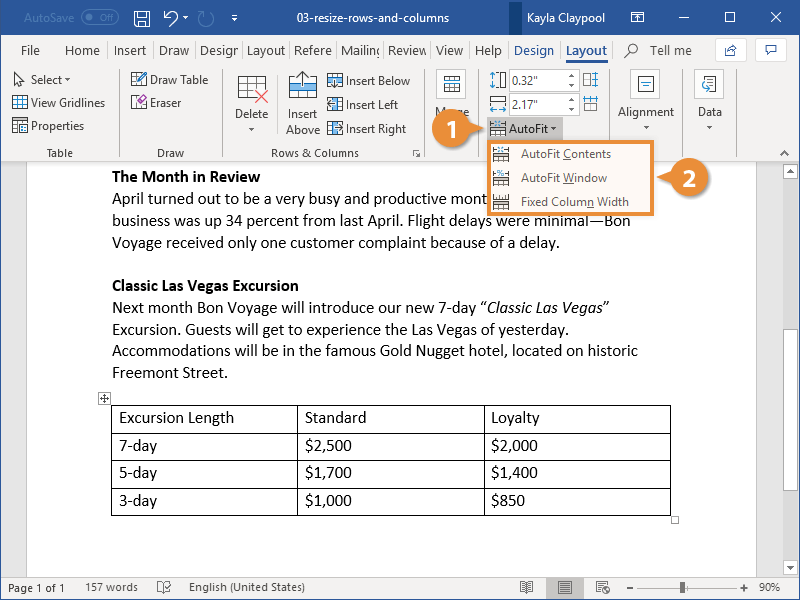
Click anywhere inside your table → go to the Layout tab under Table Tools → click AutoFit → choose one of these:
- AutoFit Contents – Best when you want columns to fit your text perfectly
- AutoFit Window – Makes the table stretch to the full page width (my favorite for reports)

Step 2: Manually Drag Column Widths or Table Size
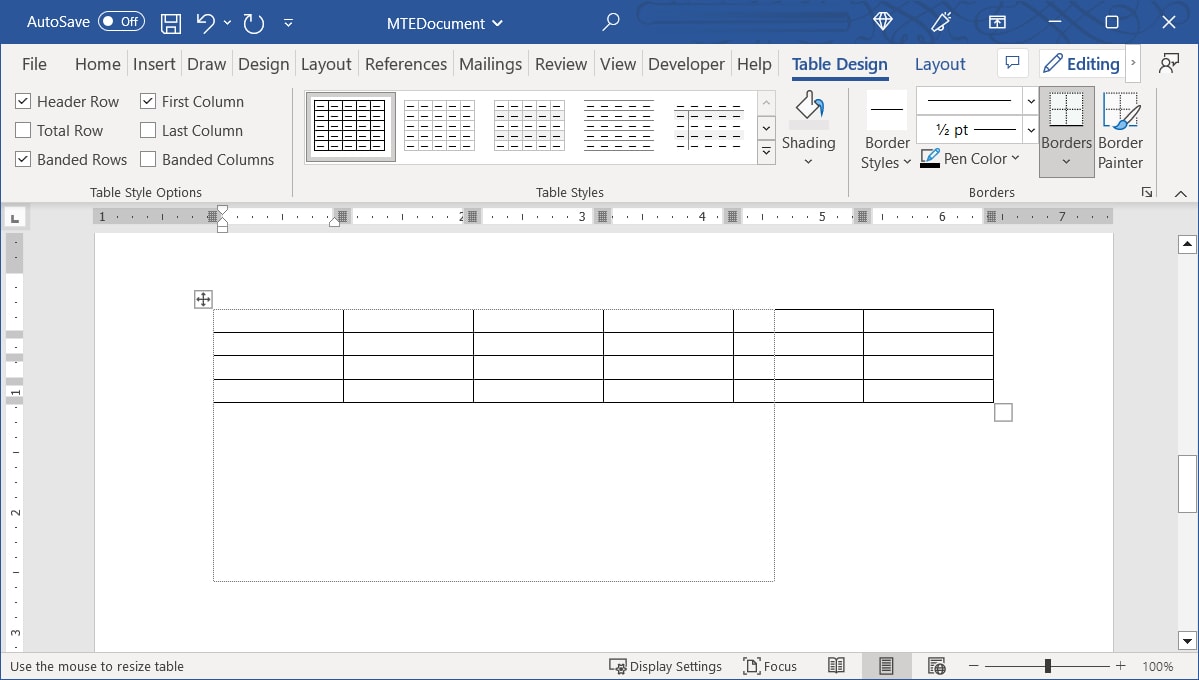
Hover your mouse over the border between two columns until it becomes a double-headed arrow → click and drag left or right to adjust.
To resize the entire table: Hover over the small square resize handle at the bottom-right corner of the table → drag to make it bigger or smaller.
Step 3: Use Table Properties for Precise Control
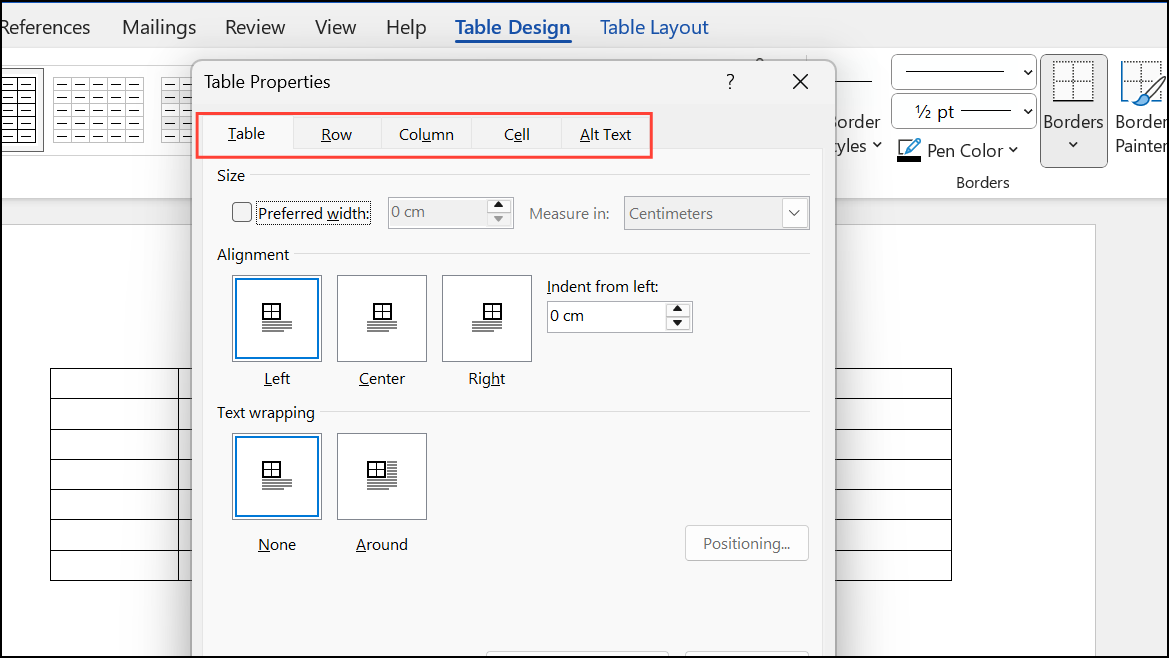
Right-click anywhere in the table → select Table Properties → go to the Column tab → enter exact Preferred width values (e.g., 2.5 cm).
For the entire table, go to the Table tab → check Preferred width and set the total size.
Practical Results After Applying These Methods
- Report Success: After using AutoFit Window, my 7-column financial report finally fit on one page instead of spilling over — huge time saver!
- Professional Price List: Using Table Properties to set exact column widths made my product catalog look balanced and high-end.
- Quick Fix: A messy table I copied from the web was perfectly cleaned up in under 30 seconds by dragging borders and applying AutoFit Contents.
Try these methods the next time you work with tables in Word. Once you get comfortable with them, you’ll adjust table sizes in seconds and your documents will always look sharp.
