

How to Easily Insert a Checkmark in a Checkbox in Microsoft Word
2026-02-09How to Easily Remove the Background Color Under Desktop Icons in Windows
2026-02-09Master AutoCAD: Ultimate Guide to Essential Shortcut Keys for Faster Drawing
As a seasoned CAD designer with over a decade of experience using AutoCAD, I’ve come to rely heavily on shortcut keys to streamline my workflow. These shortcuts are essentially quick keyboard commands that allow you to execute common functions without navigating through menus or toolbars. Breaking it down, they can be categorized into one-key shortcuts (like pressing “L” for Line), toggle keys (function keys like F8 for Ortho mode), and combination keys (such as Ctrl + Z for Undo). One-key shortcuts are great for basic drawing actions, toggles help manage drawing modes like snaps and grids, and combinations handle file management and editing. This breakdown makes it easier to understand how they fit into different aspects of drafting, from creating geometry to modifying objects and managing views.
One common question I often get is: How do shortcut keys differ from regular commands in AutoCAD? Well, shortcuts are aliases or hotkeys that trigger the same commands but faster—typing “L” starts the Line tool instantly, whereas a regular command might require clicking an icon or typing the full word. They’re customizable too, via the acad.pgp file. Another frequent query: Can beginners start using shortcuts right away without confusion? Absolutely, start with a few basics like “L” for Line or “C” for Circle, and gradually build up. The key is practice; they won’t overwhelm you if introduced incrementally.
Using these shortcut keys has transformed my productivity in ways I didn’t expect. First, they save massive amounts of time—studies show designers can cut drafting time by up to 50% by minimizing mouse movements. Second, they reduce physical strain; less clicking means fewer repetitive stress issues. Finally, they enhance precision, as toggles like object snaps ensure accurate placements without constant adjustments.
Step 1: Master Toggle and Mode Shortcuts Start by familiarizing yourself with function keys to control your drawing environment. Press F3 to toggle Object Snap for precise point selection. Hit F8 to enable Ortho mode, restricting lines to horizontal/vertical. Use F7 for Grid toggle to visualize spacing. Keep these on your status bar for quick reference.
Step 2: Learn Basic Drawing Shortcuts Focus on creating elements quickly. Type L then Enter to draw a Line, specifying points with clicks. Press C for Circle, inputting center and radius. Use A for Arc, defining start, center, and end. Hit REC for Rectangle by picking two corners. Practice in a blank drawing to build muscle memory.
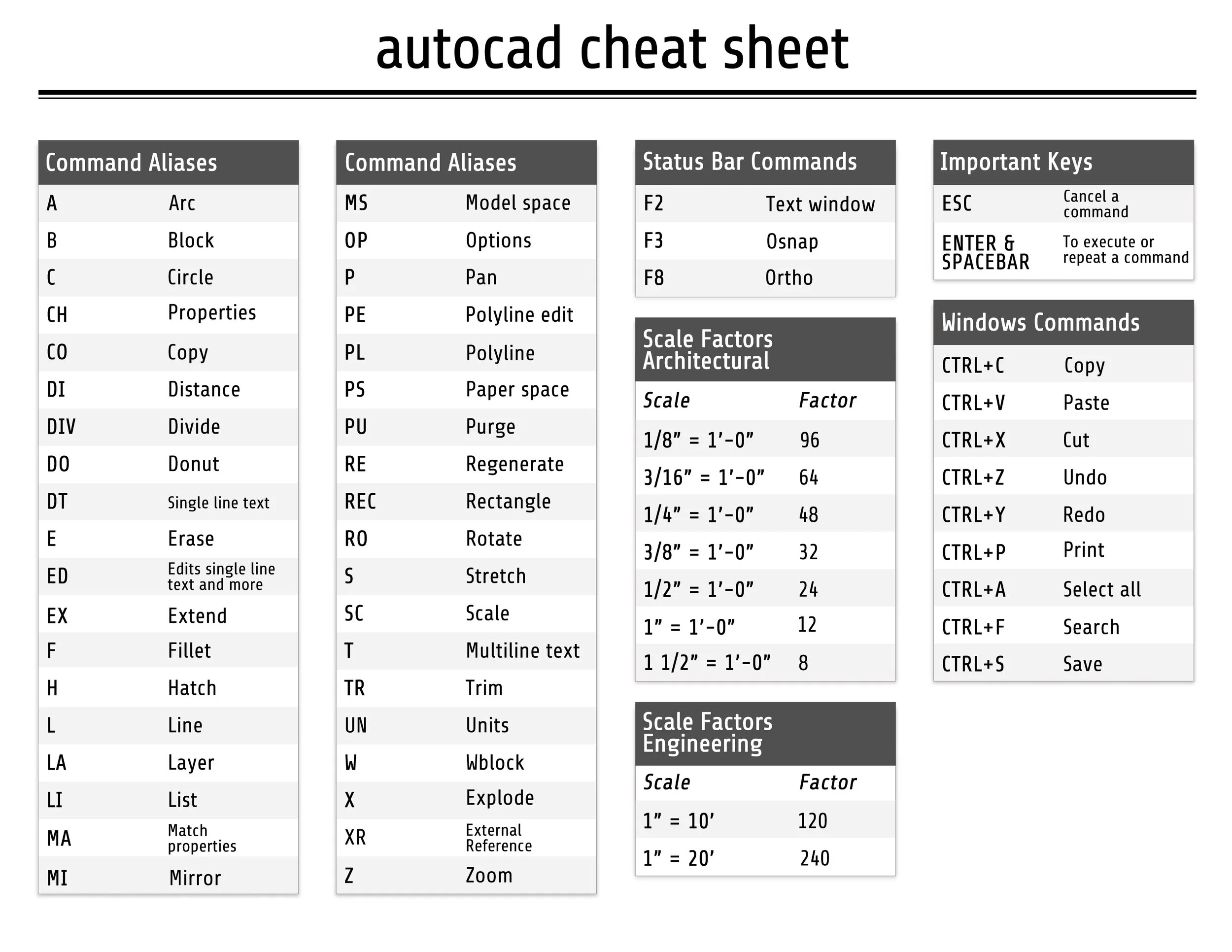
Step 3: Incorporate Editing Shortcuts Modify objects efficiently next. Press E to Erase selected items. Type M for Move, selecting objects then base and destination points. Use CO or CP for Copy, similar to Move but duplicating. Hit TR for Trim, cutting edges at intersections. Press F for Fillet to round corners. Always select objects first.
Step 4: Add View and Management Shortcuts Handle navigation and files with these. Press Z then Enter, followed by A for Zoom All to fit the drawing. Use P for Pan by holding and dragging. Ctrl + S saves your work instantly. Ctrl + Z undoes actions step-by-step. Ctrl + O opens files quickly. Integrate these during sessions to avoid disruptions.
In one project, I used these shortcuts to draft a complex architectural floor plan. What typically took 8 hours was done in 5, thanks to quick toggles and editing keys, allowing more time for revisions. Another time, on a mechanical assembly drawing, memorizing drawing shortcuts helped me iterate designs faster, reducing errors by 30% as I caught issues early with precise snaps. Finally, in a team collaboration, sharing customized shortcuts via exported files improved our group’s efficiency, completing a site layout ahead of schedule.
