

How to Set Up DNS Correctly: A Step-by-Step Guide for Beginners
2026-02-09Master AutoCAD: Ultimate Guide to Essential Shortcut Keys for Faster Drawing
2026-02-09How to Easily Insert a Checkmark in a Checkbox in Microsoft Word
As someone who frequently works with Microsoft Word for creating checklists and forms, I’ve discovered that adding a checkmark to a checkbox is a straightforward yet powerful feature. Essentially, a “checkbox” in Word can refer to either a static square symbol where you manually insert a tick mark, or an interactive content control that allows clicking to check or uncheck. The checkmark itself is typically the “✓” symbol, which can be inserted via fonts like Wingdings or through keyboard shortcuts. This functionality breaks down into visual elements for lists and functional ones for forms, making documents more organized and user-friendly.
One common question I often encounter is: What’s the difference between a static checkbox and an interactive one? A static checkbox is just a symbol you insert for visual purposes, like in a printed to-do list, and it doesn’t change when clicked. An interactive checkbox, however, is a form control that toggles on and off, ideal for digital forms where users can interact directly. Another frequent query is: Do I need special permissions or add-ons to do this? No, everything is built into Word, but for interactive options, you’ll need to enable the Developer tab, which is hidden by default but easy to activate without any external tools.
Mastering this technique has several advantages that I’ve experienced firsthand. It enhances document interactivity, turning plain text into clickable forms that save time during collaborations. It also improves clarity in checklists, reducing errors in task tracking, and boosts professionalism in reports or surveys by making them look more polished and functional.
Method 1: Using Symbols for a Static Checkbox
Step 1 Open your Word document and place your cursor where you want the checkbox. Go to the Insert tab, click Symbol > More Symbols, select Wingdings font, and choose the empty box symbol (character code 113). Click Insert.
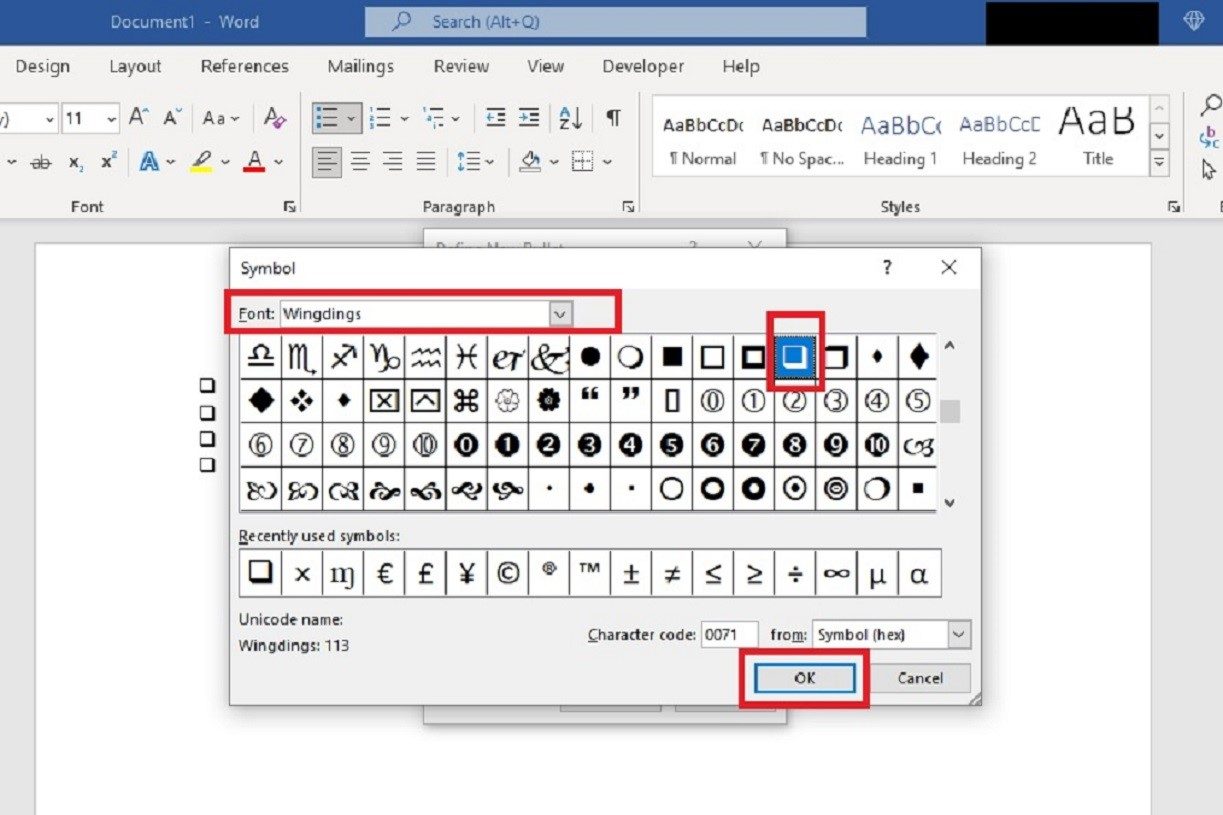
Step 2 To add the checkmark inside, repeat the process: In the Symbol dialog, select the checkmark symbol (character code 252 in Wingdings) and insert it over or next to the box for a checked appearance.
Method 2: Using Developer Tab for an Interactive Checkbox
Step 1 First, enable the Developer tab if it’s not visible. Right-click the ribbon, select Customize the Ribbon, check the Developer box in the right pane, and click OK.
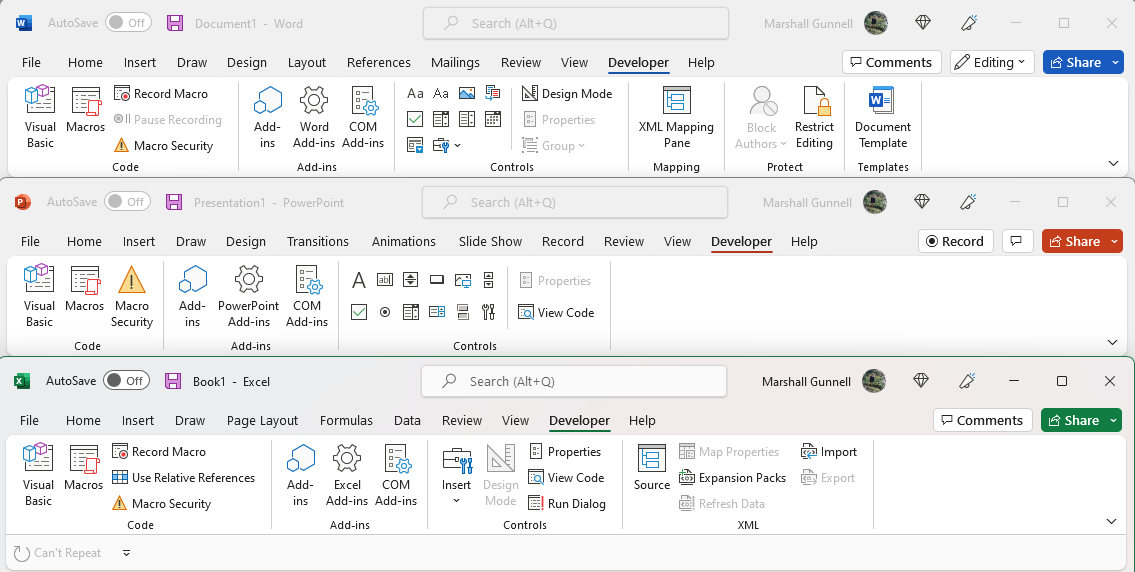
Step 2 Go to the Developer tab, click Controls group, and select the Check Box Content Control icon to insert an interactive checkbox.
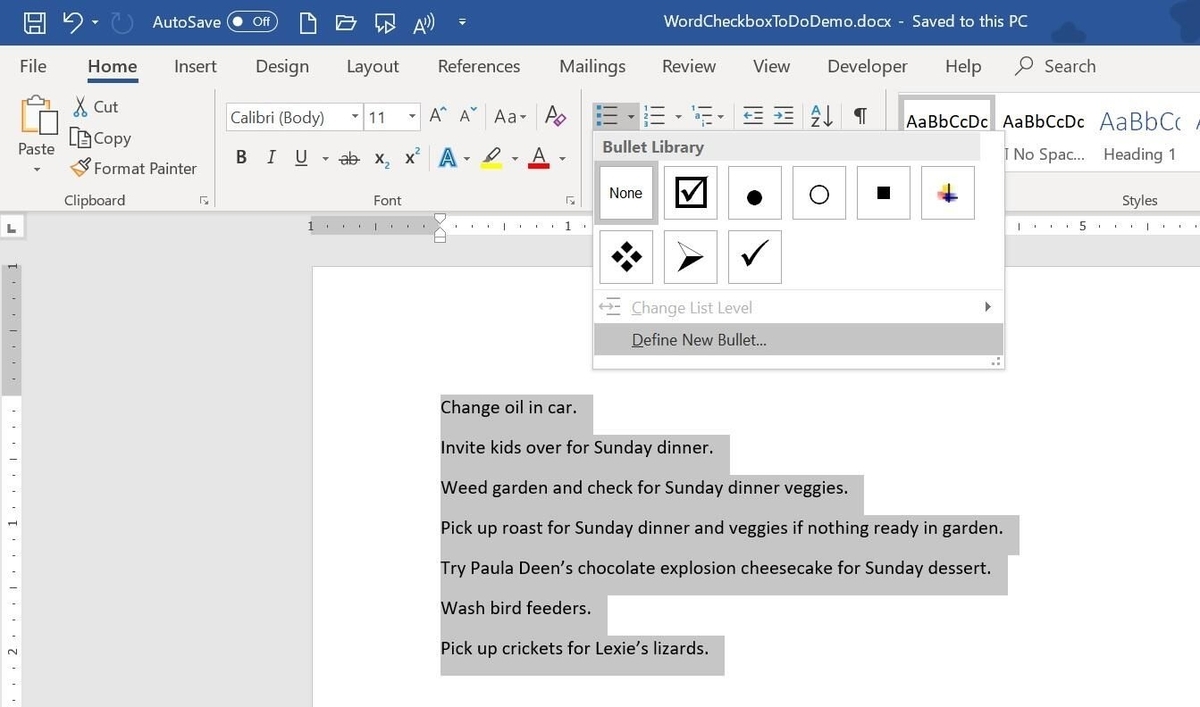
Step 3 To check it, simply click inside the box – it will toggle a checkmark on or off. For customization, right-click the checkbox, select Properties, and adjust options like default state.
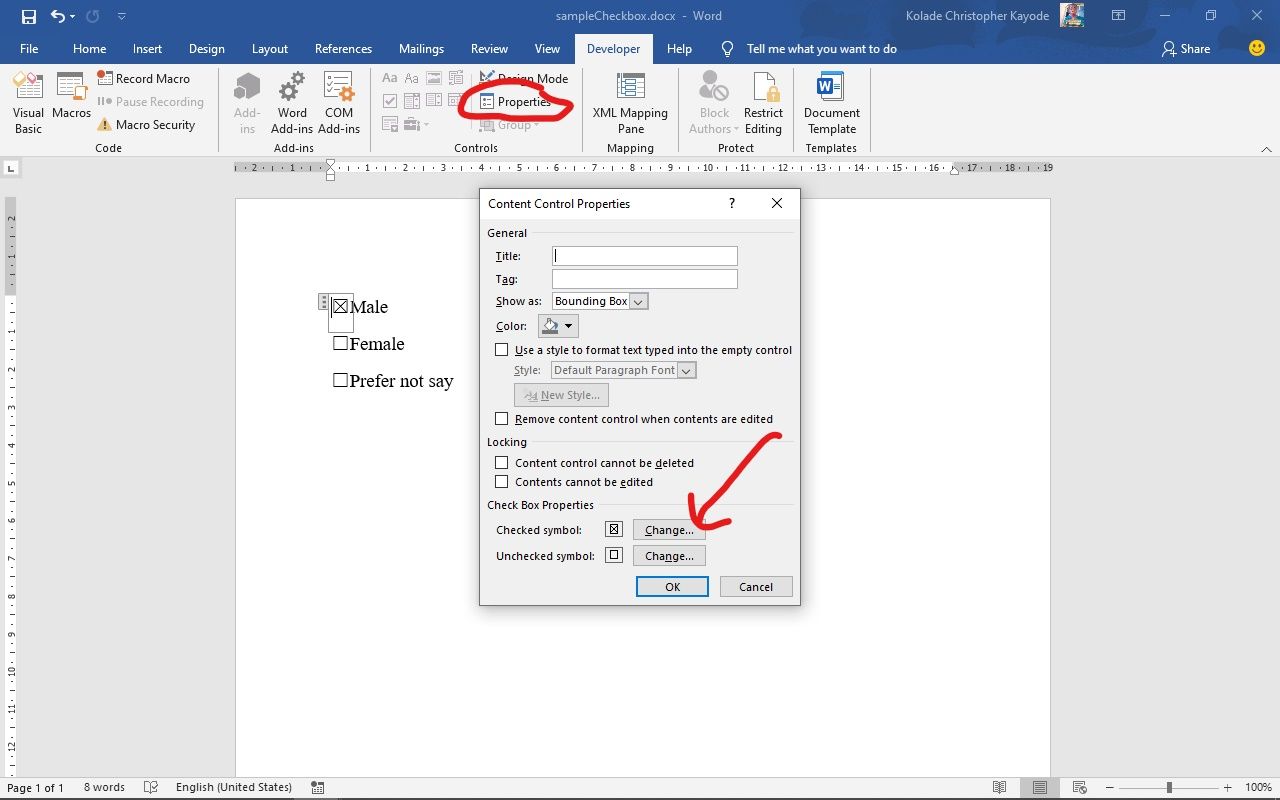
In my experience, when I used this for a project checklist, it streamlined team reviews as everyone could digitally mark completed tasks without editing the text. Another time, in a survey form, recipients appreciated the interactive boxes, leading to quicker responses and fewer follow-ups. Finally, for a personal to-do list, the visual checkmarks motivated me to complete more items daily, turning a simple document into an effective productivity tool.
