

How to Install an Android Emulator on Your PC in 2026
2026-02-08How to Easily Insert a Checkmark in a Checkbox in Microsoft Word
2026-02-09How to Set Up DNS Correctly: A Step-by-Step Guide for Beginners
As someone who’s tinkered with network settings for years, I’ve come to appreciate how crucial DNS configuration is. DNS, or Domain Name System, acts like the internet’s phonebook, translating human-friendly domain names like “example.com” into IP addresses that computers use to communicate. Breaking it down, there are recursive DNS servers that handle queries from your device, authoritative servers that hold the actual records, and caching to speed up repeated requests. Properly setting it up means choosing reliable servers to avoid slowdowns or security issues from default ISP ones.
One common question I get is: What happens if I use the wrong DNS server? Well, it could lead to slower browsing, connection failures, or even exposure to malicious redirects if the server is compromised. Another frequent query: Can I set DNS on individual devices instead of the router? Absolutely, but router-level changes apply network-wide, while device-specific overrides give flexibility for testing.
Configuring DNS correctly brings several advantages. It boosts internet speed by using faster servers like Google’s or Cloudflare’s, enhances privacy by avoiding ISP tracking, and improves security through features like malware blocking on services such as 1.1.1.1.
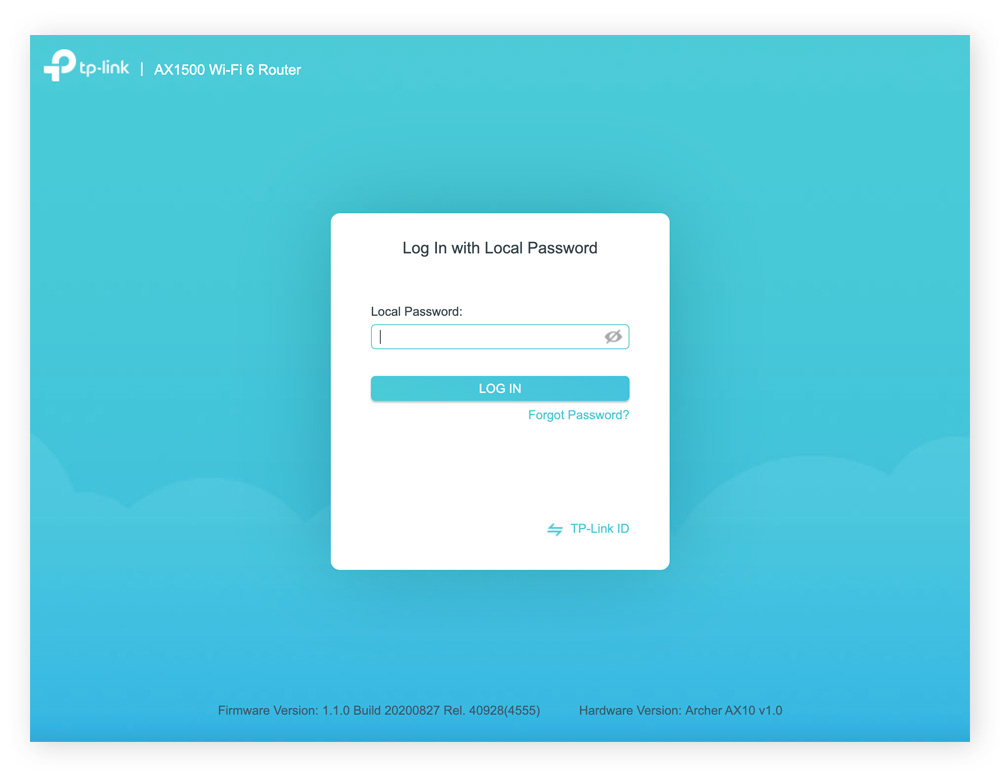
Step 1: Log Into Your Router’s Admin Panel
Open a web browser and enter your router’s IP address (usually 192.168.1.1 or 192.168.0.1). Enter the admin username and password (default often “admin” for both).
Step 2: Locate the DNS Settings Section
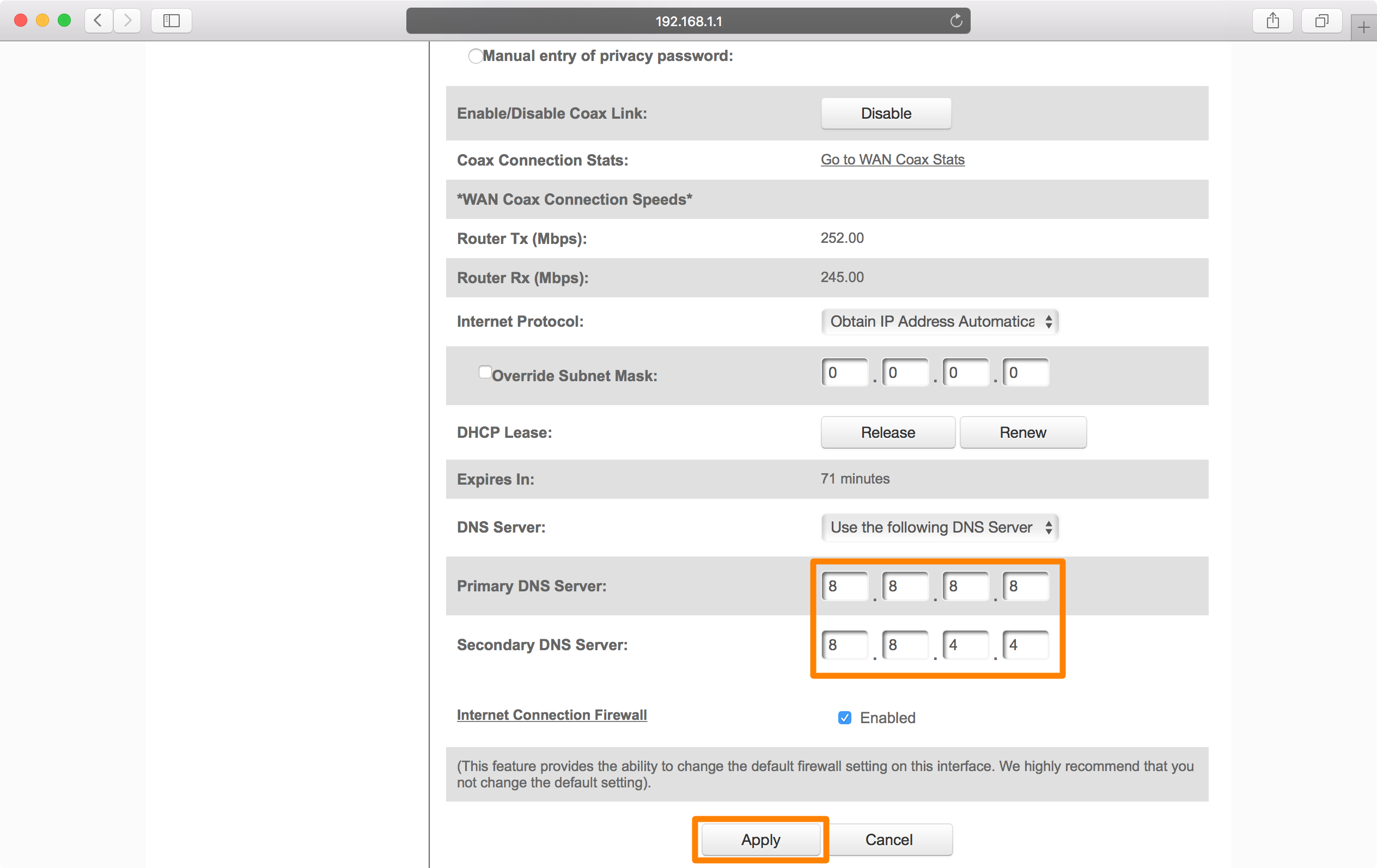
Navigate to the Advanced or WAN tab. Look for DNS Server or Internet Setup.
Step 3: Enter Custom DNS Addresses
Select Manual or Static DNS. Input primary as 8.8.8.8 (Google) and secondary as 8.8.4.4.

Step 4: Save and Apply Changes
Click Apply or Save. Restart the router if prompted.
Step 5: Verify the Setup
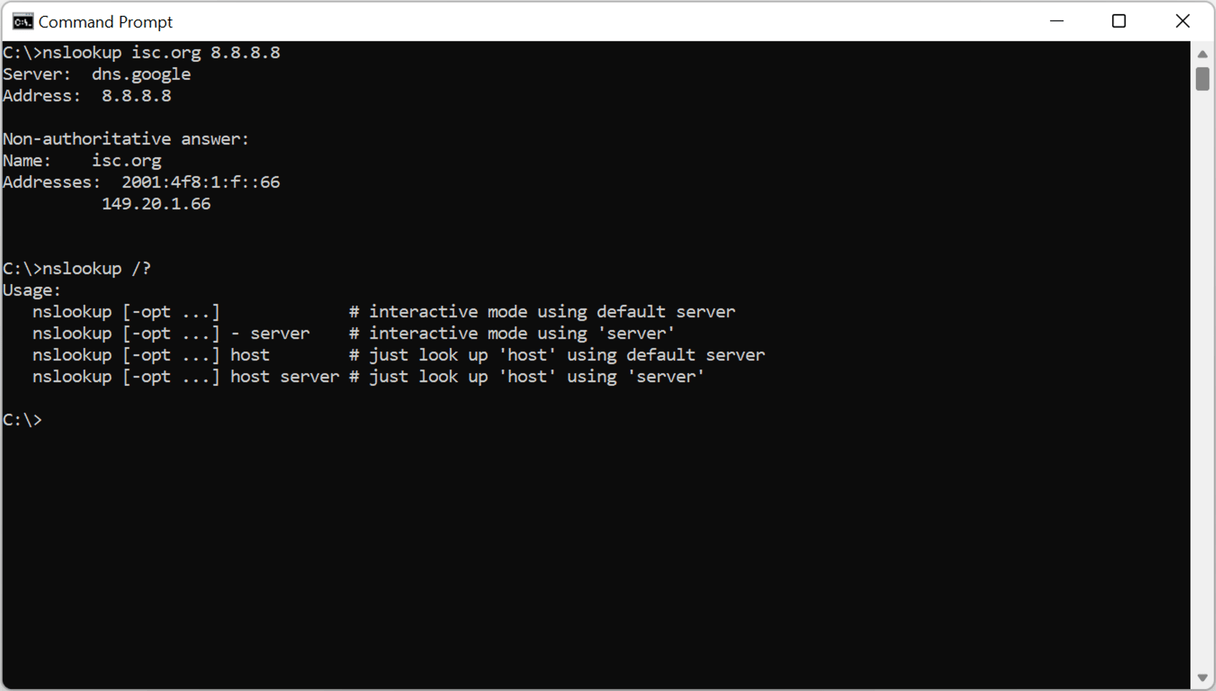
Open Command Prompt, type nslookup google.com, and check if it resolves using your new servers.
In practice, when I switched my home network to Cloudflare DNS, page loads dropped from 3 seconds to under 1 second on average. For a small business setup I helped with, it blocked phishing sites, preventing a potential data breach. Another time, on a gaming rig, custom DNS reduced latency by 20ms, making online play smoother.
