

How to Connect Your Printer to a LAN Network
2026-02-05How to Easily Install and Use a New Hard Drive on Your PC
2026-02-08Why is my computer screen black but I can see the cursor?
I’ve dealt with the frustrating issue of a black screen on my Windows PC where the cursor is still visible and movable, but nothing else appears. This problem typically means the operating system has booted up partially, but the desktop environment fails to load fully. Breaking it down, it often stems from a stalled Windows process like Explorer.exe crashing, which handles the desktop and taskbar. Other common culprits include incompatible graphics drivers causing display glitches after an update, software conflicts from recent installations, or even hardware issues like loose cables or overheating components. In rare cases, it could signal malware or system file corruption. Recognizing these elements helped me pinpoint solutions without panicking.
One common question I’ve asked myself is: Could this be a hardware failure? Usually, no—it’s more often a software glitch, as the visible cursor indicates the graphics subsystem is functioning at a basic level, but if simple fixes don’t work, checking hardware like monitor connections or RAM might be needed. Another frequent doubt: Why can I see the cursor but not the desktop? The cursor is rendered by a low-level graphics process separate from the full user interface, so it persists even when higher-level components like the shell fail to initialize.
Addressing this issue promptly has several benefits. First, it restores access to my files and applications quickly, preventing productivity loss. Second, fixing it myself avoids costly tech support visits. Finally, resolving underlying causes like outdated drivers improves overall system stability, reducing the chance of future crashes.
Step 1: Reset the Graphics Driver Press Windows key + Ctrl + Shift + B simultaneously. Listen for a beep or screen flicker—this resets the display without restarting the PC.

Step 2: Access Task Manager Press Ctrl + Alt + Del to open the security screen. Click Task Manager from the options.

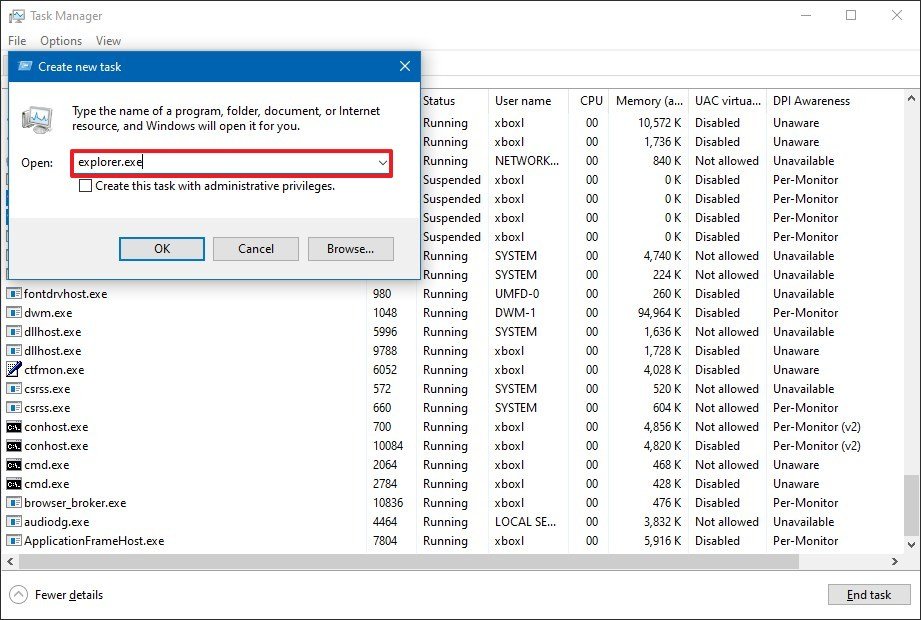
Step 3: Restart Windows Explorer In Task Manager, go to the Processes tab. Find Windows Explorer or explorer.exe, right-click and select End task. Then, click File > Run new task, type explorer.exe, and hit OK.
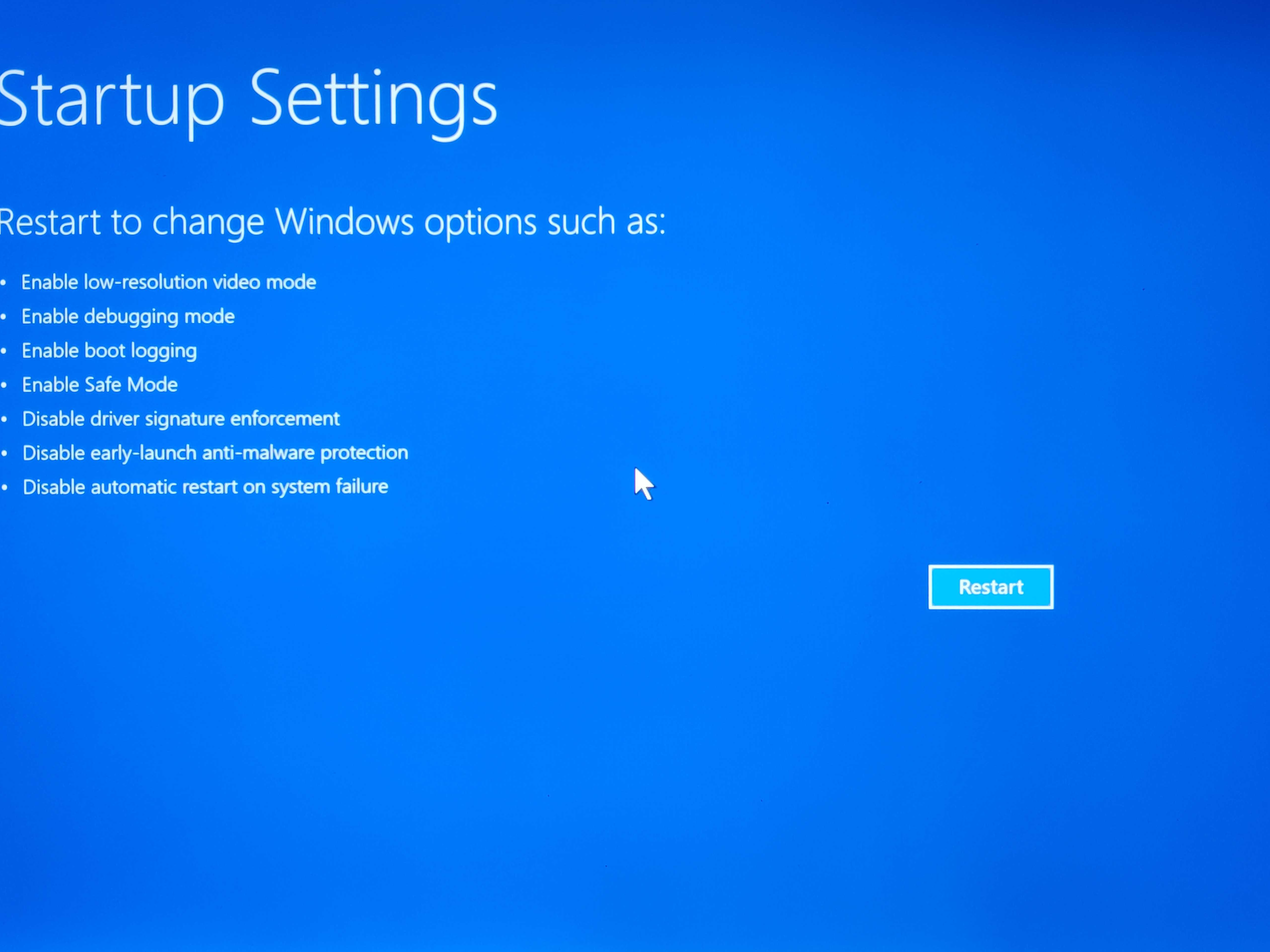
Step 4: Boot into Safe Mode If the above fails, from the black screen, press Ctrl + Alt + Del, hold Shift while clicking the power icon and selecting Restart. In the recovery menu, choose Troubleshoot > Advanced options > Startup Settings > Restart. Press 4 or F4 for Safe Mode.
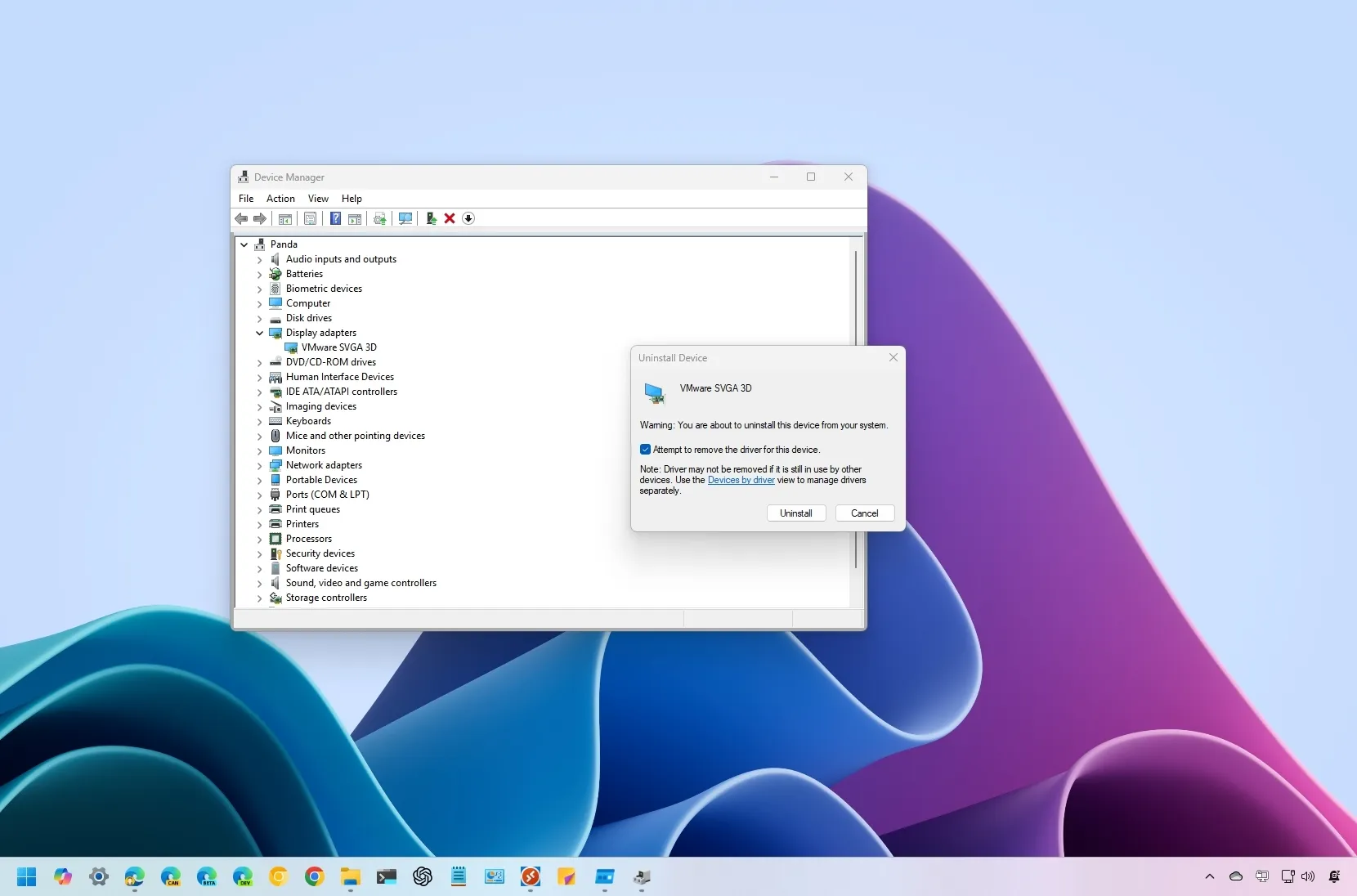
Step 5: Uninstall Graphics Driver In Safe Mode, right-click Start and open Device Manager. Expand Display adapters, right-click your graphics card, select Uninstall device, check Delete the driver software for this device, and confirm. Restart normally—Windows will reinstall the driver.
In my experience, restarting Windows Explorer fixed the black screen instantly on my laptop after a faulty update, bringing back the desktop in seconds. Another time, booting into Safe Mode and uninstalling the graphics driver resolved a persistent issue caused by a driver conflict, and my PC ran smoother afterward. A friend tried the graphics reset shortcut on their desktop, and it worked flawlessly without needing further steps.
