

Master Precise Photoshop Cutouts: Using Color Range and Channels for Professional Results
2026-02-02How to Easily Share a Printer on Your Home Network in Windows
2026-02-05How to Convert Color Photos to Stunning Black and White in Photoshop
As a photography enthusiast, I’ve always been fascinated by the power of black and white images. Converting a color photo to black and white isn’t just about removing colors; it’s a creative process that strips away distractions and emphasizes elements like texture, light, shadow, and contrast. This technique, often called desaturation or grayscale conversion, transforms vibrant scenes into timeless monochromes by mapping colors to shades of gray based on their luminosity. In Photoshop, we achieve this through adjustments that allow precise control over how each color channel contributes to the final grayscale image, making it far superior to simple filters in other apps.
One common question I get is: What’s the difference between black and white conversion and just desaturating an image? Desaturation simply reduces color saturation to zero, which can result in a flat, lifeless image because it treats all colors equally. In contrast, black and white adjustment in Photoshop lets you tweak individual color channels—like making reds darker or blues lighter—for a more dynamic and professional result. Another frequent query: Can I revert back to color after converting? Absolutely, if you use non-destructive methods like adjustment layers, which I always recommend. This way, the original color data remains intact, and you can toggle the effect on and off or edit it anytime.
Turning images black and white offers several advantages that have elevated my photo editing game. It creates a dramatic, emotional impact by focusing viewer attention on composition and storytelling rather than colorful distractions. It also gives photos a classic, artistic feel, reminiscent of film photography, which can make everyday shots look professional. Plus, it’s great for printing, as black and white images often reproduce better in monochrome media without color inconsistencies.
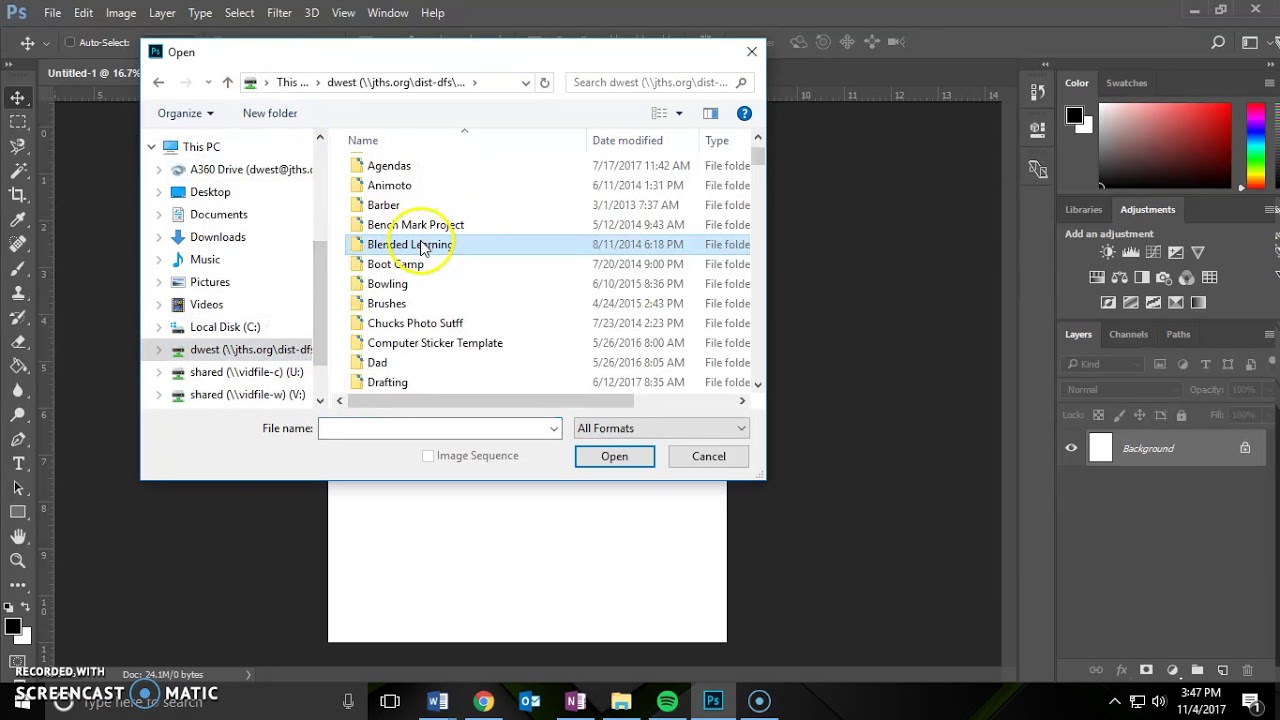
Step 1: Open Your Image in Photoshop Launch Photoshop and go to File > Open. Select your color photo from your files and click Open.
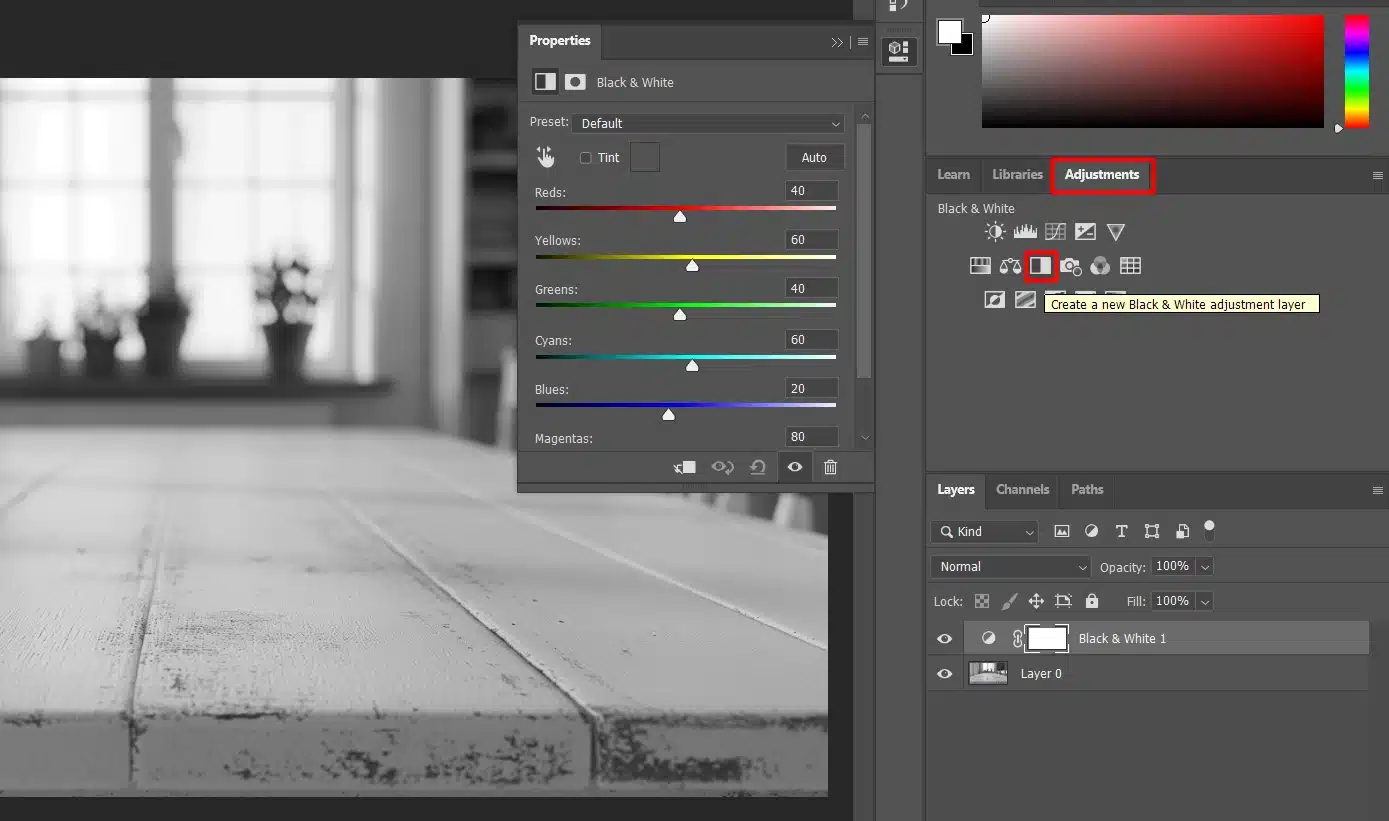
Step 2: Add a Black and White Adjustment Layer Click on the Adjustments panel or go to Layer > New Adjustment Layer > Black & White. This creates a non-destructive layer.
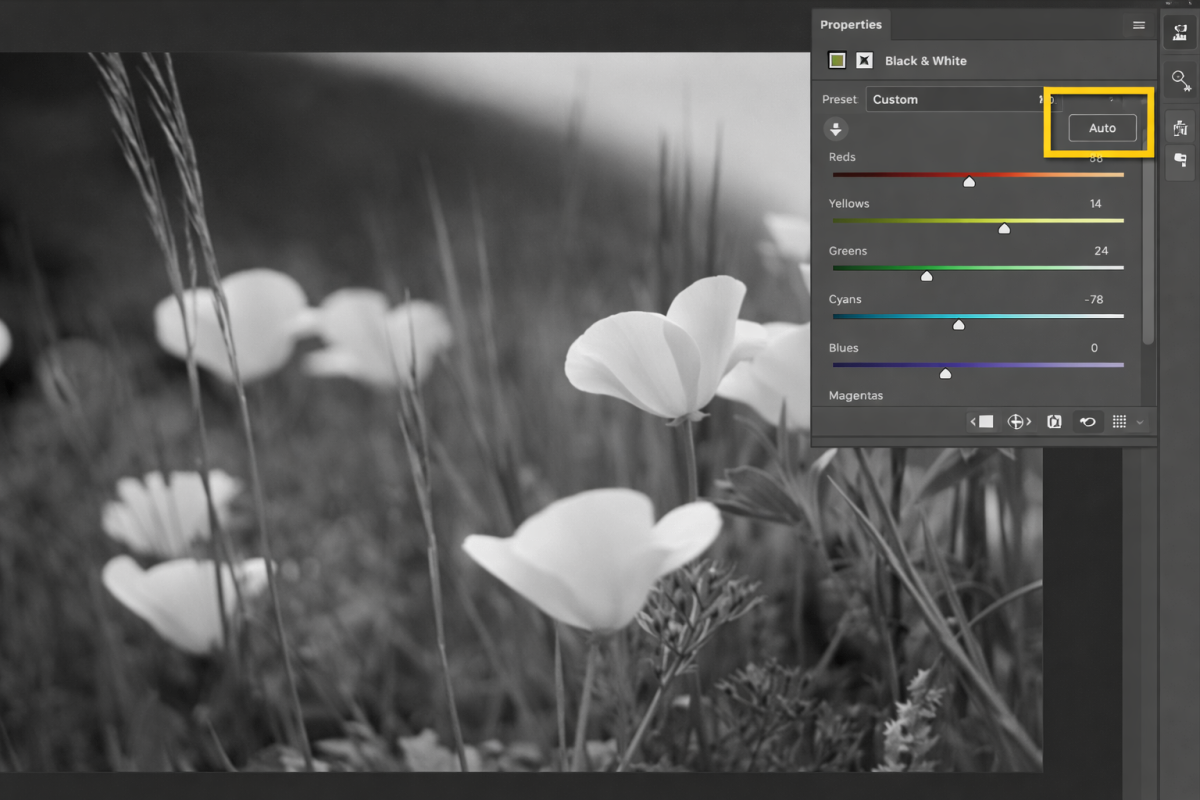
Step 3: Fine-Tune the Conversion In the Properties panel, use the color sliders (Reds, Yellows, etc.) to adjust tones. Click Auto for a quick start, then tweak for contrast.
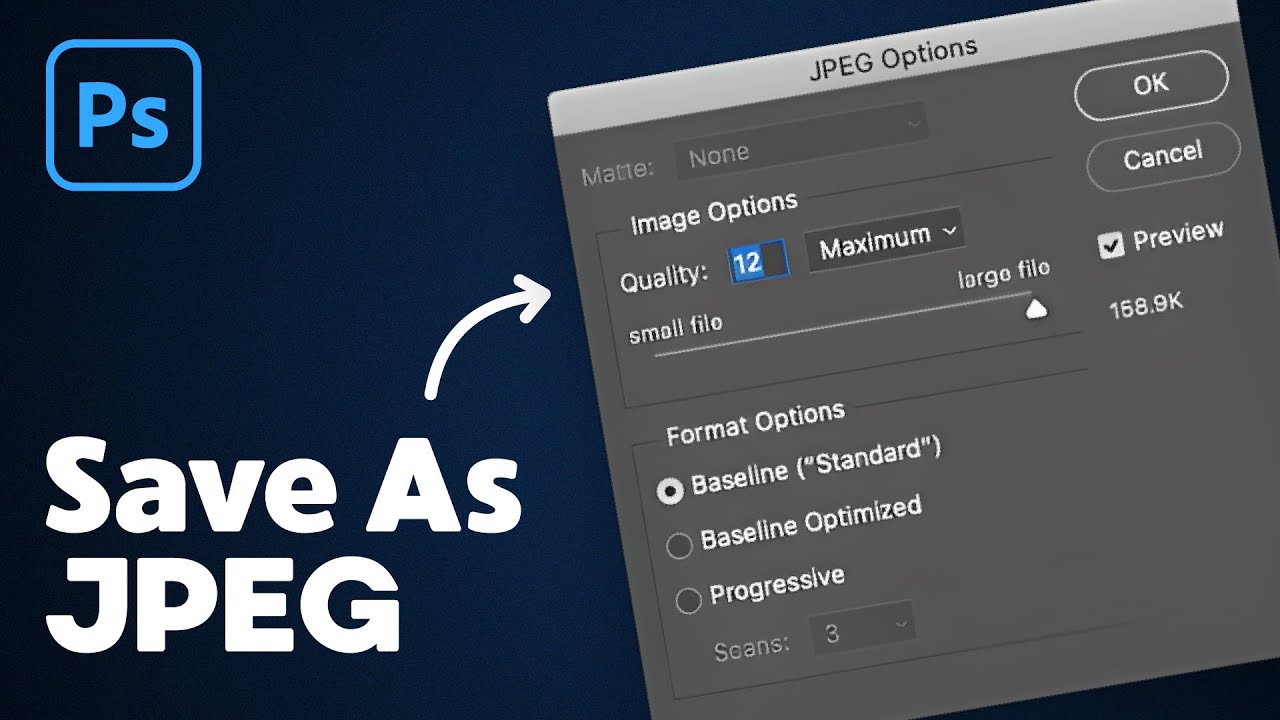
Step 4: Save Your Black and White Image Go to File > Save As, choose JPEG or your preferred format, set quality to high, and click Save.
In my practice, I once converted a vibrant portrait of a friend, and the black and white version highlighted the textures in his hair and the intensity in his eyes, turning a casual shot into a striking piece.
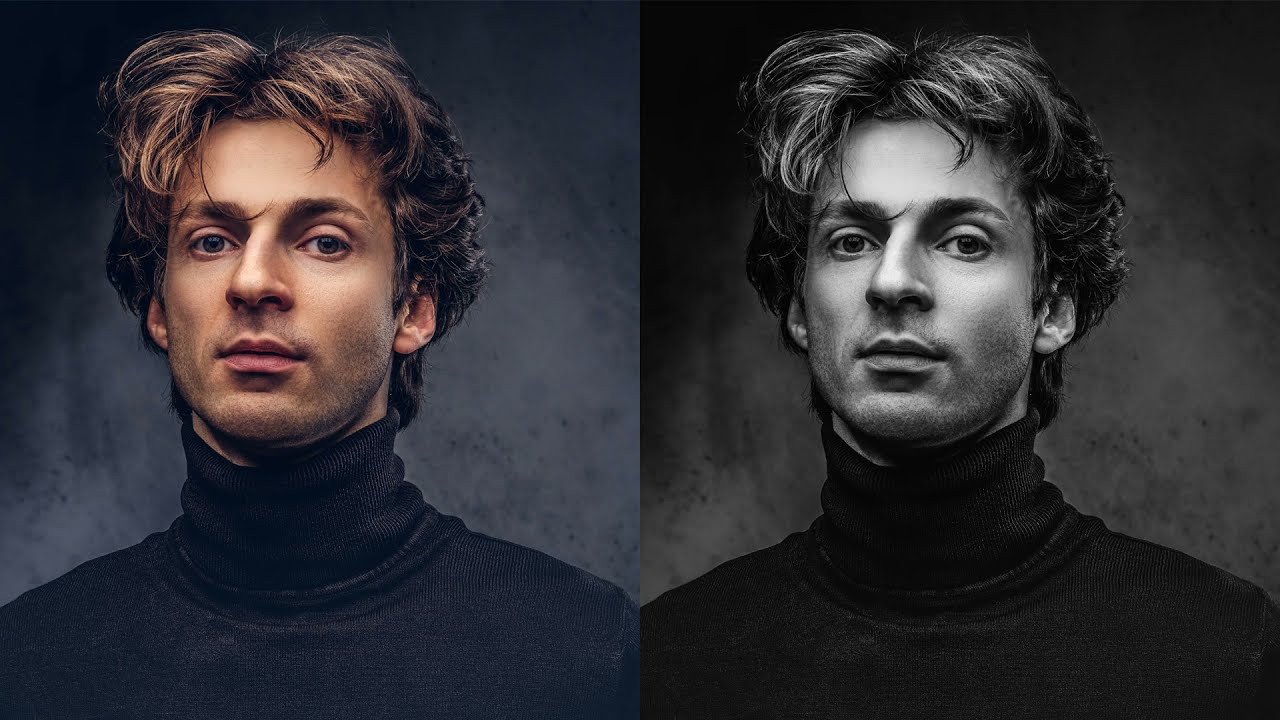
Another time, I applied it to a landscape photo of a windy field; the result emphasized the dramatic lighting and movement, making it feel more artistic and evocative.
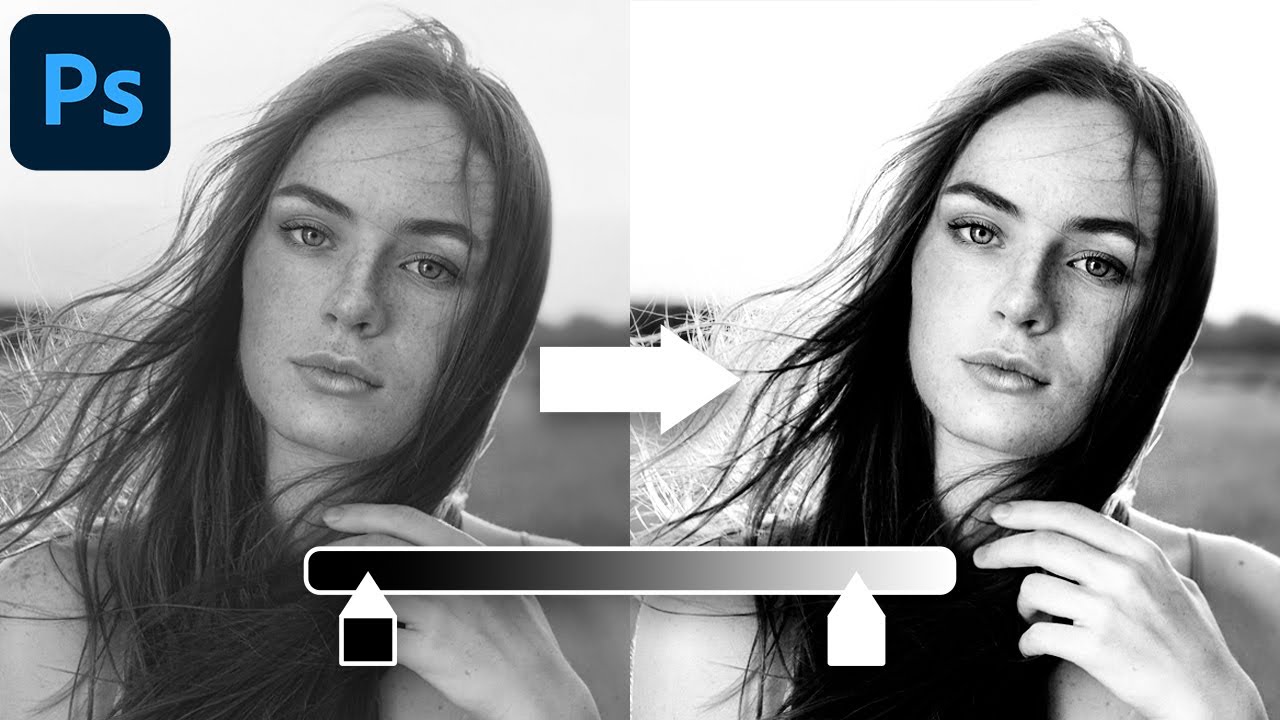
Finally, for a family photo, the conversion removed distracting background colors, focusing on expressions and creating a timeless keepsake that printed beautifully.
