Mastering the Pen Tool in Photoshop: Essential Tips for Creating Perfect Paths
2026-01-31Master Photoshop Batch Processing: Quick and Easy Tutorial to Automate Image Editing
2026-02-02Unlock Sparkling Eyes: How to Brighten Eyes in Photoshop Like a Pro
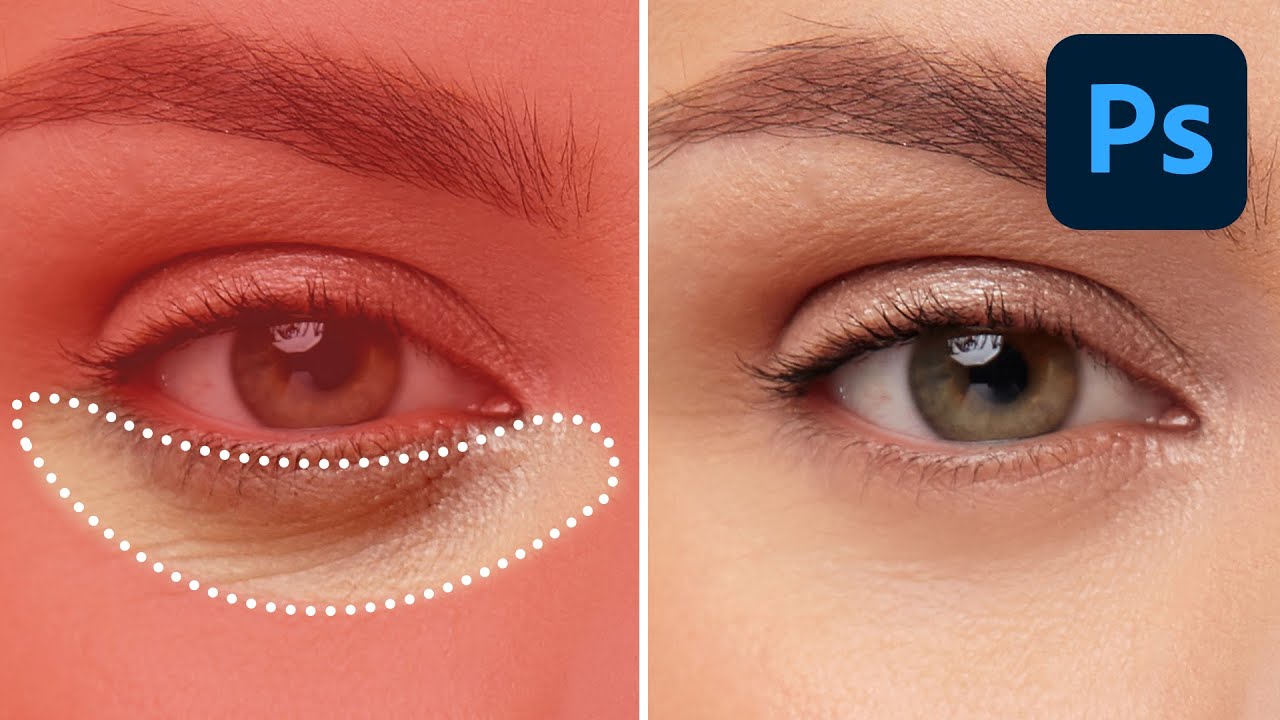
As a passionate photo editor, I’ve always believed that the eyes are the windows to the soul in any portrait. Brightening eyes in Photoshop means enhancing the brightness, contrast, and color saturation of the iris and sclera (the white part) without making the image look unnatural. This technique focuses on selective adjustments to make the eyes pop, drawing attention to them while preserving the overall realism of the photo. It breaks down into understanding layer management, selection tools, and adjustment layers like curves or levels to control light and shadows specifically in the eye area.
One common question I get is: What if the eyes look overly bright after editing? The key is subtlety—always zoom in and compare with the original. If it’s too intense, lower the opacity of your adjustment layer to blend it naturally. Another frequent doubt: Can this work on any eye color? Absolutely, whether brown, blue, or green; the process enhances natural hues by boosting midtones and highlights, making any color more vibrant without altering the base tone.
Mastering this skill brings several advantages. First, it transforms dull portraits into captivating ones, making subjects appear more alive and engaging. Second, it’s non-destructive, allowing endless tweaks without ruining the original file. Finally, it elevates your editing game, helping in professional fields like fashion or wedding photography where eye details can make or break an image.
Step 1: Duplicate the Layer Right-click the background layer in the Layers panel and select Duplicate Layer. This creates a safe copy to work on.

Step 2: Select the Eyes Zoom in and use the Lasso Tool (shortcut: L) to draw around each eye, including the iris and whites but avoiding eyelids. Hold Shift to add selections for both eyes.
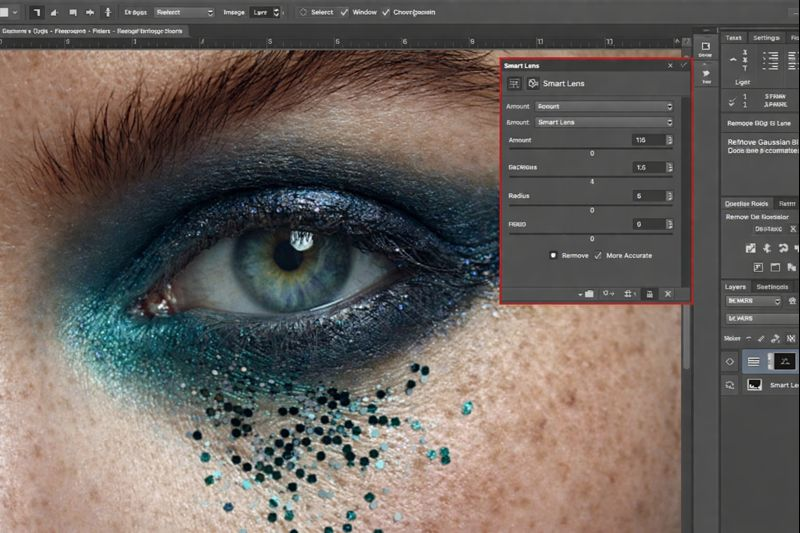
Step 3: Add a Curves Adjustment Layer Go to Layer > New Adjustment Layer > Curves. This clips to your selection, affecting only the eyes.
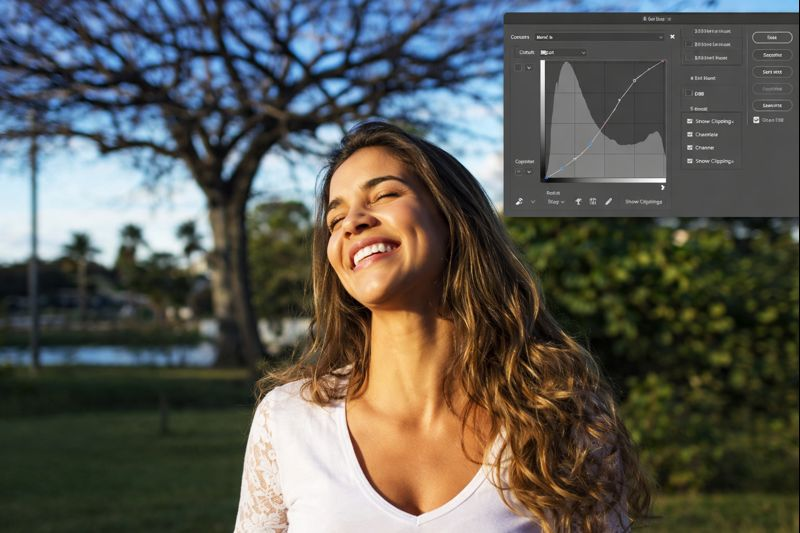
Step 4: Adjust the Curves In the Curves panel, drag the curve line upward in the midtones to brighten. Fine-tune by pulling highlights up and shadows down for contrast.
Step 5: Refine with Layer Mask If edges look harsh, select the mask thumbnail and use a soft brush (opacity 50%) to paint black over unwanted areas, blending seamlessly.
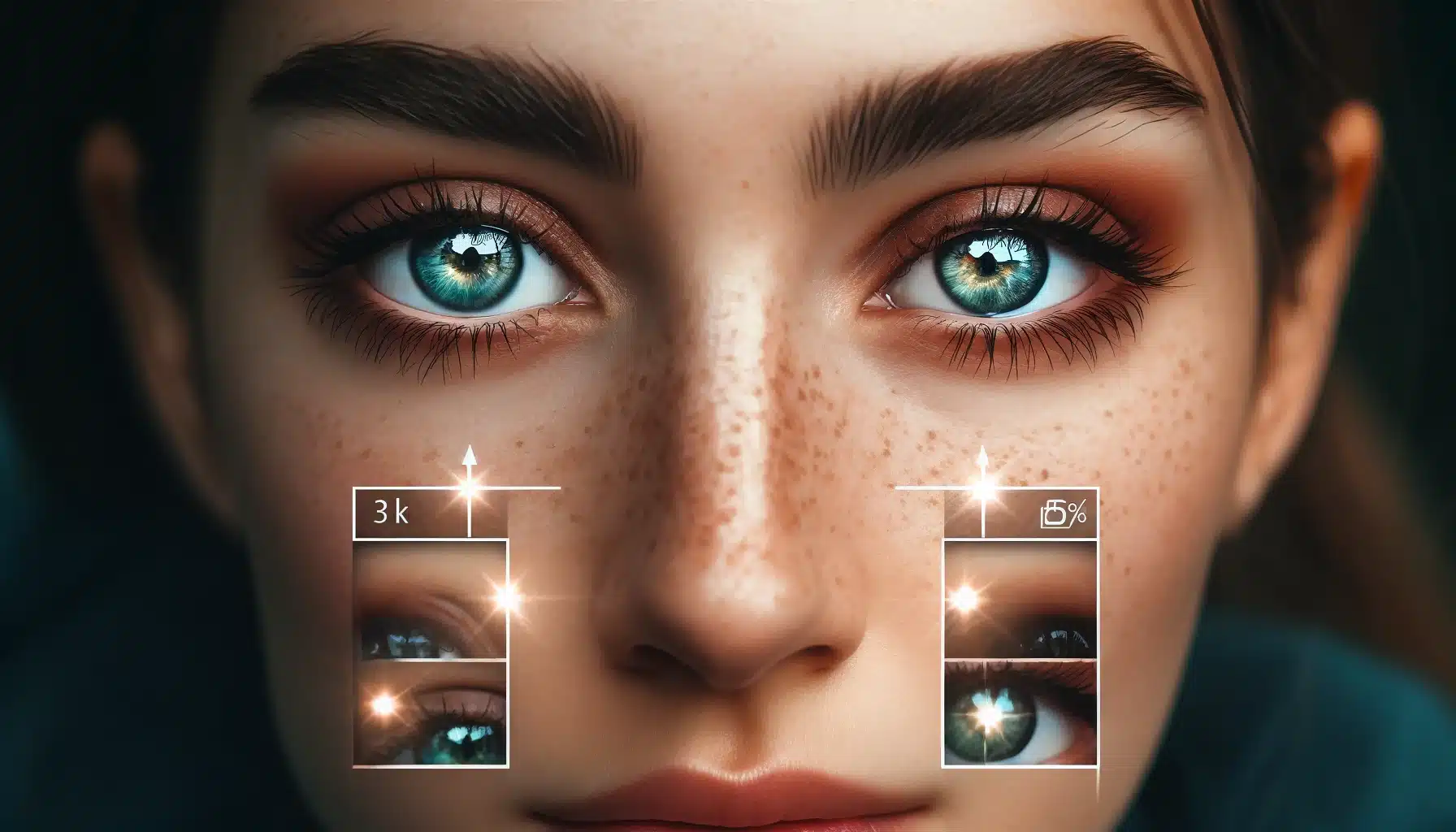
In my first practice on a family portrait, the subject’s brown eyes went from flat to mesmerizing, adding warmth that made the photo share-worthy on social media.
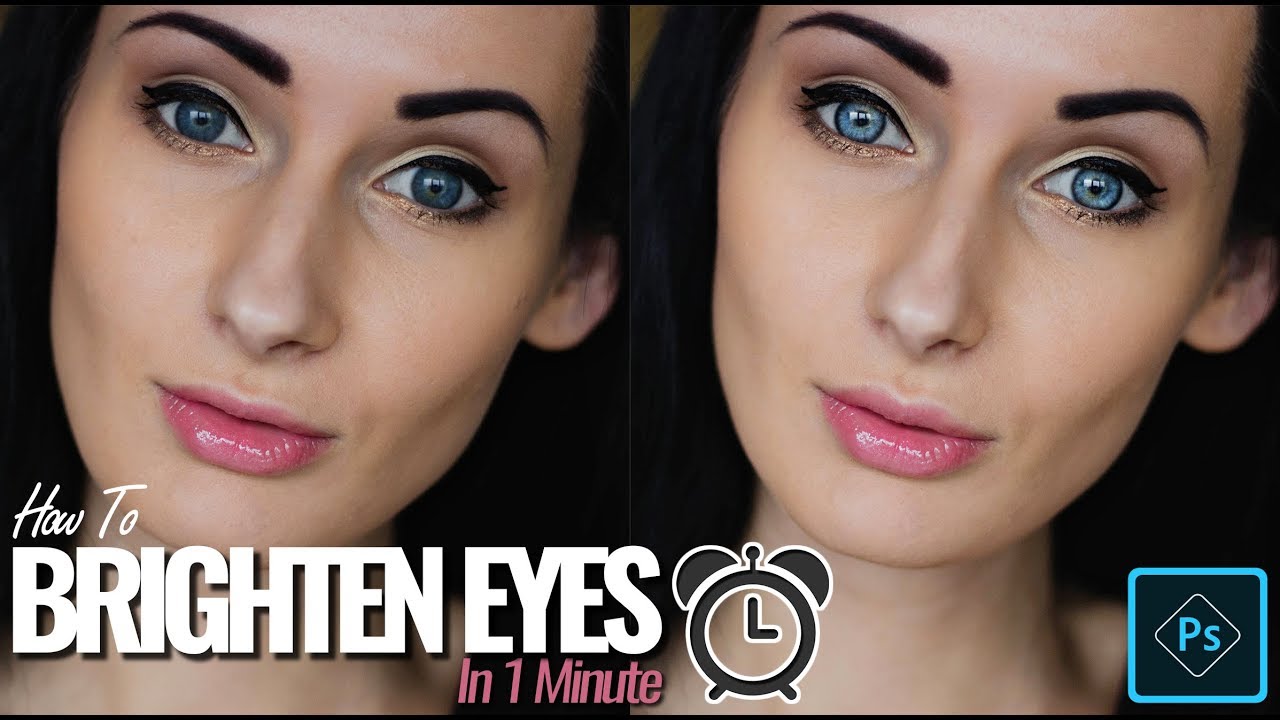
For a professional headshot, brightening the blue eyes reduced under-eye shadows, resulting in a polished look that impressed the client.
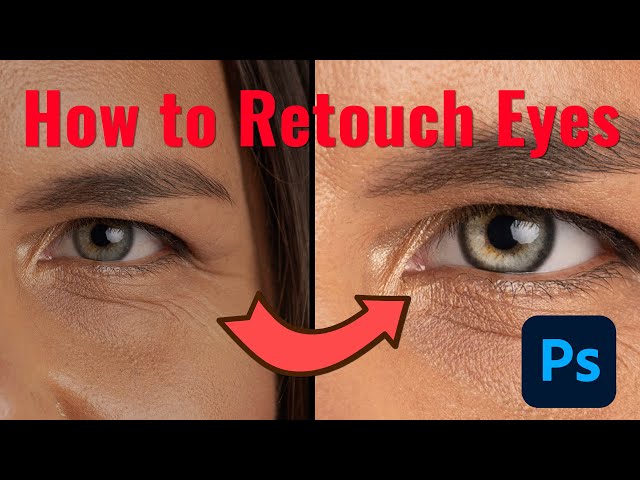
Finally, editing a candid shot turned tired eyes vibrant, enhancing the overall mood and earning compliments from friends.