

How I Downgraded from Windows 11 to Windows 10: Simple Step-by-Step Guide for Better Performance
2026-01-26Stop Windows Disk Check (CHKDSK) on Every Boot: Fast Fix for Windows 10/11
2026-01-29How to Permanently Disable Windows 11 Automatic Updates: Step-by-Step Guide with Screenshots
I’ve been using Windows 11 for years now, and while it’s a solid operating system, the automatic updates can be a real pain. They often pop up at the worst times, forcing restarts or slowing down my machine with background downloads. Automatic updates in Windows 11 are Microsoft’s way of ensuring your PC stays secure, patched against vulnerabilities, and equipped with new features. But “thoroughly disabling” them means stopping the system from checking, downloading, or installing updates without your explicit permission. This involves tweaking services, policies, or the registry to override the default behavior. It’s not just pausing—it’s a complete shutdown of the auto-update mechanism, which can be reversed if needed.
One common question I get is: “Is it safe to completely disable Windows 11 automatic updates?” Well, it’s generally not recommended for everyday users because you might miss critical security fixes, leaving your system vulnerable to threats. However, if you’re on a controlled network or manually check for updates regularly, it can be managed safely. Another frequent doubt is: “Will disabling updates void my warranty or break my PC?” No, it won’t void your warranty, and it doesn’t break the OS, but you should back up important data first in case something goes wrong during the process.
Disabling automatic updates in Windows 11 has several perks that I’ve experienced firsthand. First, it gives you full control over when updates happen, preventing those annoying forced reboots during important tasks. Second, it saves bandwidth, especially on metered connections, by avoiding large downloads in the background. Third, it can improve system stability if certain updates cause compatibility issues with your software or hardware—I’ve avoided a few buggy releases this way.
Step 1: Back Up Your Registry To start, always back up the registry to avoid any mishaps. Press Windows key + R to open the Run dialog, type regedit, and hit Enter. In the Registry Editor, click File > Export, select All under Export range, choose a save location, and name the file something like RegistryBackup.reg.
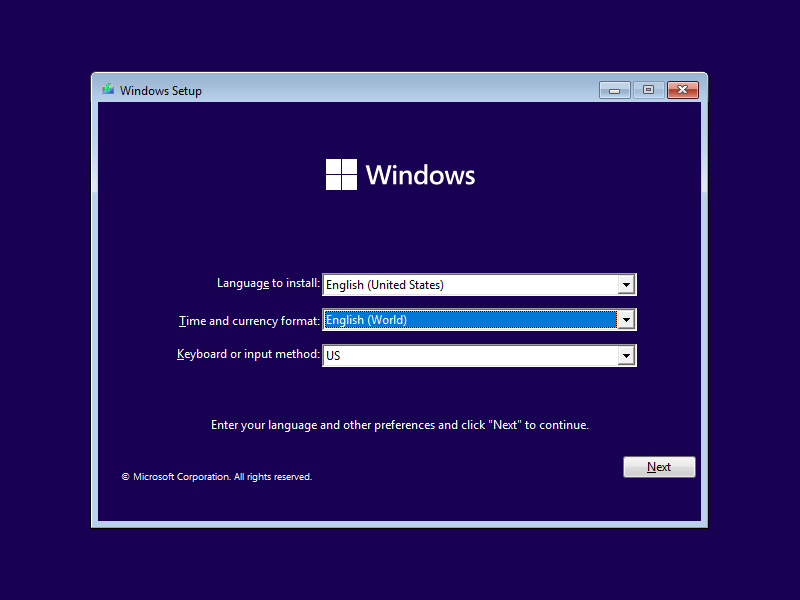
2-clicks to install Windows 11/10 without the third-party
Step 2: Open Registry Editor Press Windows key + R again, type regedit, and press Enter to launch the Registry Editor.

File:Windows Spotlight on Windows 11 with black background
Step 3: Navigate to the Windows Update Key In the left pane, expand to HKEY_LOCAL_MACHINE > SOFTWARE > Policies > Microsoft > Windows. Right-click Windows, select New > Key, and name it WindowsUpdate. Then, right-click WindowsUpdate, select New > Key, and name this one AU.
Frequently Asked Questions on Verge3D — Soft8Soft
Step 4: Create the NoAutoUpdate Value Right-click inside the AU folder, choose New > DWORD (32-bit) Value, and name it NoAutoUpdate. Double-click it, set the Value data to 1, and click OK.
Internationalization Testing: Best Practices Guide for 2026
Step 5: Restart Your Computer Close the Registry Editor and restart your PC for the changes to take effect. After rebooting, go to Settings > Windows Update to verify—no automatic checks should occur.
As an alternative for quicker results, you can disable the Windows Update service. Press Windows key + R, type services.msc, find Windows Update, right-click, select Properties, set Startup type to Disabled, and click Stop if it’s running.
In my own practice, after applying this registry tweak on my main workstation, I noticed immediate relief—no more update notifications disrupting my video editing sessions, and my system felt snappier without background processes. A colleague tried it on their laptop during a long trip and reported saving gigabytes of data on a limited hotspot connection. Finally, when I tested it on a virtual machine, it prevented a problematic update from installing, allowing me to roll it out manually later without issues.
