

Windows 10 Sticky Notes: Where to Find, Open & Use Desktop Sticky Notes (2026 Easy Guide)
2026-01-25How to Permanently Disable Windows 11 Automatic Updates: Step-by-Step Guide with Screenshots
2026-01-28How I Downgraded from Windows 11 to Windows 10: Simple Step-by-Step Guide for Better Performance
Recently, I decided to downgrade my PC from Windows 11 back to Windows 10 because my older hardware struggled with Windows 11’s stricter requirements like TPM 2.0 and Secure Boot, plus I missed the familiar interface and better compatibility with my software. Downgrading involves reverting your operating system to Windows 10, either through a limited-time rollback feature or a full clean installation. The rollback preserves files and apps within the 10-day window after upgrading, while a clean install wipes the drive for a fresh start but requires careful preparation.
Can I downgrade from Windows 11 to Windows 10 after the 10-day period? Yes, but only through a clean installation using bootable media, and you must back up all data first since files won’t be preserved.
Will my Windows license still work after downgrading? Usually yes—if your device was previously activated with Windows 10, the digital license linked to your hardware reactivates automatically during setup.
Downgrading offered me noticeable improvements: smoother performance and reduced lag on my older CPU and RAM, return to the classic Start menu and taskbar layout without forced centering or extra widgets, fewer compatibility issues with legacy programs and printers, and lower resource usage for better battery life on laptops.
Step 1: Verify the Go Back Option (If Within 10 Days)
Press Windows + I to open Settings, navigate to System > Recovery, and look for the Go back button under Recovery options. If available, click Go back, select a reason, and confirm to start the rollback process. This method keeps your personal files and most apps intact.
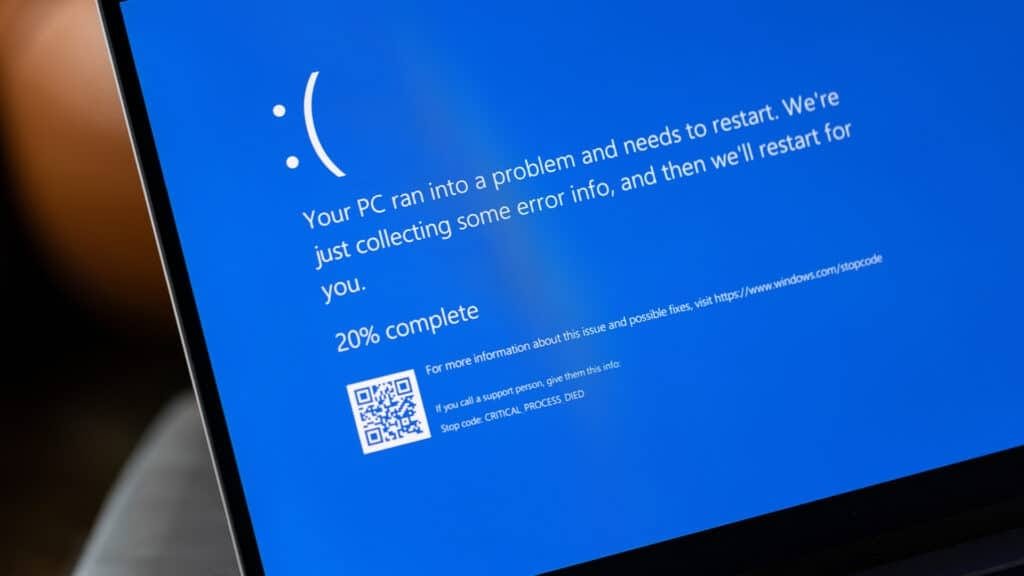
System Repair: Book Now for Fast & Efficient Service
Step 2: Back Up All Important Files
Copy critical documents, photos, and data to an external hard drive or upload to OneDrive via File Explorer. Use File History in Control Panel > Backup and Restore if set up previously, or manually transfer folders. Double-check everything before proceeding.

Fix the “Your File History drive was disconnected for too long
Step 3: Create Windows 10 Installation Media
Visit the official Microsoft Windows 10 download page, download the Media Creation Tool, run it as administrator, select Create installation media (USB flash drive, DVD, or ISO file), choose your language/edition/architecture, and follow prompts to create a bootable USB (at least 8GB).
Step 4: Boot from the USB Drive
Insert the USB, restart your PC, and enter BIOS/UEFI setup (press F2, Del, F10, or Esc during boot). Set the USB as the first boot device in the boot order, save and exit, then restart to boot into Windows 10 setup.

Adjusting American Megatrends boot order | DEL or F2 to see
Step 5: Perform Clean Installation
In Windows 10 setup, select your language and preferences, click Install now, accept terms, choose Custom: Install Windows only (advanced). Delete existing partitions on the drive (ensure backups are complete!), select the unallocated space, and click Next to install.
How to change the UEFI System Partition size in Windows Setup
Step 6: Complete Setup and Activate
Follow the out-of-box experience (OOBE) to create an account or sign in. Windows 10 should activate automatically using your hardware-linked digital license. Update drivers and restore your backed-up files.
After completing these steps on my main desktop, the system booted noticeably faster with no more random freezes, and older games ran without compatibility errors. On my laptop, battery life improved by about 25% under normal use, and legacy peripherals like my scanner connected seamlessly without driver conflicts. Overall, returning to Windows 10 restored the responsive, lightweight experience I preferred on my hardware. Always back up first and proceed carefully to avoid data loss.
