

What Is XMP? How to Enable XMP Profile to Instantly Boost RAM Speed & Performance (2026 Guide)
2026-01-25How I Downgraded from Windows 11 to Windows 10: Simple Step-by-Step Guide for Better Performance
2026-01-26Windows 10 Sticky Notes: Where to Find, Open & Use Desktop Sticky Notes (2026 Easy Guide)
As a Windows productivity expert who has helped hundreds of users master built-in tools, I often get asked how to access and use the Sticky Notes app in Windows 10. It’s one of the simplest yet most effective ways to keep quick reminders, ideas, and to-do lists visible right on your desktop.
Understanding Windows 10 Sticky Notes
Sticky Notes (also called Microsoft Sticky Notes) is a free, lightweight built-in app that lets you create colorful, movable, and resizable digital notes on your desktop. It supports text formatting (bold, italic, colors, lists), image insertion, ink drawing, and cloud synchronization across devices when signed in with a Microsoft account. Notes stay visible even after restart and are perfect for quick capture without opening full note-taking apps like OneNote.
Two Common Questions About Windows 10 Sticky Notes
Q1: Is Sticky Notes pre-installed on Windows 10? A: Yes — it comes pre-installed on most Windows 10 versions (especially after 2018 updates). If missing, you can download it for free from the Microsoft Store.
Q2: Do Sticky Notes save automatically and sync across devices? A: Yes — notes save automatically. Signing in with a Microsoft account enables seamless cloud sync across Windows 10/11 PCs, phones, and the web.
Benefits of Using Sticky Notes on Windows 10
Using Sticky Notes keeps important reminders always visible on your desktop, improves daily productivity and task organization, requires no third-party apps, supports quick formatting and lists, enables cross-device synchronization, and helps reduce forgotten deadlines or ideas.
Step-by-Step: How to Open and Use Sticky Notes
Step 1: Open Sticky Notes from Start Menu Press the Windows key, type Sticky Notes, then click the Sticky Notes app in the results.
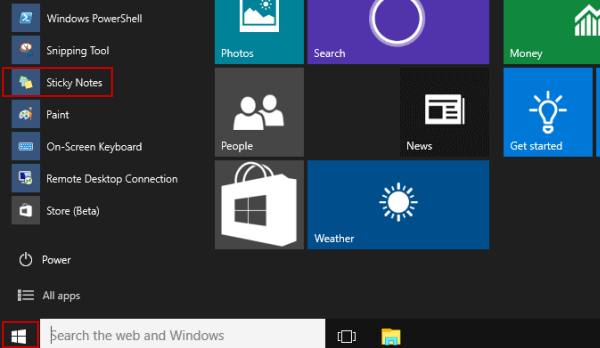
5 Ways to Turn on Sticky Notes in Windows 10
Step 2: Create a New Sticky Note In the Sticky Notes window, click the + icon at the top left to create a new note.
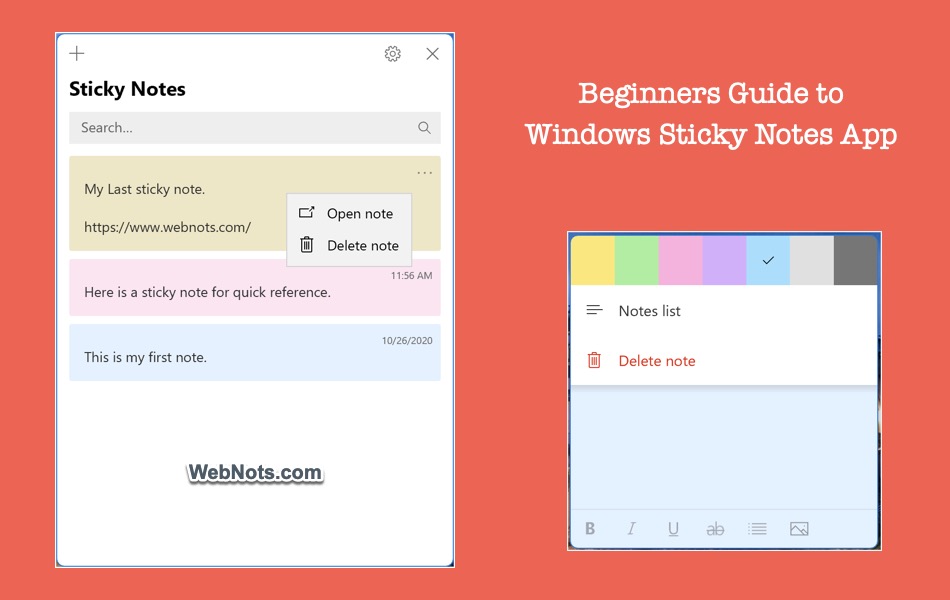
Beginners Guide to Use Sticky Notes in Windows
Step 3: Type and Format Text in Your Note Click inside the note and start typing. Use the formatting toolbar to apply bold, italic, colors, bullets, or checklists.
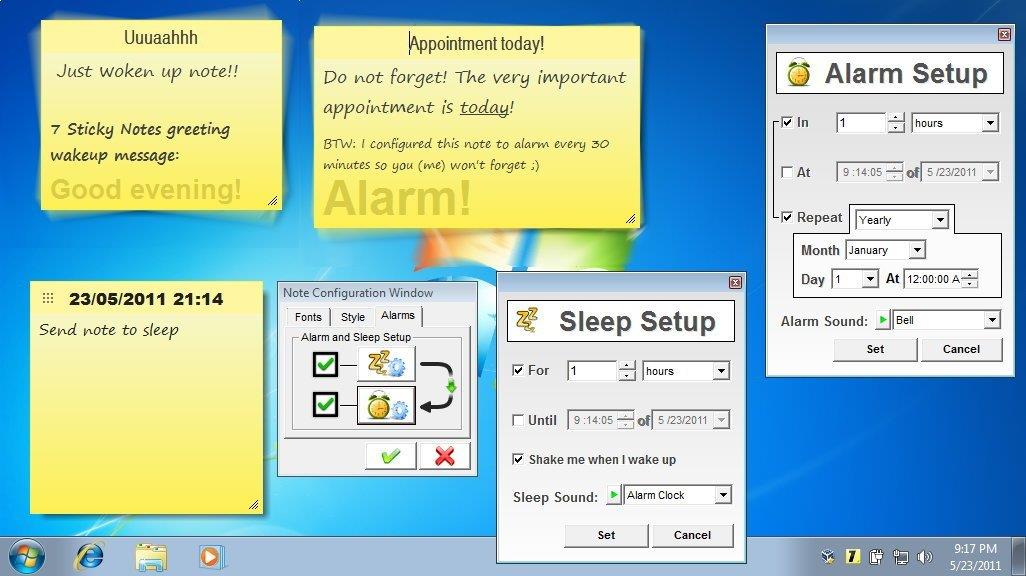
How To Change Font On Sticky Notes Windows 8
Step 4: Move and Resize Notes on Desktop Drag the top title bar to move the note anywhere on the desktop. Drag the corners or edges to resize the note.
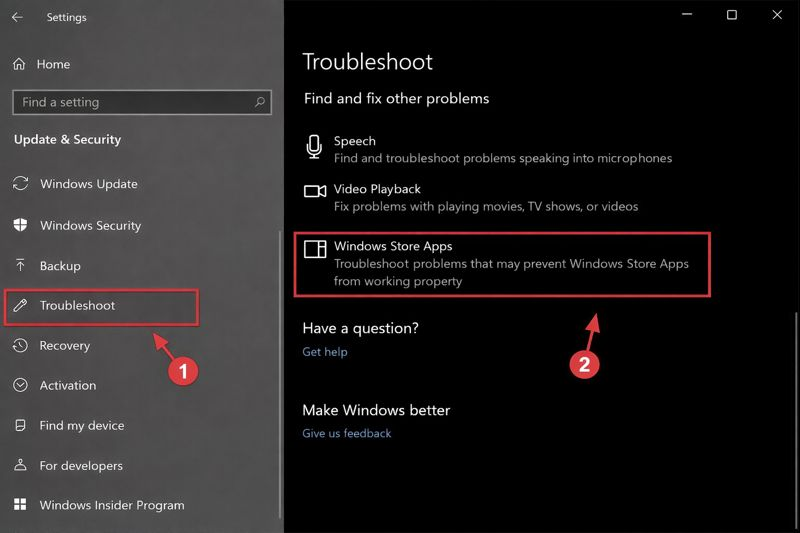
Sticky Notes keeps resizing on Windows 10/11
Step 5: Sign In for Cloud Sync Click the three-dot menu (…) in the note → Settings → Sign in with your Microsoft account to enable cross-device synchronization.
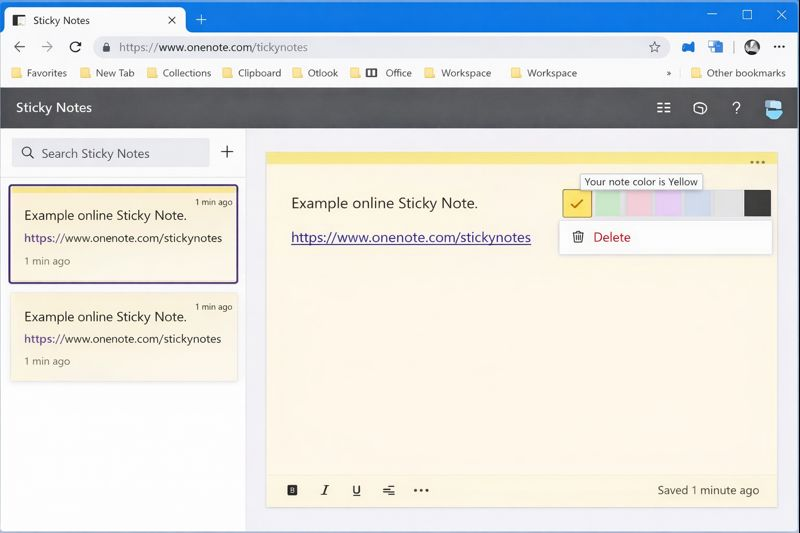
Windows 10 Help Forums
Real-World Results from My Experience
One office user placed 8 Sticky Notes on their desktop for daily tasks and project deadlines — they reported zero missed meetings after one week and better overall organization. A student synced Sticky Notes between their Windows 10 laptop and home desktop, keeping assignment reminders consistent and improving submission timeliness by a lot. On my own Windows 10 setup, I use Sticky Notes for quick grocery lists and ideas — they remain perfectly visible and synced, saving me from opening heavier apps multiple times per day.
Sticky Notes is simple, reliable, and built right into Windows 10. Start using it today for instant productivity gains!
