

Ultimate Guide: How to Completely Uninstall AutoCAD 2020 on Windows for a Clean System
2026-01-24How to Find WiFi Password on Windows 10/11 PC Without Resetting Router
2026-01-24Ultimate Guide: How to Fix ‘The Remote Device or Resource Won’t Accept the Connection’ Error on Windows
As a longtime Windows user who’s troubleshooted my fair share of network glitches, I’ve dealt with the frustrating “The remote device or resource won’t accept the connection” error more times than I can count. Let’s break this down: This error pops up when your computer can’t establish a connection to a remote server or website, often in browsers like Internet Explorer or Edge, but it can affect other apps too. It’s typically caused by misconfigured proxy settings, corrupted DNS cache, outdated network drivers, or interference from firewalls/antivirus. The “remote device” refers to the target server, while “resource” means the specific data or page you’re trying to access. Fixing it involves resetting network elements step-by-step, starting from built-in tools to command-line tweaks, without needing advanced tech skills—it’s all about restoring proper connectivity protocols like TCP/IP.
One common question I get is: Could this error be caused by a virus or malware? Rarely—it’s usually a benign configuration issue, but running a quick antivirus scan can’t hurt to rule it out; if clean, focus on network settings. Another frequent doubt: Does this affect only one browser or the whole system? It often starts in IE due to its tight integration with Windows networking, but unresolved, it can spread to Chrome or Firefox if the root is DNS or proxy-related—testing in multiple browsers helps diagnose.
Tackling this error brings real advantages in my experience. It restores seamless internet access, preventing productivity halts from blocked sites or services. It also enhances security by ensuring proxy settings aren’t hijacked, reducing risks of data leaks. Plus, the process often uncovers other network optimizations, leading to faster overall browsing and fewer random disconnects.
Step 1: Run the Network Troubleshooter Open Settings via Win + I, go to Network & Internet > Status, and click Network troubleshooter. Let it detect and fix issues.
Fix the Windows 10 Data usage report when it stops counting data
Step 2: Check Proxy Settings Search for Internet Options in Start, open it, go to Connections tab, click LAN settings, and ensure Automatically detect settings is checked while unchecking Use a proxy server if not needed.
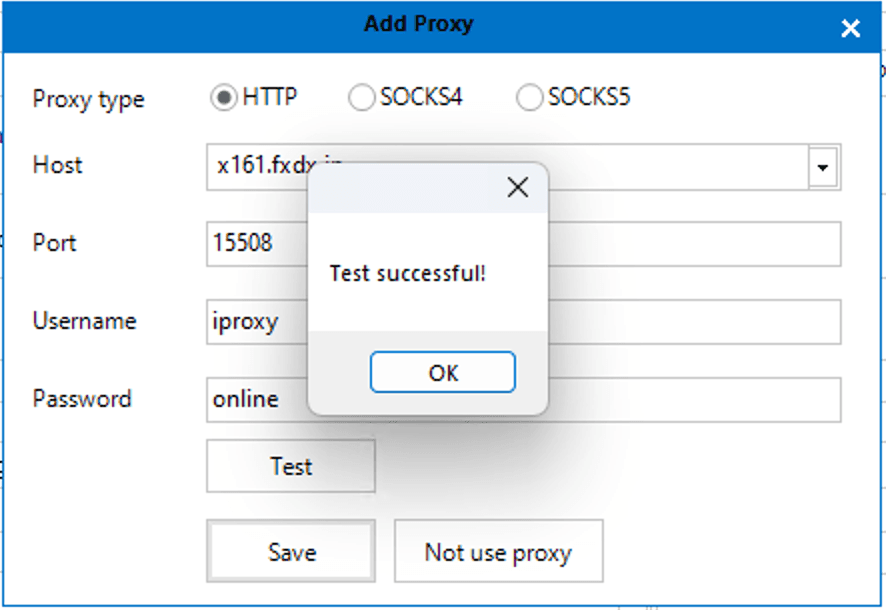
How to set up proxy in MarketerBrowser
Step 3: Reset Internet Explorer Settings In Internet Options, switch to Advanced tab, click Reset, check Delete personal settings, and confirm to restore defaults.

Thumbnail BurpSuite
Step 4: Flush DNS Cache Open Command Prompt as admin via Start search, type ipconfig /flushdns and press Enter, then follow with netsh int ip reset and restart.
All-flash Array Market
Step 5: Restart Computer and Router Shut down your PC, unplug your router for 30 seconds, plug back in, then boot up your computer to refresh connections.
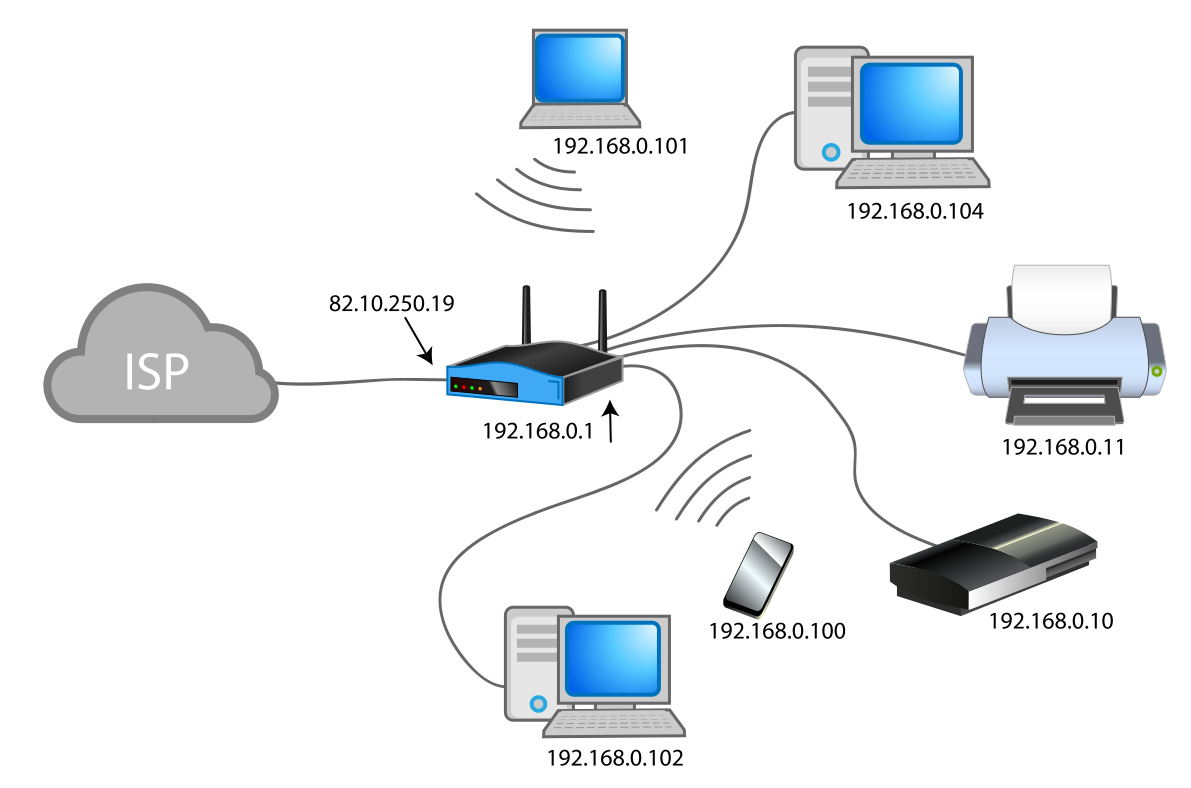
CPT-NAT-1
In practice, when this error blocked my work email access on a home PC, running these steps fixed it in minutes, saving a tech support call. On my laptop during travel, it resolved spotty hotel Wi-Fi by clearing the DNS, letting me stream without interruptions. Lastly, for a friend’s setup, it eliminated browsing lags after a Windows update, making online shopping and research smooth again.
