

Ultimate Guide: How to Easily Customize App Icons and Names on Windows for a Personalized Desktop
2026-01-24Ultimate Guide: How to Disable Startup Programs on Windows to Boost Boot Speed
2026-01-24Ultimate Guide: How to Set a Boot Password on Your Laptop for Ultimate Security
As a tech enthusiast who’s secured multiple devices over the years, I’ve found setting a boot password on my laptop to be a game-changer for privacy. Let’s break this down: A boot password, often called a BIOS or UEFI password, is a security feature embedded in your laptop’s firmware. It’s prompted right after powering on, before the operating system even loads, preventing unauthorized users from accessing or booting the system. This differs from OS-level passwords (like Windows login) as it’s hardware-enforced. On most laptops, it’s set via the BIOS/UEFI setup utility, which you access during startup. The password can be a supervisor type (for full admin control) or user type (basic boot lock), and it’s stored in non-volatile memory, surviving reboots but erasable via hardware resets if needed.
One question I often hear is: What if I forget the boot password? It’s a valid concern—unlike OS passwords, recovery might require technical steps like removing the CMOS battery or using manufacturer tools, but it’s doable without data loss in most cases. Another common doubt: Does this work on all laptops? Not universally; older models or some budget ones might lack the option, but modern Windows, macOS, or Linux laptops from brands like Dell, HP, or Lenovo typically support it in their BIOS settings—check your manual for compatibility.
The perks of adding a boot password are substantial in my experience. It ramps up security by blocking physical access thieves or snoops, safeguarding sensitive data even if the laptop is stolen. It also promotes better habits, like combining it with full-disk encryption for layered protection. Plus, it’s peace of mind—knowing your device won’t boot without your input deters casual tampering, especially in shared environments like offices or homes with kids.
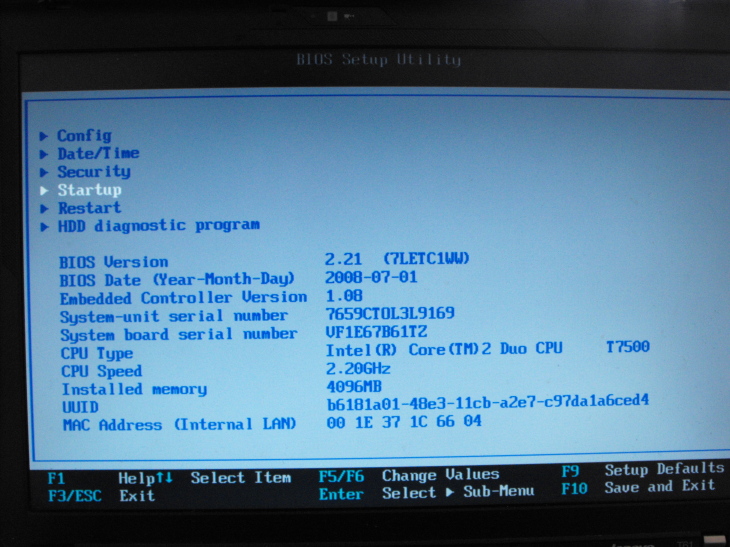
Step 1: Restart and Enter BIOS Setup Power off your laptop, then turn it on and repeatedly press the BIOS key (usually F2, Del, F10, or Esc—check your model’s manual) during the boot logo to enter the setup utility.

Trusted Platform Module
Step 2: Navigate to the Security Tab Once in BIOS, use arrow keys to go to the Security or Password section. This tab houses password options.

Advanced BIOS Features
Step 3: Set the Supervisor or User Password Select Set Supervisor Password or User Password, enter your desired strong password (mix letters, numbers), and confirm it in the prompt.
File:Puredyne
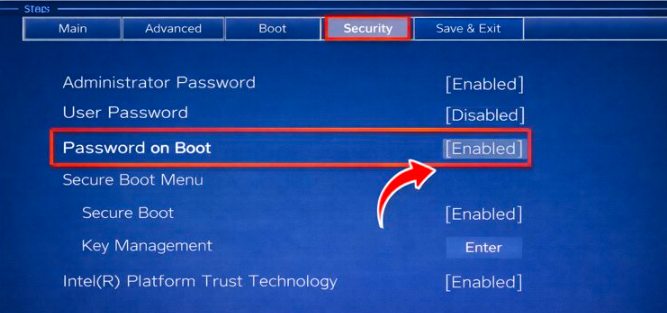
Step 4: Enable Password on Boot In the same tab, toggle Password on Boot or similar to Enabled, ensuring it requires input at startup.
Step 5: Save Changes and Exit Press F10 to save, confirm with Yes, and exit. Your laptop will reboot and prompt for the password.
Binarycent Login: Comprehensive Guide From Traders Union
In practice, after setting a boot password on my work laptop, it thwarted a colleague’s attempt to borrow it without asking, reinforcing boundaries seamlessly. On my personal device, combining it with encryption cut my worry about theft during travel by a ton—data stayed safe even if lost. Lastly, for a family shared laptop, it prevented kids from accessing games unsupervised, promoting healthier screen time without constant monitoring.
