

How to Move Software from C Drive to D Drive on Windows: Step-by-Step Guide
2026-01-23How to Fix Google Chrome Not Opening Web Pages Despite Internet Connection: Step-by-Step Guide
2026-01-23How to Fix Enlarged Font on Computer Screen: Step-by-Step Guide
As someone who’s dealt with unexpectedly large text on my PC screen after accidental setting tweaks, I’ve learned that enlarged fonts typically result from changes in display scaling, text size adjustments, or resolution mismatches in Windows. This issue breaks down into key elements: display scaling (which zooms everything, including fonts, by percentages like 125% or 150%); accessibility features that boost text size independently for readability; and screen resolution, where lower settings can make elements appear bigger but blurrier. Often triggered by keyboard shortcuts like Ctrl + mouse wheel or updates, restoring involves accessing Settings to reset these parameters, ensuring your interface returns to crisp, default proportions without affecting performance.
What if the enlarged font only affects certain apps? This could stem from per-app scaling—check the app’s compatibility settings by right-clicking its executable, selecting Properties > Compatibility > Change high DPI settings, and overriding to system defaults.
Why does my screen font enlarge after connecting an external monitor? It often happens due to mismatched resolutions; Windows auto-adjusts scaling—reconnect and manually set both displays to recommended resolutions in Display settings to sync them.
Restoring enlarged fonts on your computer screen improves readability and prevents eye strain from oversized, cluttered interfaces, while optimizing workspace for multitasking. It enhances overall system usability, avoids accidental clicks on blown-up elements, and maintains a professional look for presentations or work.
- Right-Click on DesktopRight-click an empty area on your desktop and select Display settings from the menu.
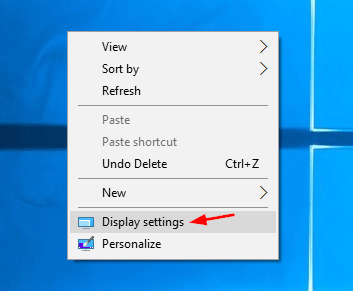
How to Change DPI Scaling Settings in Windows 10 Password Recovery
- Access Scale and Layout In the Settings window, scroll to Scale and layout section under Display.
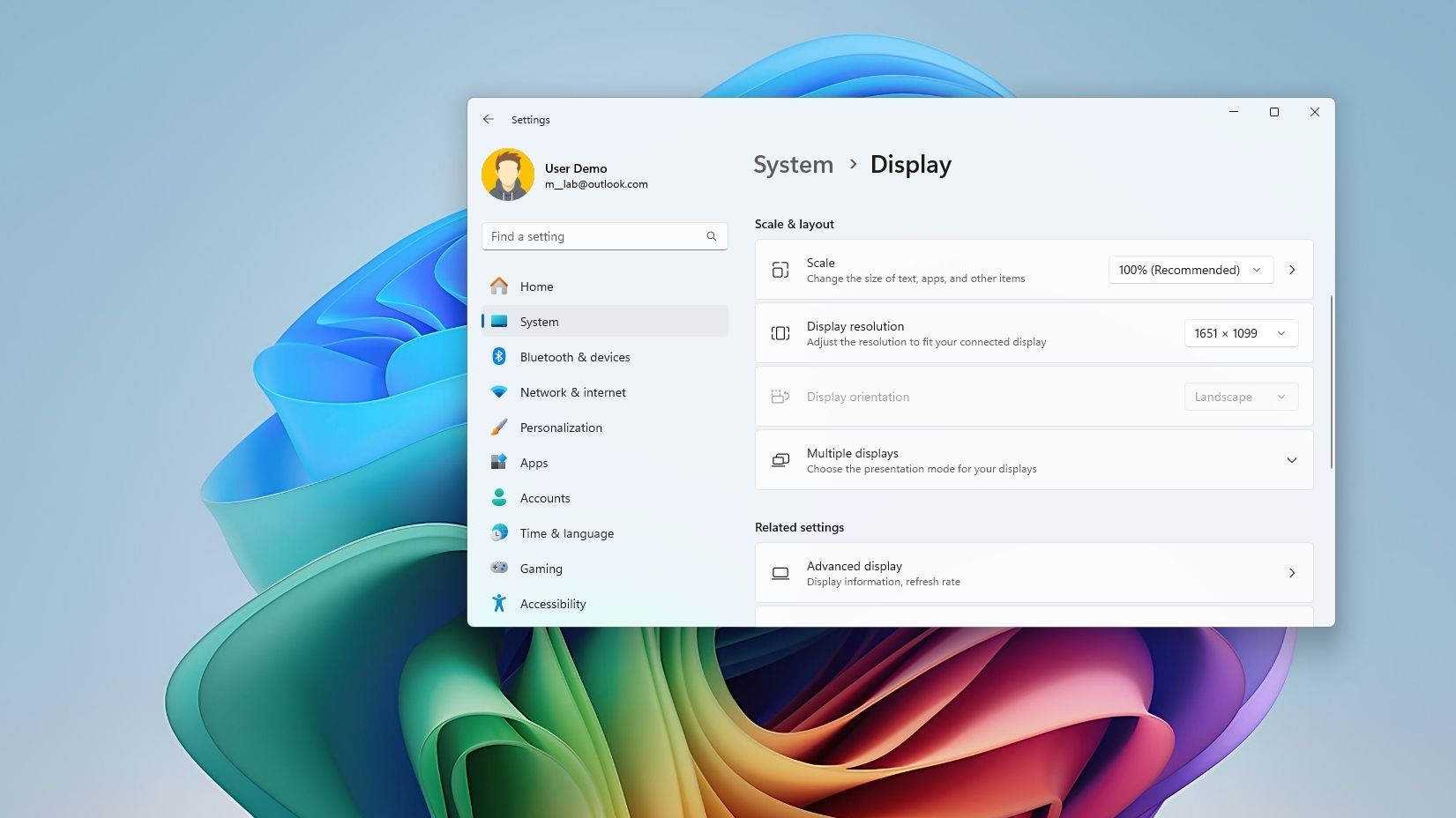
How to adjust display scale settings in Windows 11
- Adjust Display Scale Under Change the size of text, apps, and other items, select 100% (Recommended) from the dropdown.
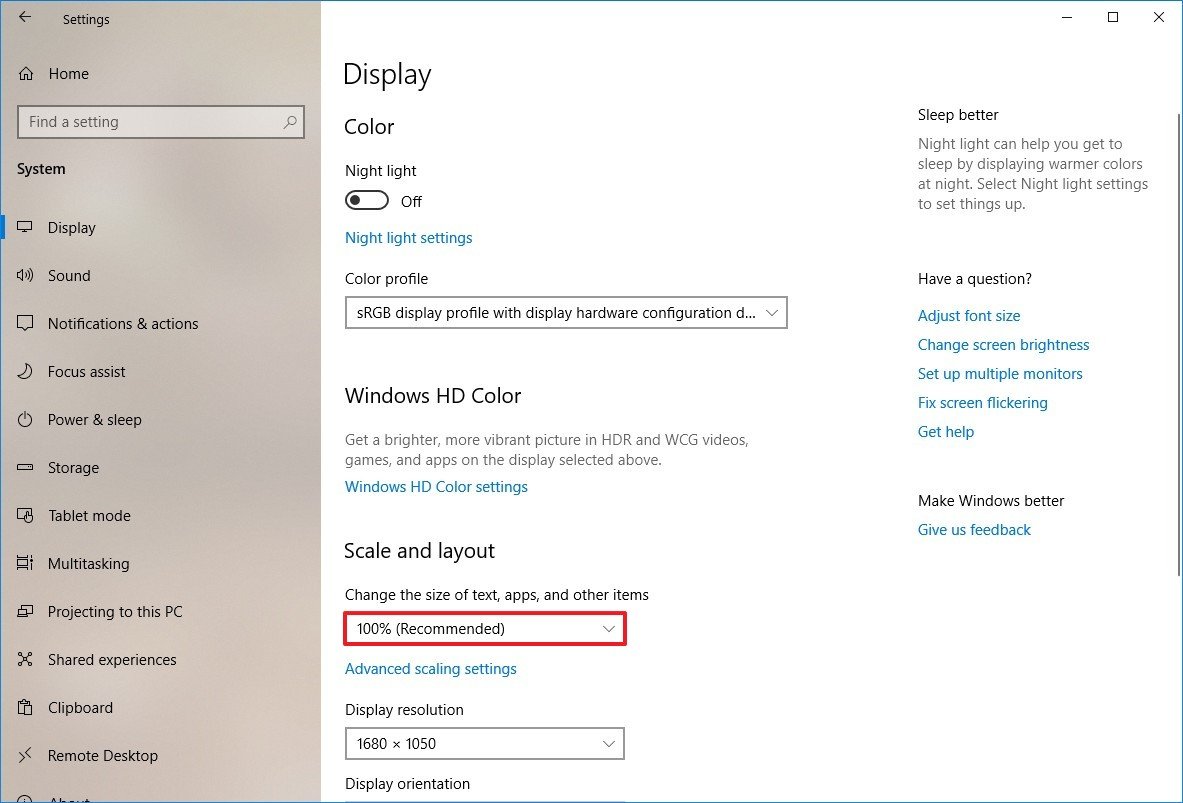
How to set custom display scaling settings on Windows 10
- Check Text Size Settings Search for Ease of Access in Settings, go to Display, and slide the Make text bigger bar back to 100%.
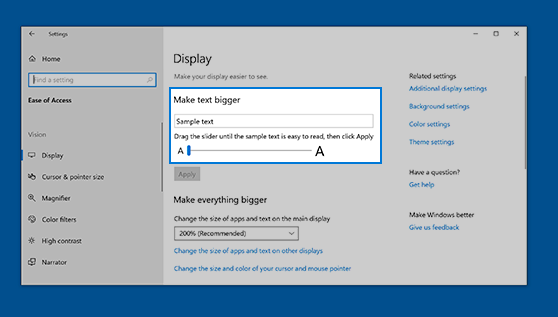
Change the size of text in Windows
- Reset to Default if Needed In Display settings, click Advanced display settings, then Reset to revert all changes.
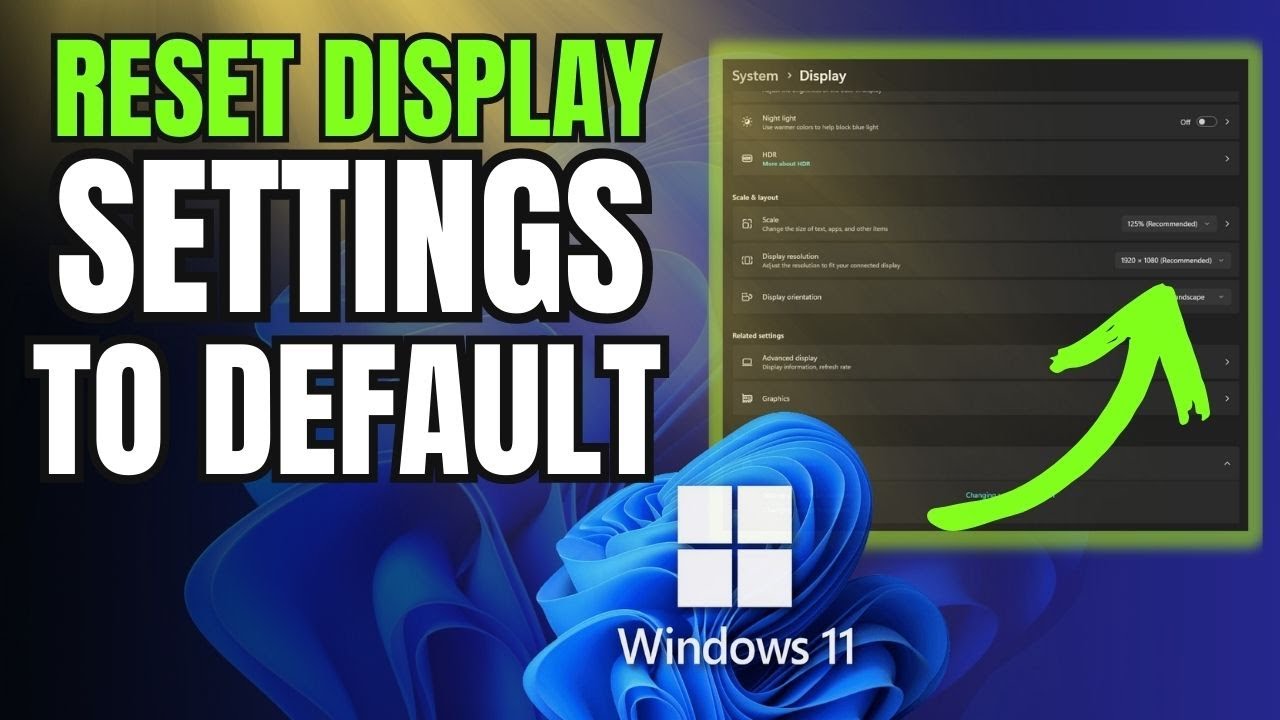
How To Reset Display Settings To Default On Windows 11
- Restart Your ComputerClick Start > Power > Restart to apply the changes fully.
Came back to my computer showing this screen
In my case, resetting the scale after a Windows update fixed the oversized browser text, making web browsing comfortable again without distortion. A colleague restored their enlarged icons during remote work, improving productivity by fitting more windows on screen seamlessly. For a family member, this quick fix resolved post-monitor setup issues, preventing headaches from strained reading over weeks.
