

How to Merge Data from Multiple Excel Worksheets: Step-by-Step Guide
2026-01-23How to Fix Enlarged Font on Computer Screen: Step-by-Step Guide
2026-01-23How to Move Software from C Drive to D Drive on Windows: Step-by-Step Guide
As someone who’s often juggled limited space on my C drive, I’ve found that moving software to the D drive is a practical way to optimize storage without losing functionality. This process typically involves uninstalling the program from its default C: location (usually under Program Files) and reinstalling it to D:, as many applications tie their paths to registry entries and can’t simply be copied. Key concepts include: backing up data to prevent loss; using Windows’ Add or Remove Programs for clean uninstallation; optionally tweaking registry settings for future installs; and verifying the new path in File Explorer to ensure shortcuts and operations work seamlessly. This method works best for software that allows custom install directories, though some like system apps may require advanced tools like symlinks if reinstall isn’t feasible.
What if the software doesn’t offer a custom install option during setup? In that case, I recommend proceeding with the default install and then using tools like Steam Mover or manually creating junctions with mklink in Command Prompt to redirect folders, but always back up first to avoid issues.
Can I move built-in Windows apps this way? No, core system software is locked to C: for stability—focus on third-party programs, or use Storage settings in Windows to relocate app data instead.
By moving software from C to D drive, I free up critical system space, which boosts boot times and overall performance, especially on SSDs. It prevents low-disk warnings that disrupt work, organizes storage across drives for easier backups, and extends the life of your primary drive by reducing write operations from large programs.
- Backup Your Data Before any changes, open File Explorer and copy important files or settings from the software’s folder to a safe location like an external drive.
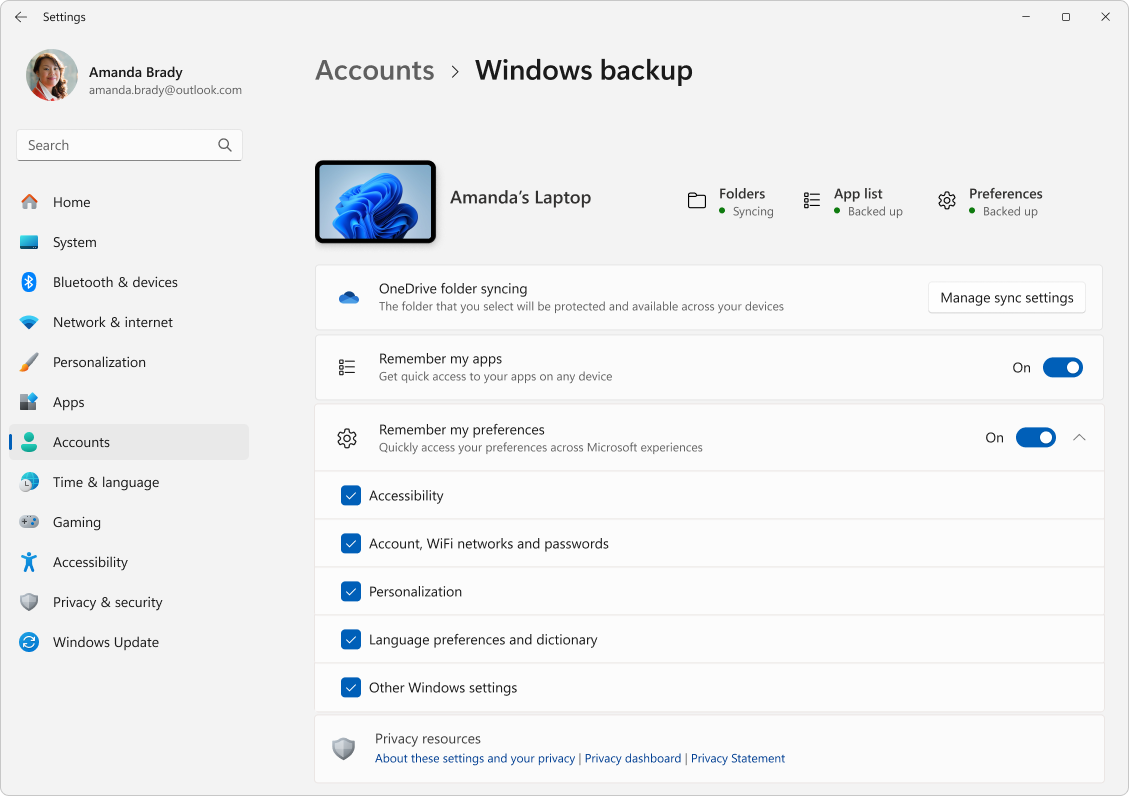
Back up and restore with Windows Backup
- Open Add or Remove Programs Press Windows key + I to open Settings, then search for and click Apps & features or Add or remove programs.
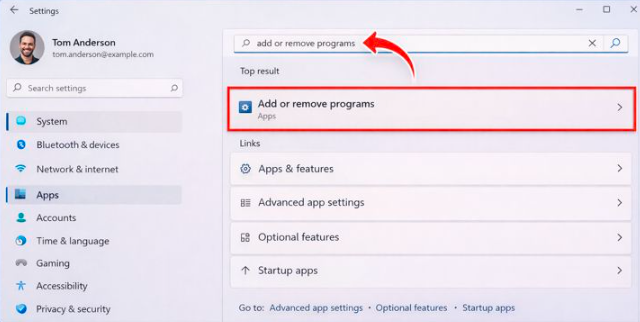
How to access the classic Add or Remove Programs experience in Windows
- Uninstall the Software In the list, find the program, click it, and select Uninstall, following prompts to remove it completely.
![3 Tips to Uninstall Programs in Windows Server [2026 New] - EaseUS](https://pcwebsoft.com/wp-content/uploads/2026/01/control-panel-uninstall-office.png "How to Move Software from C Drive to D Drive on Windows: Step-by-Step Guide 3")
3 Tips to Uninstall Programs in Windows Server [2026 New]
- Change Default Install Location (Optional) Press Windows key + R, type regedit, navigate to HKEY_LOCAL_MACHINE\SOFTWARE\Microsoft\Windows\CurrentVersion, and edit ProgramFilesDir to D:\Program Files.
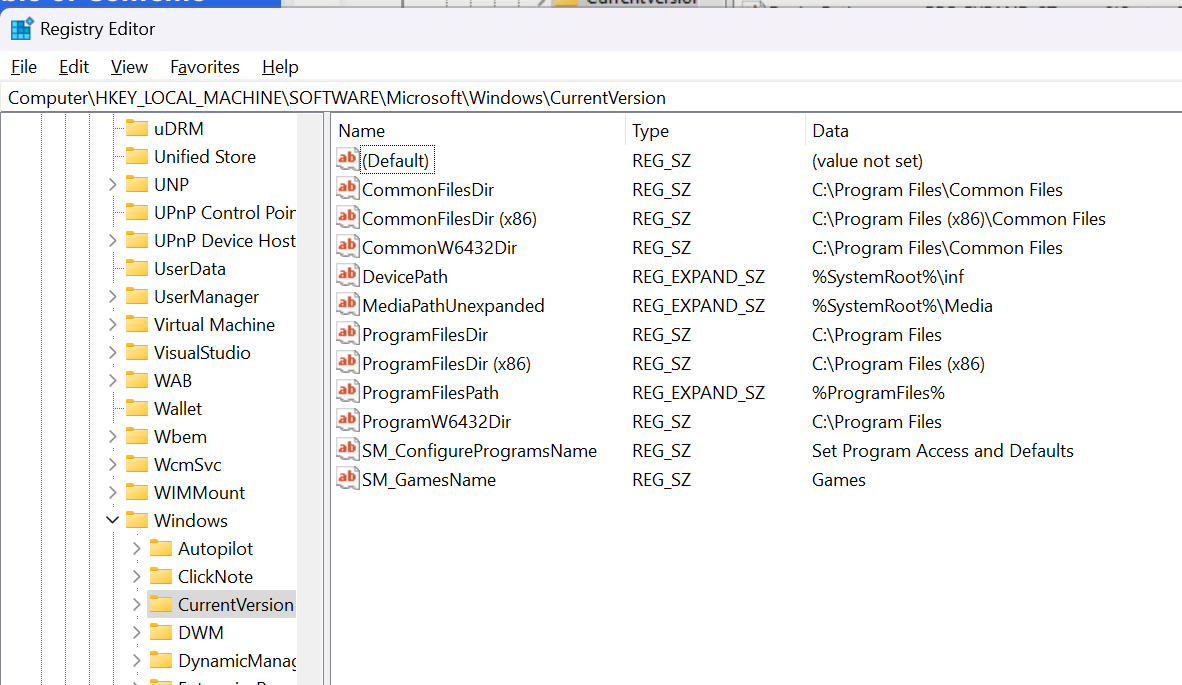
Changing Default Program Installation Directory Using Registry
- Reinstall the Software Download or run the installer, choose Custom install, and select D: drive as the destination folder.
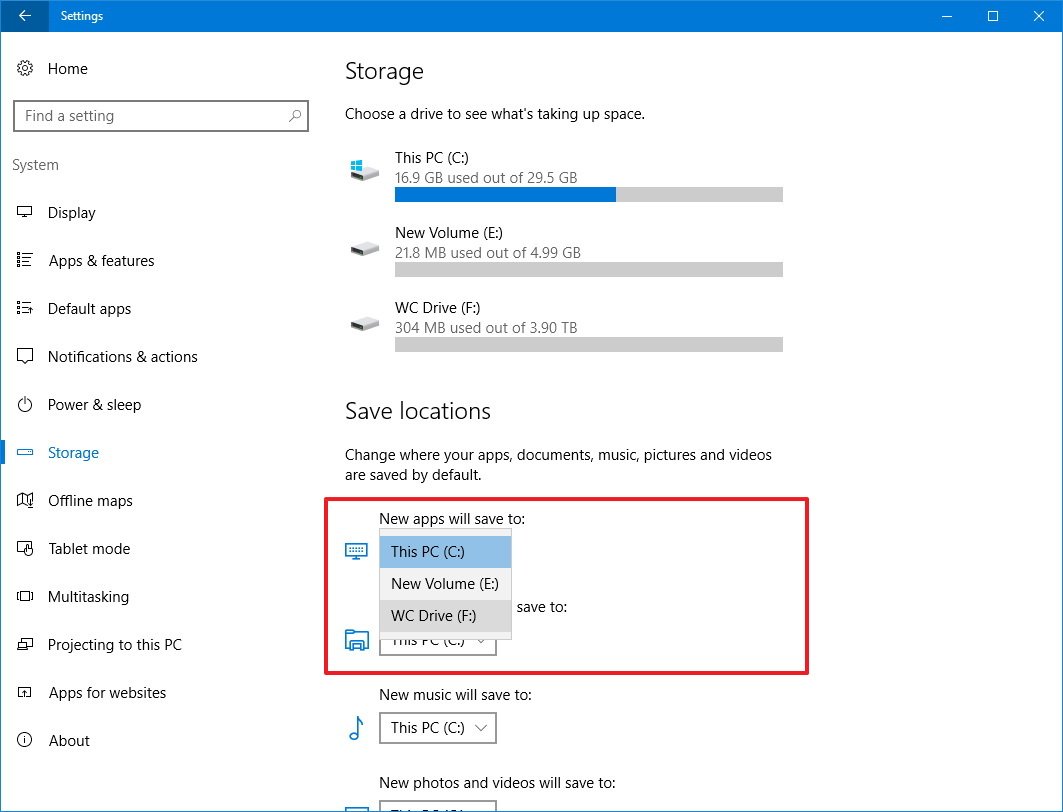
How to install apps on a separate drive on Windows 10
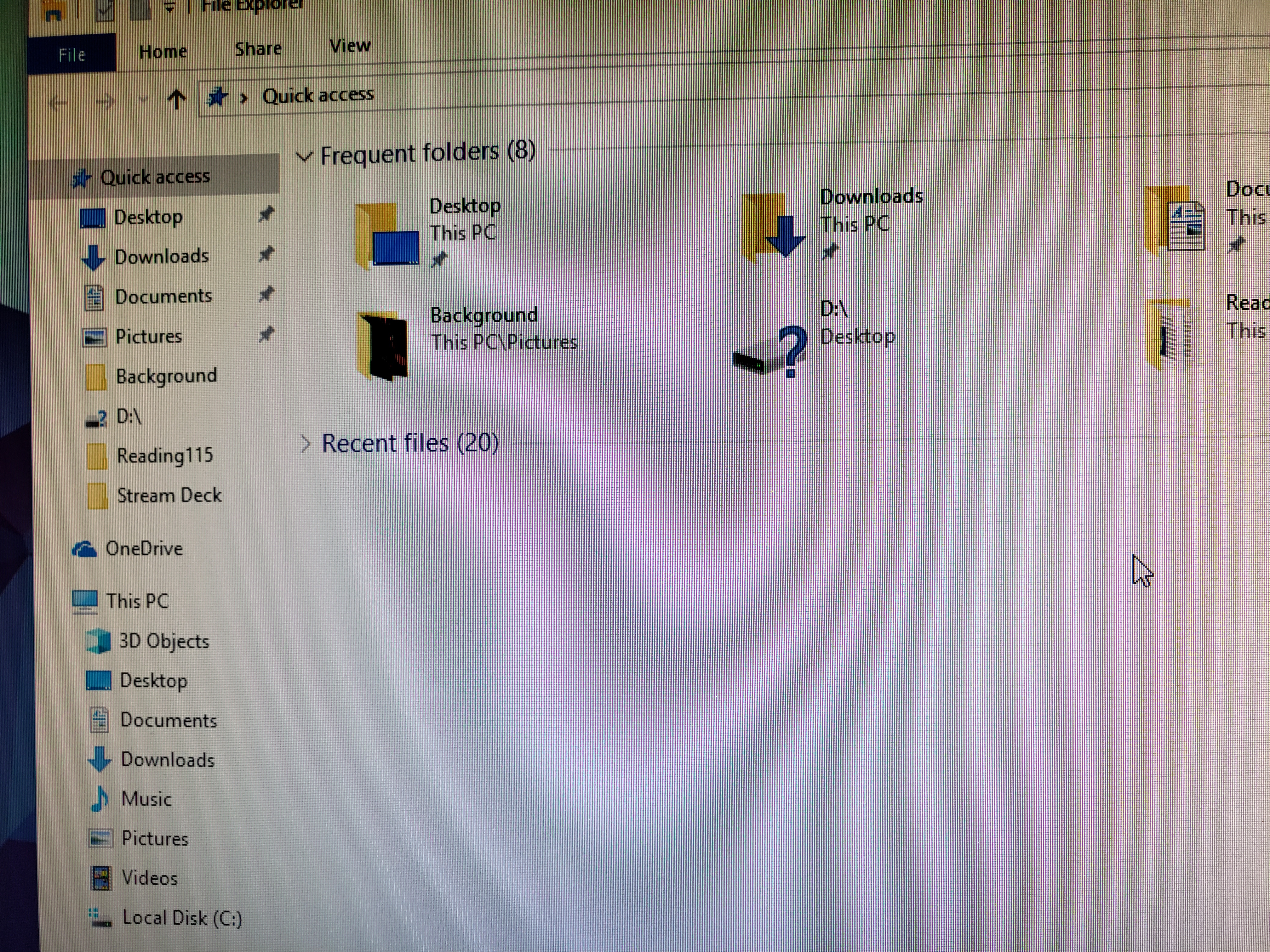
- Verify the Installation Open File Explorer, navigate to D:\Program Files, and check if the software folder is there; test running the app.
Blue check mark next to D drive
In my experience moving a large game like Photoshop from C to D, it reclaimed 10GB on the system drive, leading to smoother multitasking without crashes. For a friend managing video editing software, this shift reduced load times by 20% on a hybrid drive setup. When I helped a colleague relocate office apps, it streamlined their backups and prevented future storage alerts during updates.
