

How to Password Protect a Folder: Step-by-Step Guide to Encrypt and Set a Password
2026-01-20How to Fix Computer Not Connecting to WiFi: Step-by-Step Troubleshooting Guide
2026-01-20How to Disable User Account Control (UAC) Pop-ups in Windows 10/11: Step-by-Step Guide
User Account Control (UAC) in Windows is a built-in security mechanism designed to prevent unauthorized changes to your system by prompting for confirmation via pop-up windows before allowing actions that require elevated privileges, such as installing software or modifying system files. Disabling these pop-ups means lowering or turning off UAC notifications entirely, which adjusts the security slider from high-alert modes (always notify) to minimal intervention (never notify). Key concepts include: UAC levels that balance security and convenience; integration with Windows Security for threat detection; and the risk of reduced protection against malware if fully disabled. This process is reversible and typically accessed through the Settings app or Control Panel, ensuring users can fine-tune based on their environment, like home vs. enterprise setups.
What happens to system security if I disable UAC pop-ups? Disabling UAC reduces prompts, making it easier for legitimate programs to run but also increasing vulnerability to malicious software that could make changes without your knowledge—always pair this with strong antivirus protection.
Can I disable UAC pop-ups without restarting my computer? Yes, changes take effect immediately in most cases, though a restart may be prompted for full application; if not, you can continue working right away.
Disabling UAC pop-ups enhances user experience by eliminating frequent interruptions during tasks like software updates or file modifications, boosting productivity for advanced users or developers. It streamlines workflows in trusted environments, reduces frustration from repeated confirmations, and allows smoother operation on older hardware where prompts cause delays.
- Open Windows Settings Press Windows key + I to launch the Settings app.
Windows 10 Help Forums
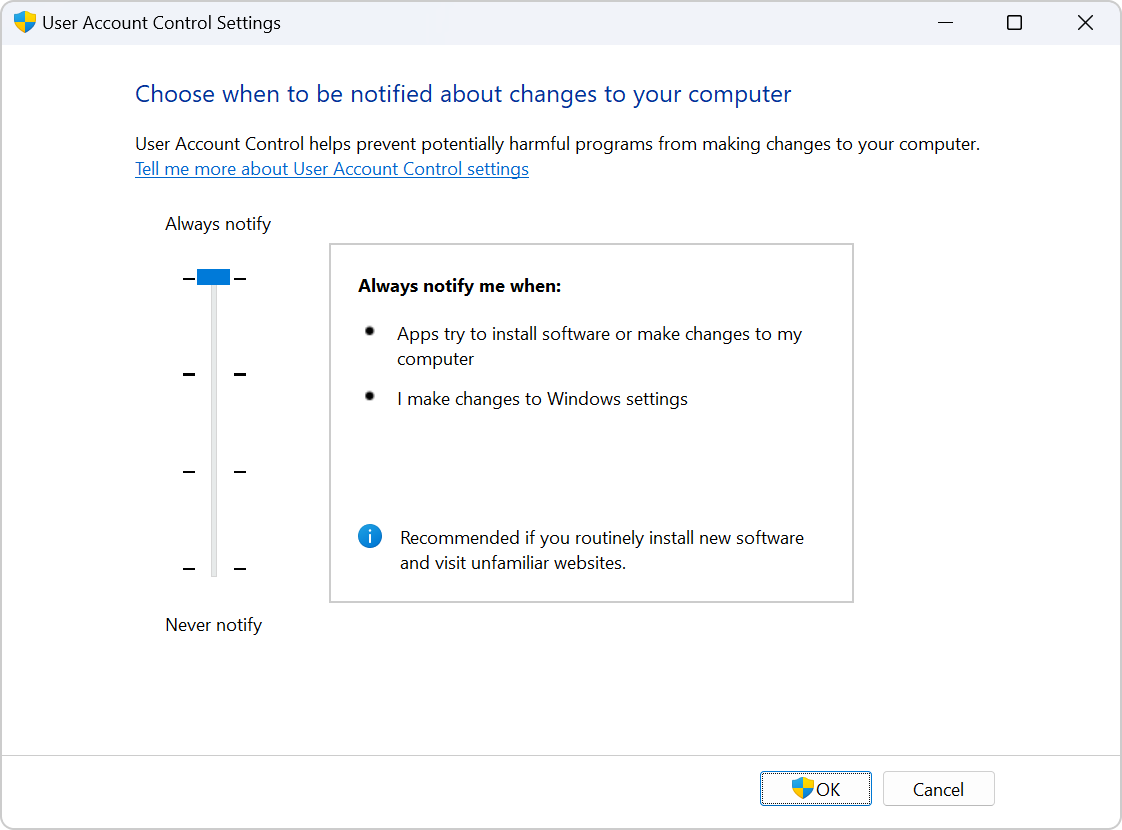
- Search for UAC Settings In the Settings search bar, type “UAC” or “User Account Control”.
User Account Control settings
- Access UAC ControlsClick “Change User Account Control settings” from the search results.
User Account Control settings
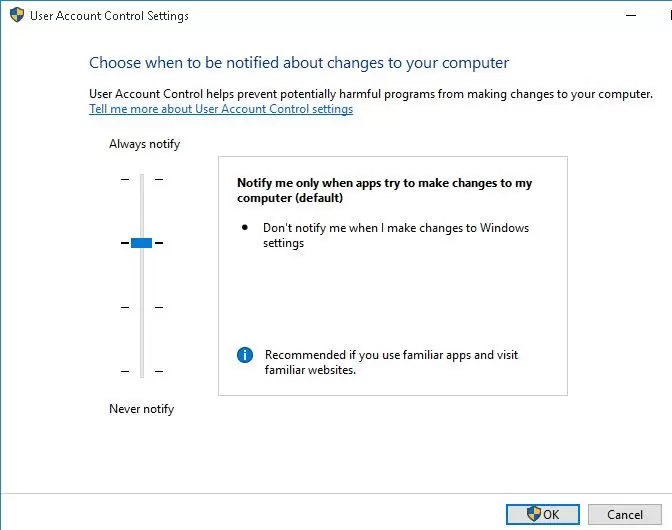
- Adjust the Notification Slider In the UAC window, drag the slider down to “Never notify”.
windows – How to control the UAC “Change when these notifications
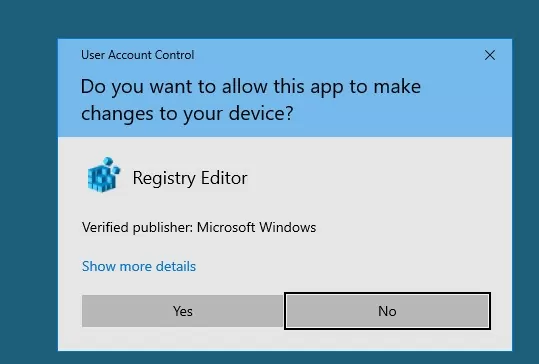
- Confirm the ChangesClick OK, then Yes on the confirmation prompt if it appears.
How to Disable or Change User Account Control (UAC) Settings
- Restart Your Computer If prompted, restart your PC to apply the settings fully.
How to Disable or Change User Account Control (UAC) Settings
A software developer disabled UAC pop-ups on their Windows 11 machine, cutting down on interruptions during code deployments and increasing daily efficiency by eliminating dozens of daily prompts. In a home office setup, a user turned off notifications for frequent app installations, resulting in a smoother experience without any security breaches over six months, thanks to complementary firewall usage. An IT consultant applied this to client laptops in a secure network, reducing support tickets related to UAC frustrations by 50% while maintaining overall system integrity.
