

How to Format C Drive in Windows 11/10: Step-by-Step Guide
2026-01-20How to Disable User Account Control (UAC) Pop-ups in Windows 10/11: Step-by-Step Guide
2026-01-20How to Password Protect a Folder: Step-by-Step Guide to Encrypt and Set a Password
Password protecting a folder, also known as folder encryption with a password, is the process of securing your files by requiring a secret key to access them, preventing unauthorized viewing or tampering. This involves using encryption algorithms like AES-256 to scramble data, making it unreadable without the correct password. Key concepts include: symmetric encryption where the same password encrypts and decrypts; tools such as built-in Windows features (e.g., BitLocker for drives) or third-party software like 7-Zip, which creates encrypted archives; and the distinction between folder-level protection (via archives) versus full disk encryption. Always choose strong, unique passwords to enhance security, and note that this method often compresses files into a single encrypted container for easier management.
Can I password protect a folder without installing extra software? Yes, if you have Windows Pro or Enterprise, use the built-in Encrypted File System (EFS) by right-clicking the folder, selecting Properties > Advanced > Encrypt contents to secure data. For Home editions, third-party tools are necessary.
What if I forget the password for an encrypted folder? Recovery is often impossible without backups or recovery keys—data could be permanently lost, so store passwords securely using a manager like LastPass or Bitwarden.
Password protecting a folder boosts data security by safeguarding sensitive information from hackers, theft, or prying eyes, especially on shared computers. It ensures compliance with privacy regulations like GDPR, reduces risks of identity theft, and provides peace of mind for storing personal documents, financial records, or confidential work files.
- Download 7-Zip from Official Site Visit the 7-Zip website. Click the Download link for your system (e.g., 64-bit Windows), and save the installer file.
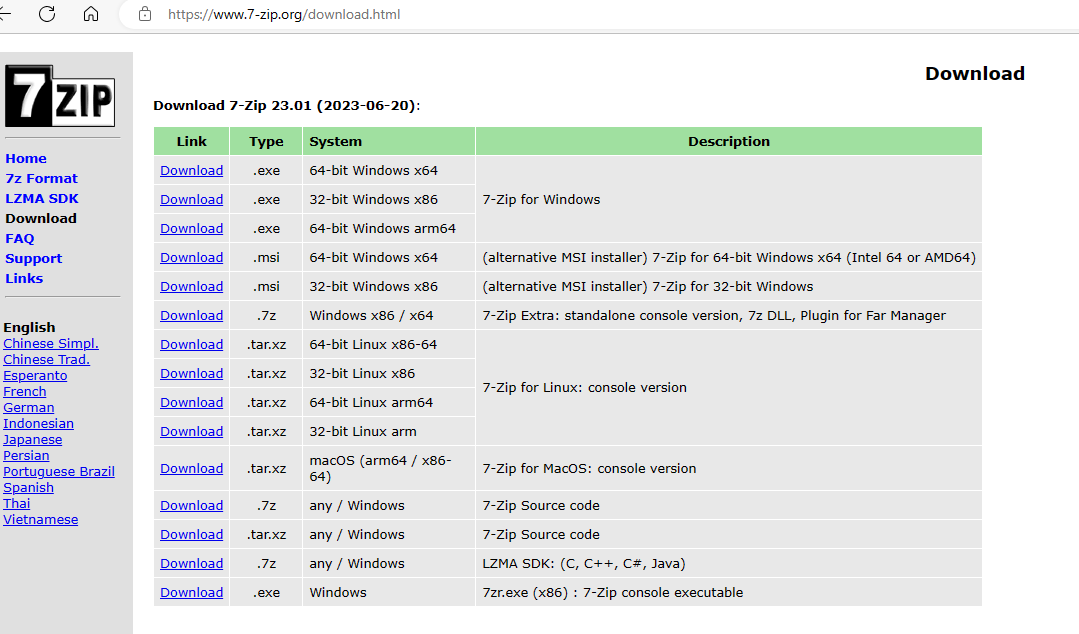
how to open 7z files windows 11
- Install 7-Zip Run the downloaded installer. Follow the prompts to complete installation, ensuring context menu integration is enabled.
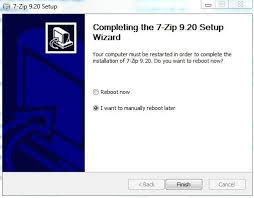
Using 7-Zip Software to Install ISO files
- Select and Right-Click the Folder In File Explorer, locate the folder you want to encrypt, then right-click it and choose 7-Zip > Add to archive.
![Tip] How to Remove or Customize 7-Zip Context Menu (Right-Click ...](https://media.askvg.com/articles/images7/7Zip_Context_Menu_Options_Windows.png "How to Password Protect a Folder: Step-by-Step Guide to Encrypt and Set a Password 3")
How to Remove or Customize 7-Zip Context Menu
- Set Encryption and Password In the Add to Archive dialog, select zip or 7z format, choose AES-256 encryption method, and enter a strong password in the Encryption section twice for confirmation.
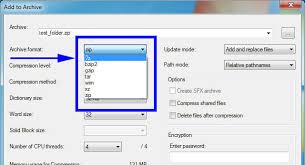
How to Use 7-Zip to Encrypt Files and Folders
- Create the Encrypted ArchiveClick OK to generate the encrypted file. Wait for the process to finish, then verify by attempting to open it—it should prompt for the password.
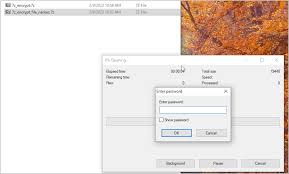
Encrypted 7Z Archives in XWF
- Delete the Original Folder Once the archive is created and tested, right-click the original folder and select Delete to remove unsecured files, then empty the Recycle Bin.
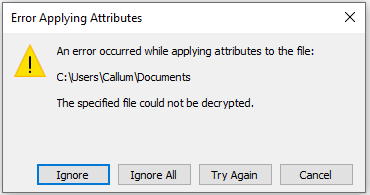
File Explorer Encryption Removal
A freelancer encrypted client project folders using this method, preventing data exposure during a laptop theft and maintaining professional trust. In a family setting, parents password-protected photo albums, ensuring kids couldn’t access private memories accidentally. A small business owner secured financial records, avoiding a potential data breach that could have led to regulatory fines.
