

How to Generate a Table of Contents in Word
2026-01-20How to Password Protect a Folder: Step-by-Step Guide to Encrypt and Set a Password
2026-01-20How to Format C Drive in Windows 11/10: Step-by-Step Guide
Formatting the C drive, often the primary system partition on a Windows computer, involves erasing all data and resetting the file system structure, typically to NTFS for compatibility. This process wipes out the operating system, installed programs, and personal files, making it essential for troubleshooting persistent issues or preparing for a fresh OS install. Key concepts include: understanding partitions (C drive as the boot volume), file systems (NTFS vs. FAT32), and the need for bootable media since you can’t format the active system drive from within Windows. Risks involve data loss, so backups are crucial; use tools like Diskpart in Command Prompt for execution, ensuring the correct drive is targeted to avoid erasing other storage.
Can I format the C drive directly from Windows File Explorer? No, because the C drive is in use by the operating system—attempting this will result in an error. Instead, boot from external media like a USB installation drive to access recovery tools.
What should I do if I accidentally format the wrong drive? Immediately stop using the computer and use data recovery software like EaseUS or Recuva on another machine to scan and restore files, as formatting doesn’t instantly overwrite data but marks space as available.
Formatting the C drive can resolve deep-rooted malware infections by completely erasing viruses, improve system performance by clearing fragmented or corrupted files, and allow a clean Windows reinstall for better stability. It also frees up space by removing bloatware, though it requires reinstalling everything afterward.
- Backup Important Data First Connect an external drive or use cloud storage. Copy files from Documents, Pictures, and other folders to the backup location. Verify everything is saved before proceeding.
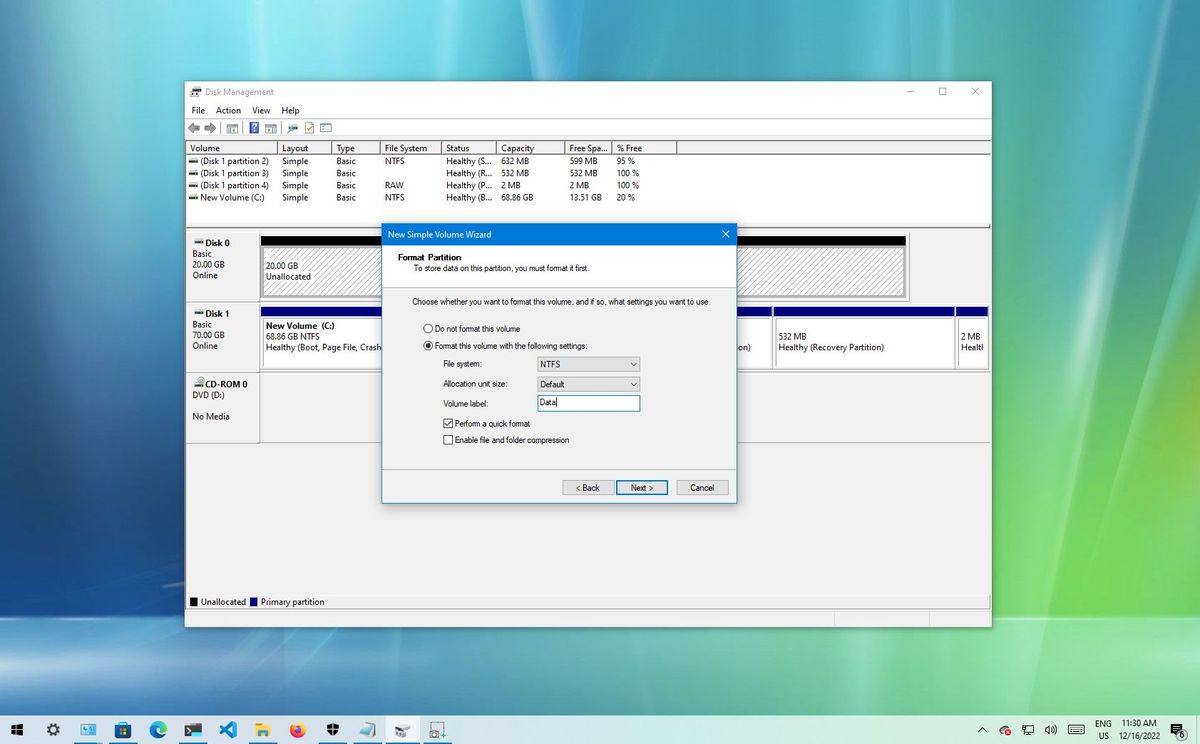
How to format a new hard drive on Windows 10 | Windows Central
- Create Bootable Windows Installation Media Download the Windows Media Creation Tool from Microsoft’s site. Insert a USB drive (at least 8GB), run the tool, and select Create installation media for another PC, following prompts to make it bootable.
![How to Format C Drive in Windows 11/10? [4 Easy Tutorials🔥]](https://pcwebsoft.com/wp-content/uploads/2026/01/use-windows-setup.png "How to Format C Drive in Windows 11/10: Step-by-Step Guide 2")
How to Format C Drive in Windows 11/10? [4 Easy Tutorials🔥]
- Boot from the USB Drive Restart your computer and enter BIOS (usually by pressing F2, Del, or Esc). Set the USB as first boot device in the Boot menu, save changes, and exit. The Windows setup screen should appear.
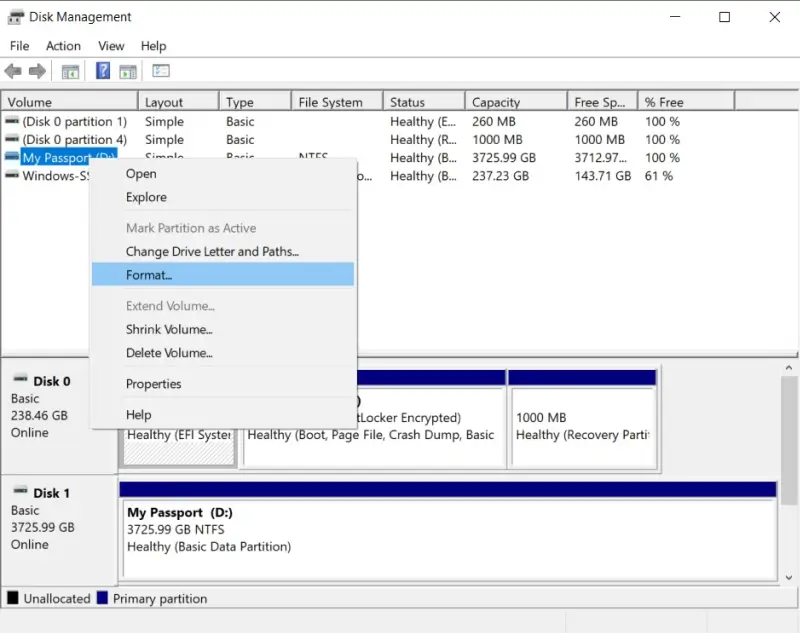
Formatting Your Hard Drive for Windows
- Access Command Prompt On the setup screen, press Shift + F10 to open Command Prompt. Alternatively, choose Repair your computer > Troubleshoot > Command Prompt.

How to format a USB drive to FAT32
- Format the C Drive Using Diskpart In Command Prompt, type diskpart and press Enter. Then list disk to identify drives, select disk 0 (assuming C is on disk 0—confirm size), list partition, select partition 1 (system partition), and format fs=ntfs quick to format.
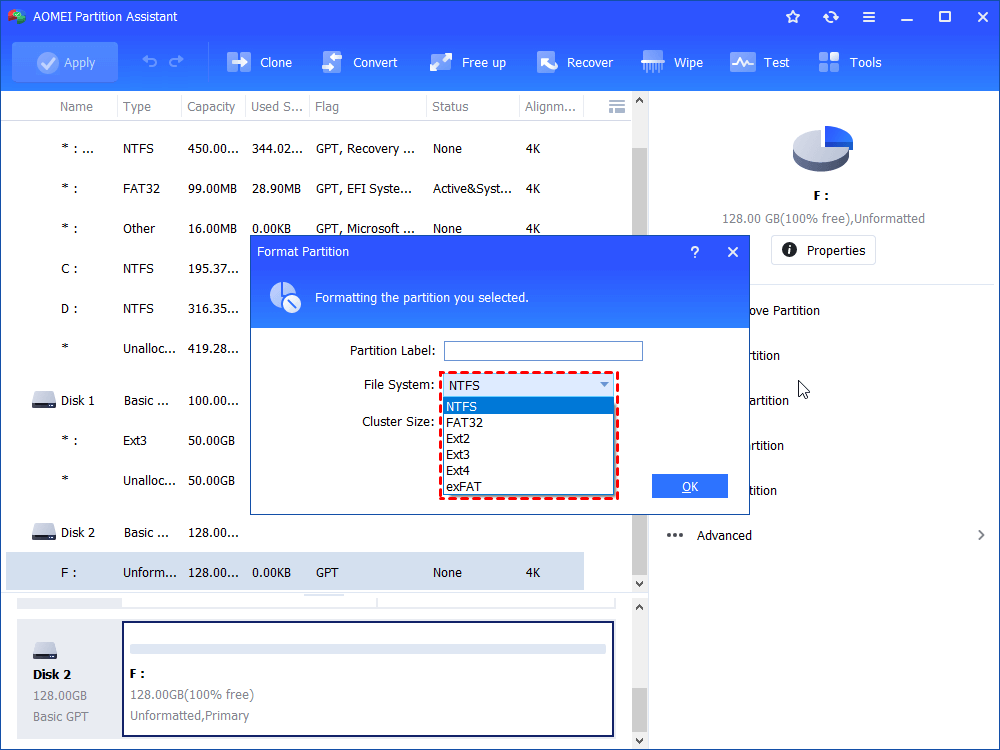
How to Format Hard Drive from Command Prompt in Windows 11, 10, 8, 7?
- Reinstall Windows Exit Diskpart, close Command Prompt, and proceed with Windows installation from the setup menu, selecting the formatted partition to install on.
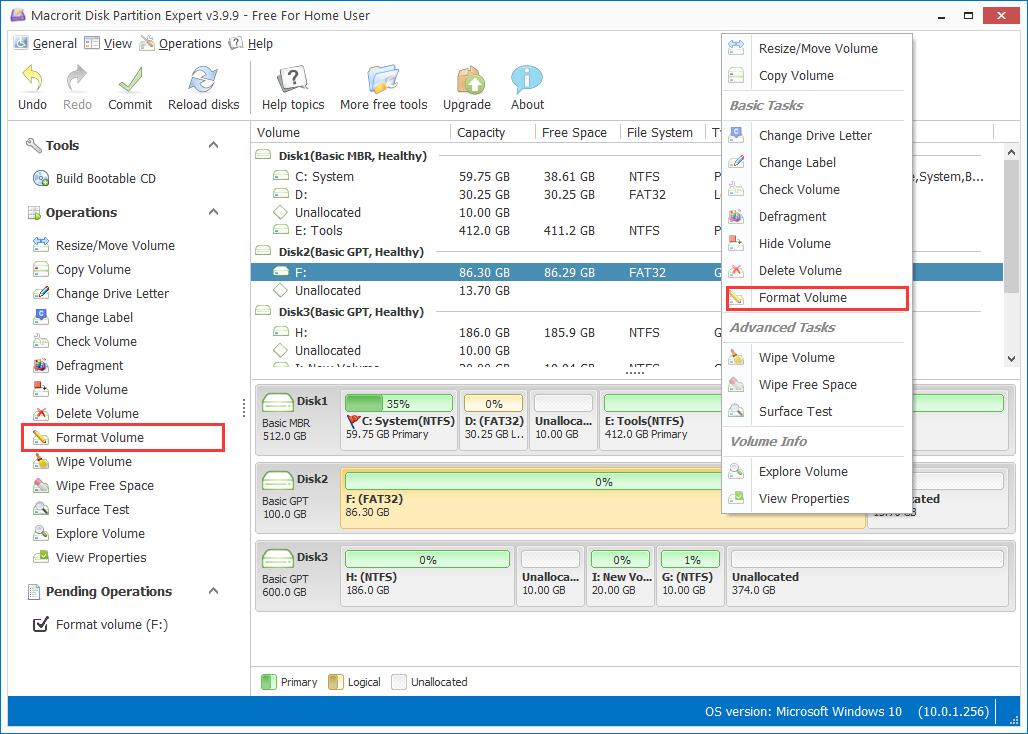
How to Format a Computer Hard drive Using Command Prompt in BIOS
In one case, a user with a virus-ridden laptop formatted the C drive, eliminating persistent malware and restoring smooth operation after reinstalling Windows, saving on repair costs. For a slow-performing PC, formatting cleared years of clutter, resulting in boot times reduced by 50% post-reinstall. In a business scenario, an IT admin formatted multiple systems’ C drives to standardize setups, improving efficiency across the team without data loss due to prior backups.
