

How to Fix CDR Files Not Exporting to JPG? Solutions for Grayed Out CDR Export Options
2026-01-19How to Format C Drive in Windows 11/10: Step-by-Step Guide
2026-01-20How to Generate a Table of Contents in Word
Generating a table of contents (TOC) in Microsoft Word is a straightforward process that automates navigation for long documents. At its core, a TOC lists headings and subheadings with page numbers, hyperlinked for easy jumping. Word creates it dynamically based on built-in heading styles like Heading 1 for main sections, Heading 2 for subsections, and so on. This relies on the document’s structure: apply styles to text, then insert the TOC field, which scans and compiles the entries. Updates are automatic or manual, ensuring the TOC reflects changes without retyping.
What if my table of contents doesn’t appear after insertion? This often happens if no heading styles are applied—Word needs them to identify sections. Simply select your titles, go to the Home tab, and apply appropriate headings before retrying the insertion.
Can I generate a TOC in Word for Mac or older versions? Yes, the process is similar across Word 2016, 2019, 2021, and Microsoft 365, including Mac editions. Minor interface differences exist, but core steps like using the References tab remain consistent.
Creating a table of contents in Word enhances document usability by allowing quick navigation, especially in reports, theses, or ebooks. It gives a professional polish, saves time on manual updates, and improves accessibility for readers scanning content.
- Apply Heading Styles to Sections Select the text for your main title or section. Click the Home tab, then in the Styles group, choose Heading 1 for top-level headings, Heading 2 for subheadings, and so on. Repeat for all relevant parts.
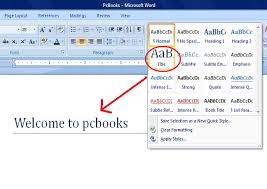
Microsoft Word Tutorial
- Position the Cursor for TOCClick where you want the TOC to appear, typically at the document’s start after the title page.
- Insert the Table of ContentsSwitch to the References tab. In the Table of Contents group, click Table of Contents, then select Automatic Table 1 or 2 from the dropdown for a preformatted option.
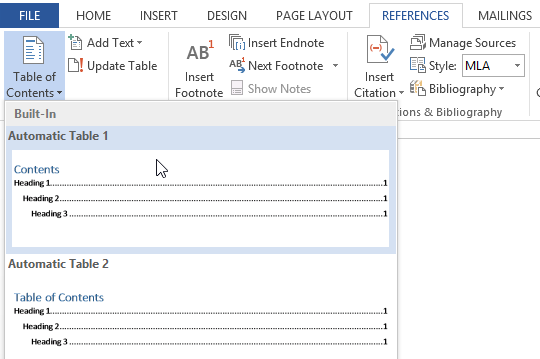
Word Tips: How to Create a Table of Contents in Word
- Customize if Needed After insertion, right-click the TOC and choose Edit Field. Adjust levels shown or styles via the dialog box.
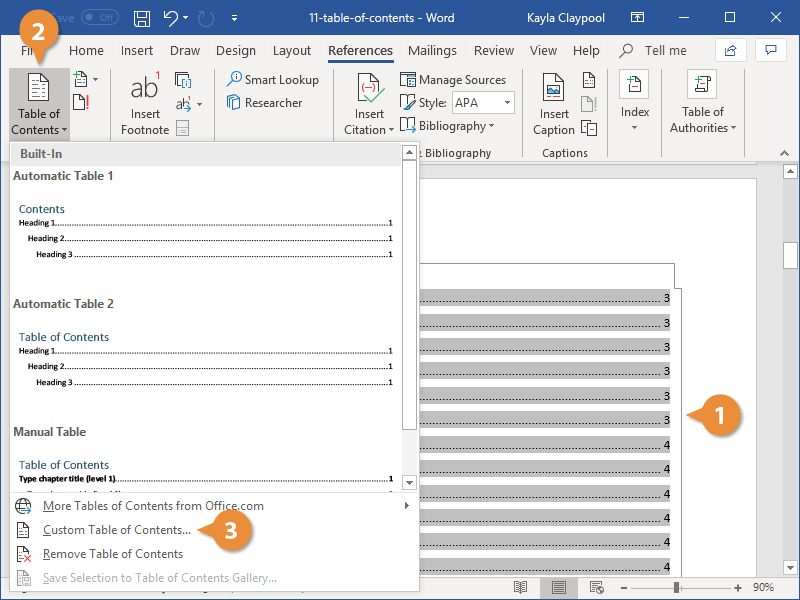
Table of Contents in Word | CustomGuide
- Update the TOC If you edit the document, right-click the TOC and select Update Field, then choose to update page numbers only or the entire table.
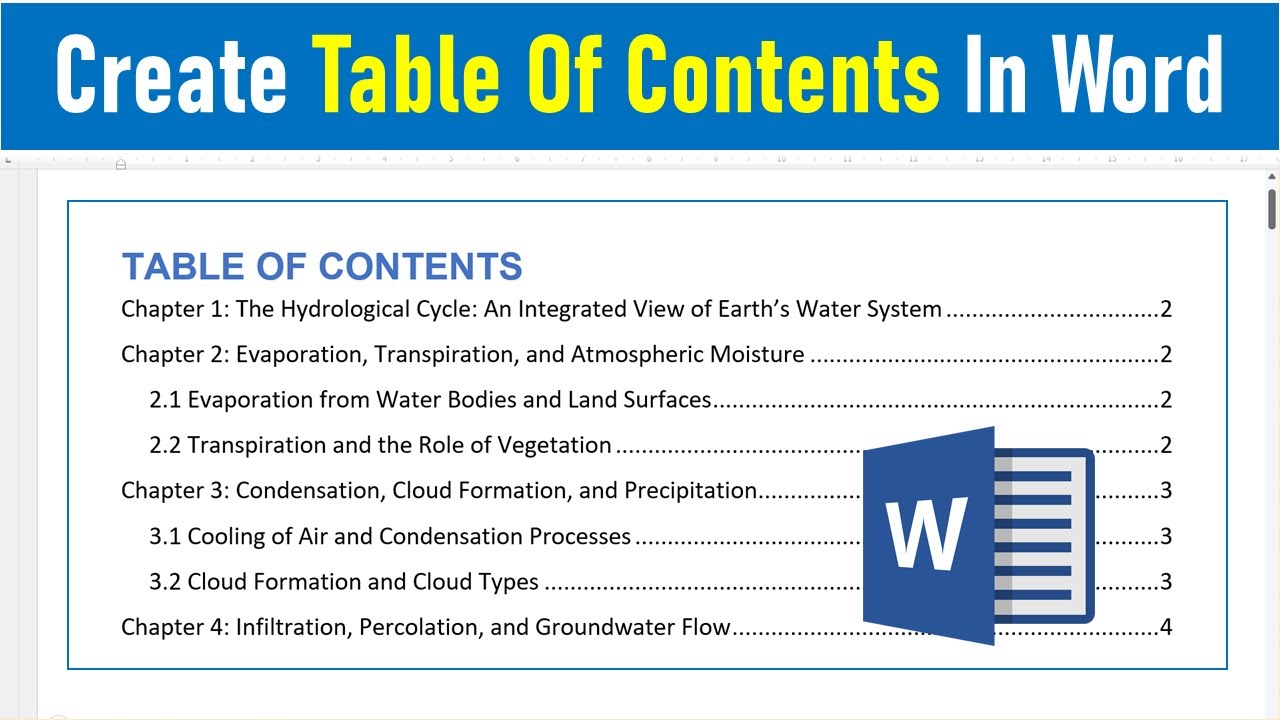
How to Create a Table of Contents in Word (Step-by-Step Tutorial)
In a 50-page business report, generating a TOC reduced review time by 40% as stakeholders jumped directly to sections. For a student’s thesis, the automatic updates ensured accuracy during revisions, preventing errors in final submission. In an ebook manuscript, the hyperlinked TOC improved reader experience, boosting engagement on digital platforms.
