


Excel Can’t Copy and Paste? How to Fix It Step-by-Step
2026-01-16What Is a Syntax Error? How to Fix Syntax Errors in Programming?
2026-01-19What Do Disabled and Enabled Mean in BIOS? Which One is On and Which is Off?
In the BIOS (Basic Input/Output System) settings of your computer, “enabled” and “disabled” are common terms used to toggle various hardware features and configurations. BIOS is the firmware interface that initializes hardware during the boot process and provides runtime services for operating systems. “Enabled” means the feature is turned on and active, allowing it to function as intended. For example, if a setting like Secure Boot is enabled, it will enforce security checks during startup. Conversely, “disabled” means the feature is turned off and inactive, preventing it from operating. This is equivalent to closing or deactivating the option, which can be useful for troubleshooting or compatibility reasons. Understanding BIOS enabled vs disabled is key for optimizing your system’s performance and security.
One common question is: What should I do if a BIOS option is grayed out and can’t be enabled or disabled? This often happens because the option depends on another setting or hardware compatibility. To resolve it, check related prerequisites, like enabling CSM for legacy boot modes, or update your BIOS firmware to the latest version from the manufacturer’s website.
Another frequent query: Does enabling more features in BIOS always improve performance? Not necessarily—enabling unnecessary options can increase power consumption or cause instability. It’s best to enable only what you need, such as overclocking for gaming, while disabling unused ports to reduce potential vulnerabilities.
Adjusting enabled and disabled settings in BIOS offers several advantages. It allows customization for better hardware compatibility, such as enabling virtualization for running virtual machines. It enhances security by disabling risky features like legacy USB support, reducing attack surfaces. Additionally, it can boost performance by enabling options like XMP for faster RAM speeds or disabling integrated graphics when using a dedicated GPU, leading to smoother operation and energy efficiency.
Step 1: Restart Your Computer and Enter BIOS Restart your PC and repeatedly press the BIOS entry key (commonly Del, F2, F10, or Esc—check your motherboard manual). Enter when the setup utility loads.

Computer stuck on “press del key or f2 to enter bios” screen : r …
Step 2: Navigate to the Relevant Section Use the arrow keys to move through menus. Look for sections like Advanced, Boot, or Security where options are listed as Enabled or Disabled.
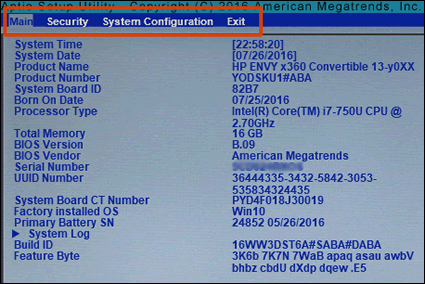
HP Consumer Notebook PCs – BIOS Setup Information and Menu Options …
Step 3: Select and Toggle the Option Highlight the desired setting with Enter. Switch between Enabled (on) and Disabled (off) using +/– keys or the provided toggle.

Help! I can’t get out of this Bios Screen. : r/computerhelp
Step 4: Save Changes and Exit Press F10 to save, confirm with Y, and exit. Your PC will reboot with the new settings applied.
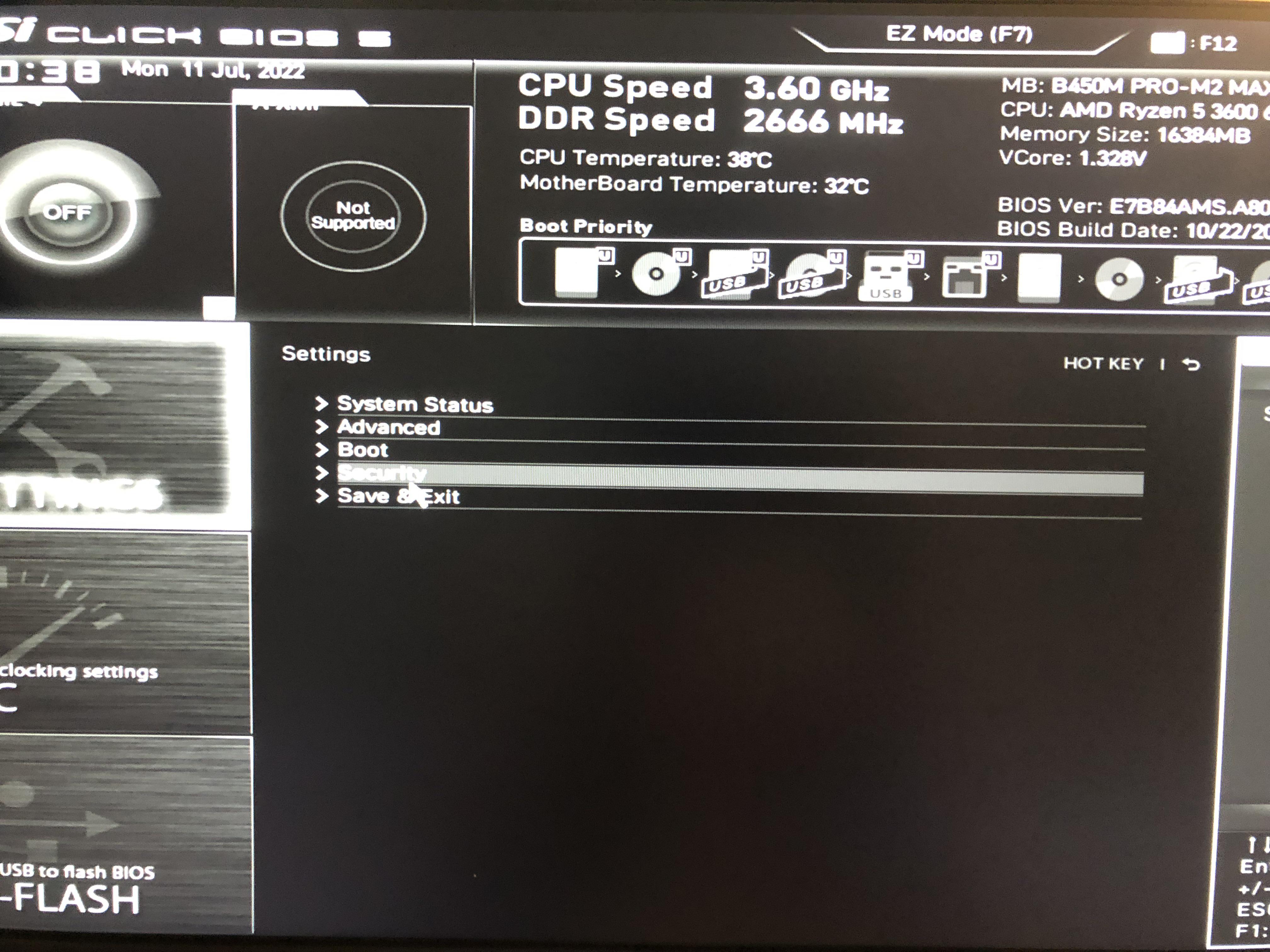
I can’t exit the bios settings. It just keeps coming back to this …
In one practice scenario, enabling XMP in BIOS on a gaming rig increased RAM speed from 2133MHz to 3200MHz, resulting in a 15% FPS boost in demanding games like Cyberpunk 2077 without instability. Another case involved disabling integrated graphics on a system with a dedicated NVIDIA GPU, which freed up resources and reduced boot time by 10 seconds while eliminating display conflicts. Finally, enabling Secure Boot prevented unauthorized software from loading, enhancing system security during a malware scan test where potential threats were blocked at startup.
