

How to Change Desktop Font Color in Windows 11
2026-01-05How to Fix CPU Always at 100% Usage
2026-01-15How to Fix ‘Reboot and Select Proper Boot Device’ Black Screen Error
The “Reboot and Select proper Boot device” error is a common boot failure message that appears on a black screen when your computer starts up. It essentially means the system can’t locate a valid bootable device, like your hard drive or SSD containing the operating system. Breaking this down, the concept revolves around the boot process: during startup, the BIOS (Basic Input/Output System) or UEFI firmware searches for a device with bootable data. If it fails—due to disconnected hardware, misconfigured settings, corrupted files, or a failing drive—the error halts the process. Hardware issues often stem from loose SATA cables or power connections, while software problems might involve damaged boot sectors on the drive. BIOS misconfigurations, such as an incorrect boot order prioritizing the wrong device (e.g., a USB drive over the internal HDD), are another key factor. Understanding this helps pinpoint whether the fix is a simple tweak or requires deeper troubleshooting.
One common question is: What causes this error after a recent hardware upgrade? This often happens because adding components like a new RAM stick or GPU can inadvertently loosen cables or alter the system’s detection of boot devices; reseating connections or updating the BIOS can resolve it. Another frequent doubt: Can this error lead to permanent data loss? Not necessarily, as it’s usually a detection issue rather than data corruption, but ignoring it might exacerbate underlying hardware failures—backing up data once access is regained is advisable.
Addressing this error promptly offers several advantages. It restores full system functionality, allowing you to access files and programs without downtime. Preventing recurring boots saves time and frustration, while identifying root causes like faulty hardware early can avoid costly repairs or data recovery services. Overall, it enhances system reliability and extends the lifespan of your components by ensuring proper configurations.
To resolve this, follow these detailed steps carefully, starting with the simplest checks.
First, power off your computer completely and unplug it for safety. Open the case (for desktops) or access the internals if it’s a laptop—consult your model’s manual. Inspect the hard drive connections: ensure the SATA data cable and power cable are securely plugged into the drive and motherboard. If loose, reseat them firmly.
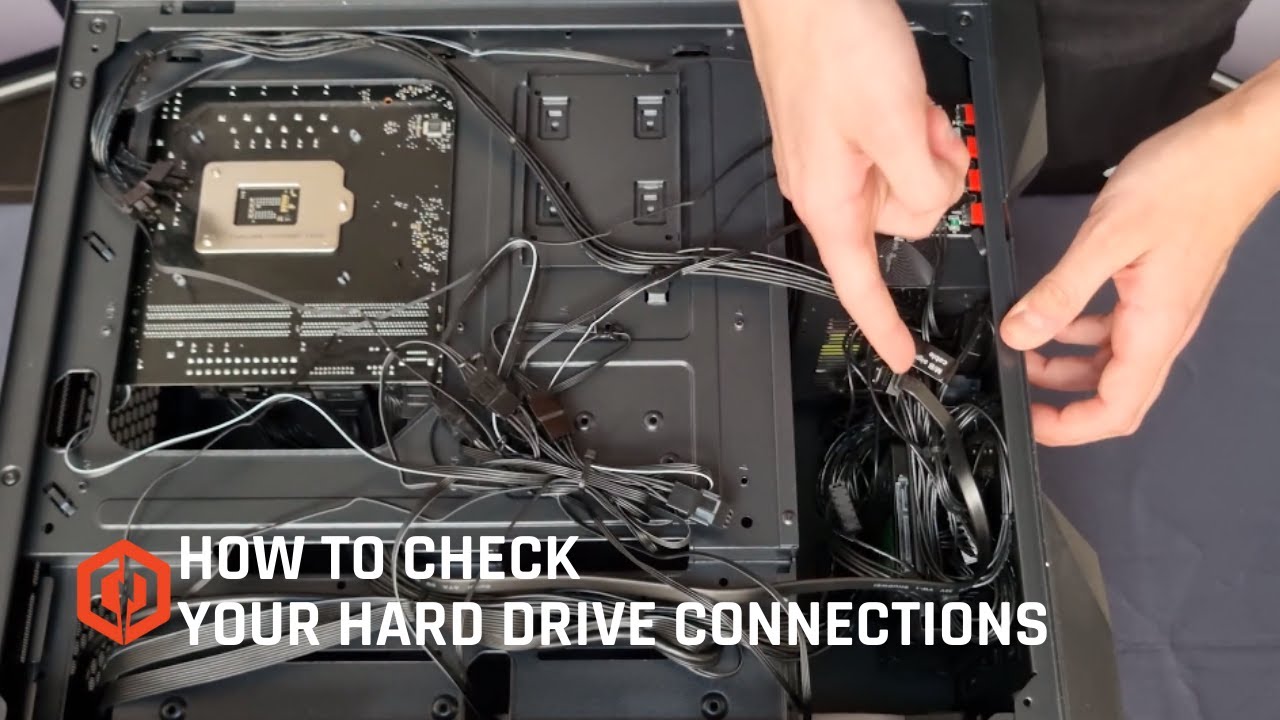
Hard Drive Connections
Next, restart and enter the BIOS setup—typically by pressing Delete, F2, or F10 during boot (check your motherboard manual for the exact key). Navigate to the Boot tab, and adjust the boot order to prioritize your primary drive (e.g., set HDD/SSD first over CD-ROM or USB). Save and exit to test.
:max_bytes(150000):strip_icc()/phoenixbios-setup-main-screen-59959547c41244001039e3b1.PNG "How to Fix 'Reboot and Select Proper Boot Device' Black Screen Error 2")
How to Change Boot Order in BIOS: Step-by-Step Guide
If the issue persists, boot from a Windows installation media (USB or DVD) and select Repair Your Computer. Choose Troubleshoot > Advanced Options > Startup Repair to automatically fix boot files.
![Windows 10 Boot Repair [Quick & Easy]](https://pcwebsoft.com/wp-content/uploads/2026/01/boot-repair-1.png "How to Fix 'Reboot and Select Proper Boot Device' Black Screen Error 3")
Windows 10 Boot Repair
For potential drive failures, download and run a diagnostic tool like HDDScan or the manufacturer’s utility (e.g., SeaTools for Seagate) from a bootable USB. Scan for errors and repair if possible.
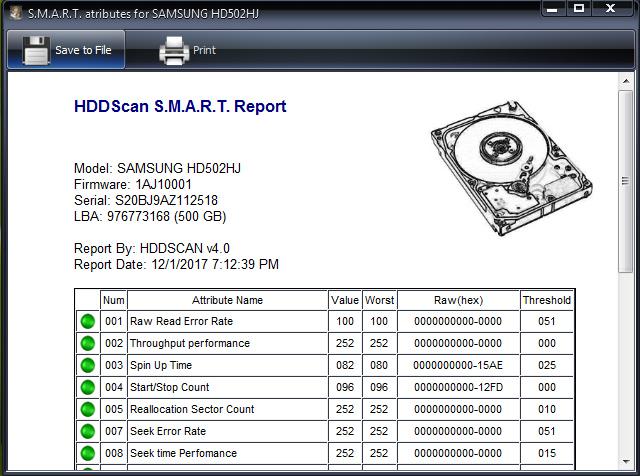
HDDScan – FREE HDD and SSD Test Diagnostics Software with RAID and
In practice, one user reported that after encountering the error on their Dell desktop following a move, simply reseating the SATA cables fixed it instantly, with the system booting normally in under 5 minutes. Another case involved a custom-built PC where the BIOS boot order had reset after a power outage; adjusting it to prioritize the SSD resolved the black screen, and the user noted improved boot speeds as a bonus. In a third scenario, diagnostics revealed a failing HDD on an older laptop—replacing it with an SSD not only eliminated the error but also boosted overall performance, though data migration was needed.
