

How to Disable Pop-up Blocker in Microsoft Edge: Step-by-Step Guide
2014-04-29How to Enable Mouse Gestures in Microsoft Edge Browser?
Enabling mouse gestures in Microsoft Edge allows users to perform quick actions like navigating back, refreshing pages, or opening new tabs by holding the right mouse button and drawing specific patterns on the screen. This feature, introduced in Edge version 112 and refined in later updates, is a built-in tool that enhances browser usability without needing third-party extensions. Breaking it down, mouse gestures rely on predefined movements—such as dragging left for “back” or up for “new tab”—to trigger commands, reducing reliance on keyboard shortcuts or menu clicks. In Edge, it’s configurable for up to 16 gestures, making it adaptable for tasks like closing tabs or scrolling, and it’s accessible via the browser’s settings for easy toggling and customization.
A common question is: What actions do mouse gestures support in Edge? By default, Edge offers 16 customizable gestures, including back (drag left), forward (drag right), refresh (drag up then down), new tab (drag up), close tab (drag down), and more, which can be viewed and adjusted in the configuration settings. Another frequent query is: Do I need an extension to enable mouse gestures in Edge? No, unlike older versions or other browsers, modern Microsoft Edge has this as a native feature starting from version 112, so you can activate it directly through the browser’s built-in options without installing anything extra.
Activating mouse gestures in Edge improves browsing efficiency by allowing one-handed navigation, speeding up workflows for tasks like research or multitasking. It minimizes interruptions from menu hunting or hotkeys, boosting productivity especially for users with large screens or touchpads. Additionally, customizing gestures reduces physical strain from repetitive clicks, making Edge more accessible and user-friendly for daily web use.
Step 1: Open Microsoft Edge Settings Launch Edge, click the three-dot menu in the top-right corner, and select Settings.
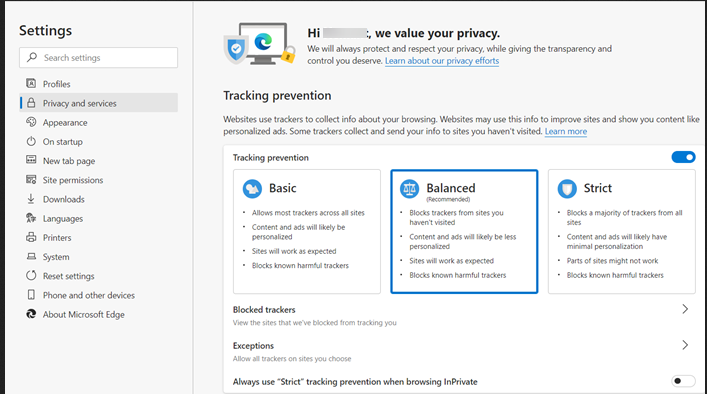
Adjusting Edge settings to enhance your online privacy
Step 2: Navigate to Appearance In the Settings sidebar, click Appearance, then scroll to the Mouse gesture section.
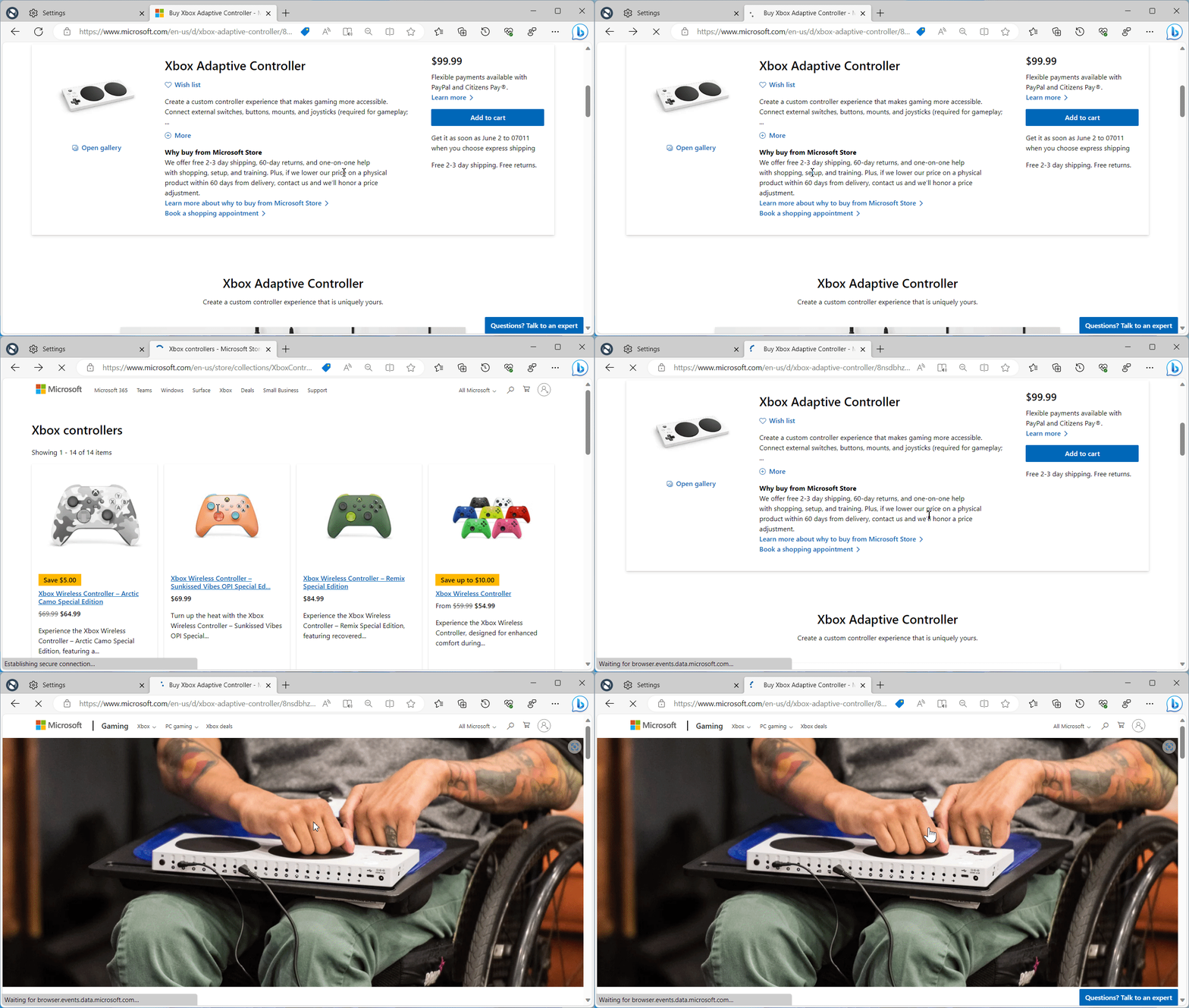
Mouse gestures are now available for testing in Microsoft Edge
Step 3: Enable Mouse Gestures Toggle on the Enable mouse gesture option to activate the feature.
Mouse gestures are now available for testing in Microsoft Edge
Step 4: Configure Gestures Click Configure mouse gesture to customize actions, such as assigning drag patterns.

The Hidden Hack for Super-Speedy Web Browsing
In one practical case, a web developer enabled mouse gestures in Edge and reported cutting navigation time by 30% during code reviews, as quick back-and-forth gestures streamlined tab management without breaking focus. Another user, handling multiple research tabs, found that custom gestures like instant refresh improved page loading efficiency, eliminating the need for constant toolbar clicks and enhancing overall workflow. Finally, a remote worker noted reduced wrist fatigue after switching to gestures for daily browsing, allowing smoother transitions between emails and web apps in Edge.
