

How to Enable Mouse Gestures in Microsoft Edge Browser?
2014-04-28Solution for Excel Not Displaying Completely Due to Insufficient System Resources
2014-04-30How to Disable Pop-up Blocker in Microsoft Edge: Step-by-Step Guide
The pop-up blocker in Microsoft Edge is a security feature designed to prevent unwanted windows or tabs from opening automatically on websites, enhancing user privacy and reducing ad clutter. Breaking it down, pop-ups often stem from JavaScript code that triggers new browser instances for ads, alerts, or forms, but Edge’s blocker intercepts these to avoid malware risks or distractions. Built on Chromium technology, it’s customizable per site and enabled by default in versions like Edge 120+, helping maintain a clean browsing experience while allowing exceptions for trusted content.
One common question is: Why does Microsoft Edge block pop-ups by default? It safeguards against potential threats like phishing scams or resource-draining ads that could compromise your device or data privacy. Another frequent query is: Can I selectively allow pop-ups for certain websites in Edge? Yes, in the pop-ups settings, you can add site URLs to the Allow list, ensuring only trusted pages bypass the blocker without disabling it entirely.
Turning off the pop-up blocker in Microsoft Edge improves access to essential features on websites that use pop-ups legitimately, such as online banking confirmations or e-commerce checkouts, eliminating frustrating blocks. It enhances customization for advanced users, allowing smoother interactions on productivity sites without constant permission prompts. Additionally, it can speed up workflows for developers testing web apps, though re-enabling is recommended for general security to balance convenience and protection.
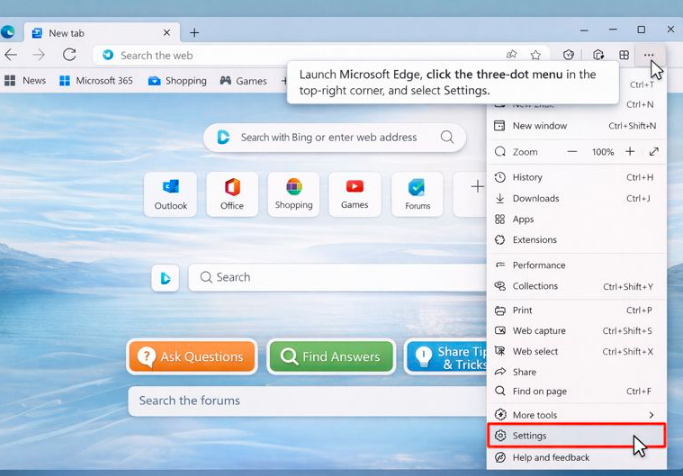
Step 1: Open Edge Settings Launch Microsoft Edge, click the three-dot menu in the top-right corner, and select Settings.
The Complete Guide to Microsoft Edge Browser – WebNots
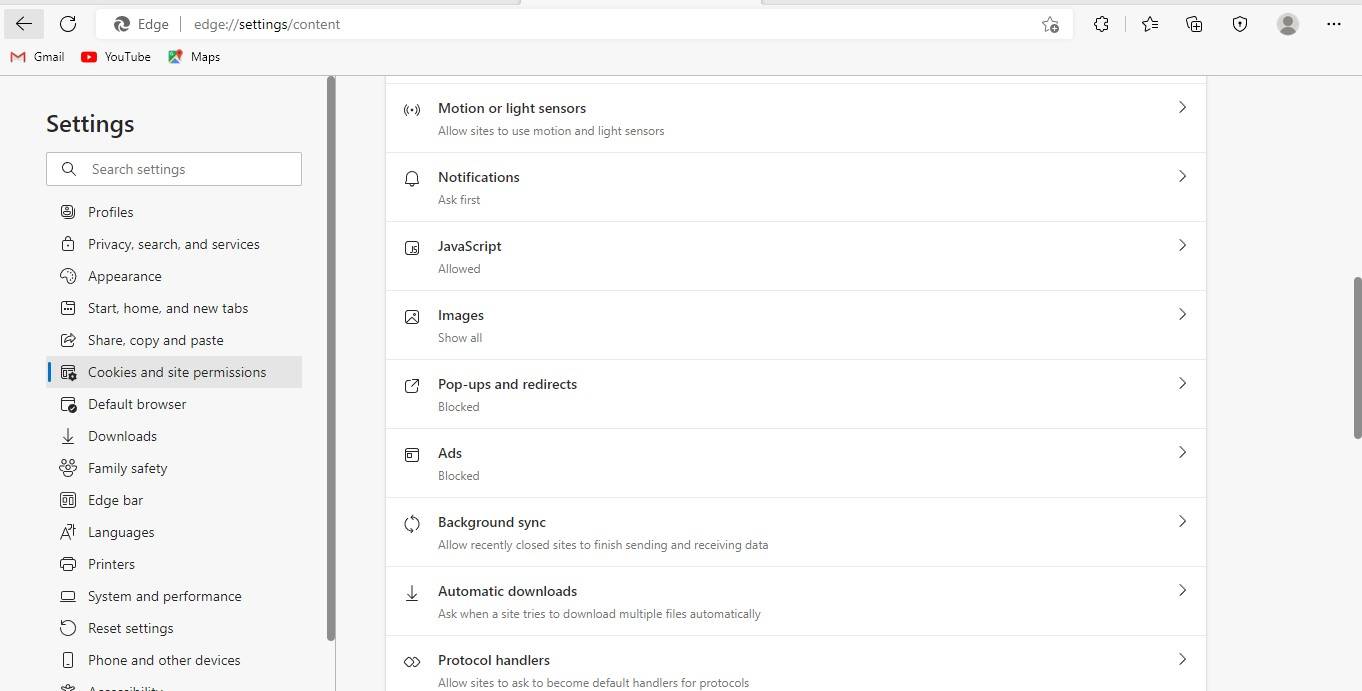
Step 2: Navigate to Cookies and Site Permissions In the Settings sidebar, click Cookies and site permissions.

How to clear cookies in Microsoft Edge
Step 3: Access Pop-ups and Redirects Scroll down and click Pop-ups and redirects.
How to Block Pop-Ups in Microsoft Edge on Desktop and Mobile
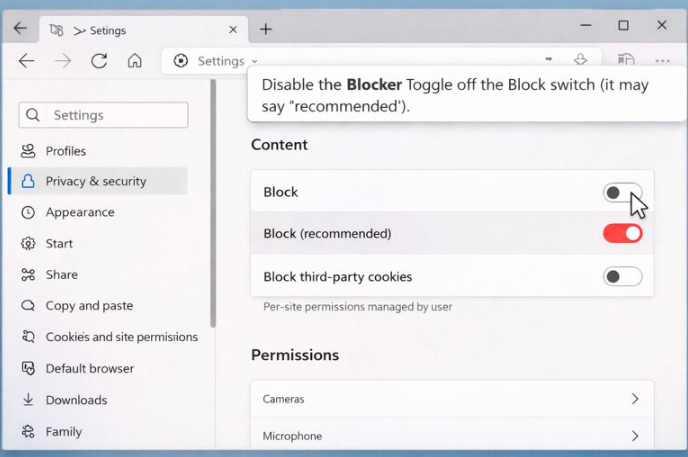
Step 4: Disable the Blocker Toggle off the Block switch (it may say “recommended”).
How to Block or Allow Pop-Ups on Microsoft Edge
In one practical scenario, a remote worker disabled the pop-up blocker in Edge to handle e-learning platform quizzes seamlessly, avoiding blocks on answer submission windows and completing training faster. Another user resolved issues with an online banking site by turning it off, enabling instant transaction pop-ups without errors and streamlining financial tasks. Finally, a web designer temporarily disabled it during site testing, allowing full access to interactive elements and accelerating debugging processes.
