

How to Fix Windows Update Error 0x8007000d
2014-05-02How to Fix “Package is Invalid” Error When Installing Chrome Extensions
2014-05-04Where Are the Internet Options in Chrome Google Browser?
Google Chrome, unlike older browsers such as Internet Explorer, does not feature a standalone “Internet Options” panel. This concept originates from Windows’ Internet Explorer, where “Internet Options” encompasses settings for proxy configurations, security zones, privacy, and connections. In Chrome, these functionalities are distributed across its built-in Settings menu for a more streamlined user experience. For instance, proxy settings—which are often what users mean when searching for “Internet Options”—are handled via Chrome’s system integration, redirecting to your operating system’s native proxy controls (e.g., Windows Settings or macOS System Preferences). Security and privacy options are directly accessible within Chrome’s dedicated sections, allowing for browser-specific tweaks without affecting the entire system. This modular approach ensures Chrome remains lightweight while providing robust customization for internet-related behaviors.
One common question is: Why doesn’t Chrome have a direct “Internet Options” menu like Internet Explorer? The answer lies in design philosophy—Chrome prioritizes simplicity and cross-platform compatibility, integrating equivalent features into its Settings to avoid redundancy with OS-level controls. Another related query: Can I access system-wide internet settings through Chrome? Yes, Chrome bridges to your device’s proxy and connection settings, but for full system changes, you may need to adjust them directly in your OS; Chrome’s interface serves as a convenient entry point for browser-specific adjustments.
Accessing these settings in Chrome offers several advantages, including enhanced privacy by managing cookies and site data, improved connectivity through custom proxy setups for bypassing restrictions or using VPNs, and better performance by clearing cache or disabling unnecessary extensions. It empowers users to tailor their browsing experience, troubleshoot network issues quickly, and maintain security against threats like malware or tracking, ultimately leading to a safer and more efficient online session.
Step 1: Launch Google Chrome Start by opening the Google Chrome application on your computer. Locate the Chrome icon on your desktop, taskbar, or applications folder, and double-click it to launch the browser.
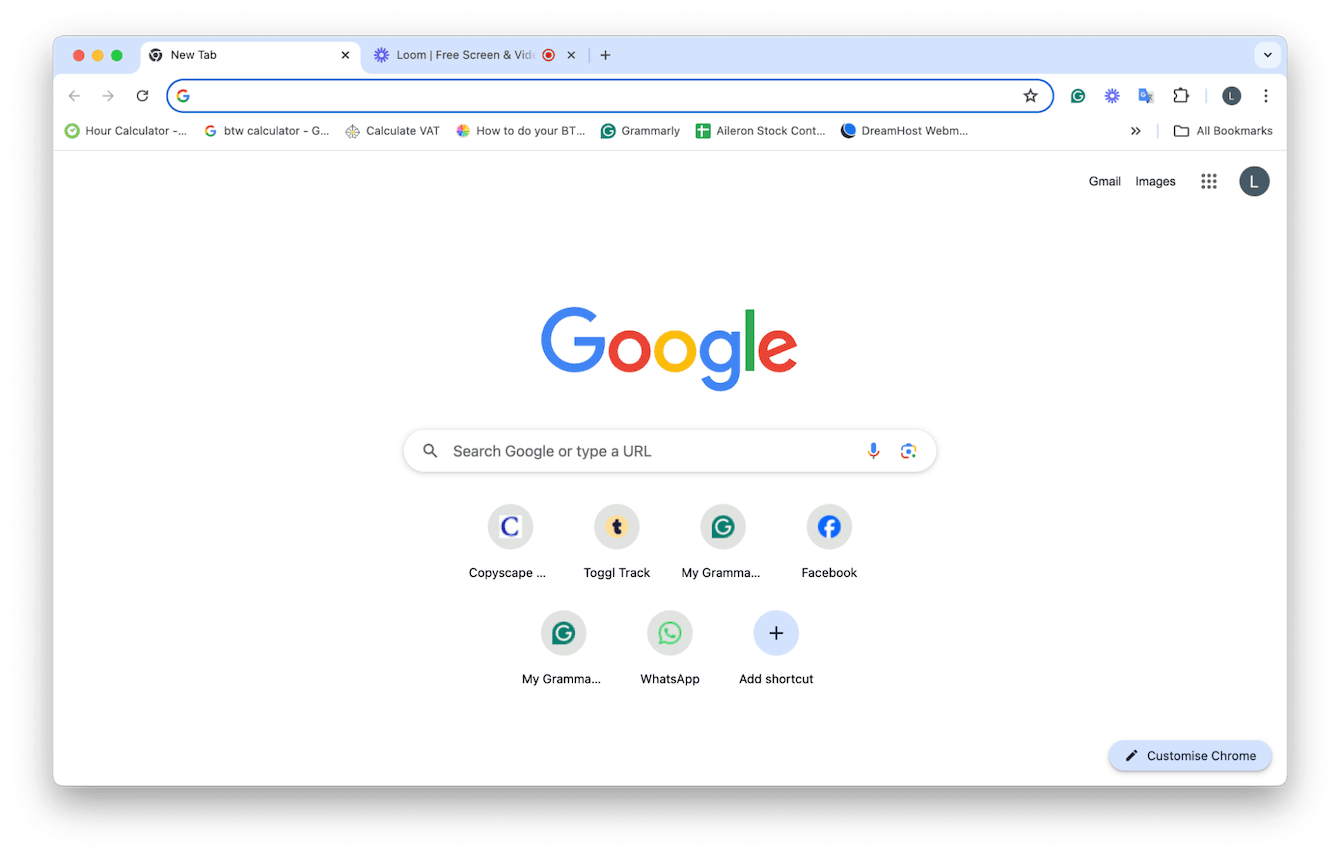
Google Chrome is capturing your screen”?
Step 2: Access the Menu Once Chrome is open, look for the three vertical dots icon in the top-right corner of the browser window. Click on it to reveal the dropdown menu.
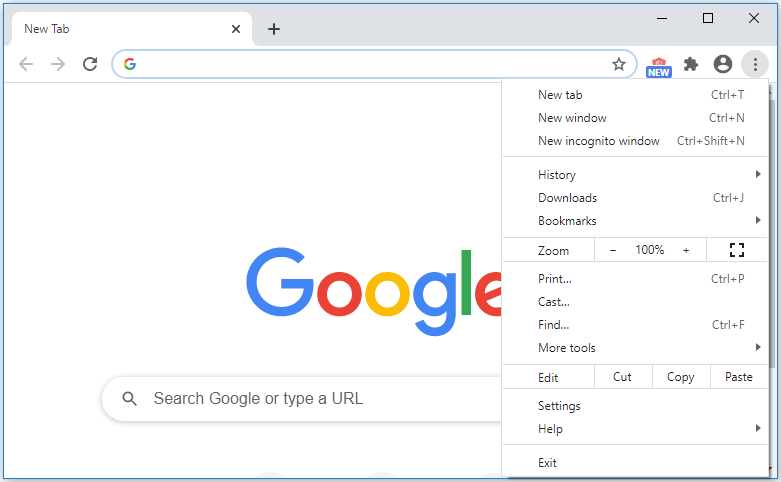
Chrome Menu Bar: Click the Three-Dot Icon to Find Everything
Step 3: Open Settings From the dropdown menu, scroll down and select “Settings” to enter Chrome’s configuration page.
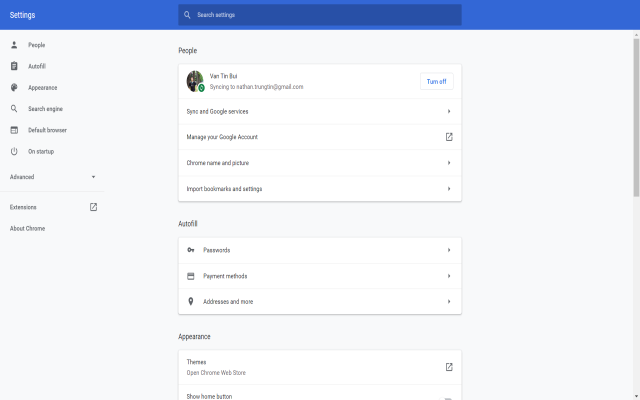
Settings – Chrome Web Store
Step 4: Search for Relevant Options In the Settings page, use the search bar at the top to type keywords like “proxy” or “internet” to locate related features quickly.
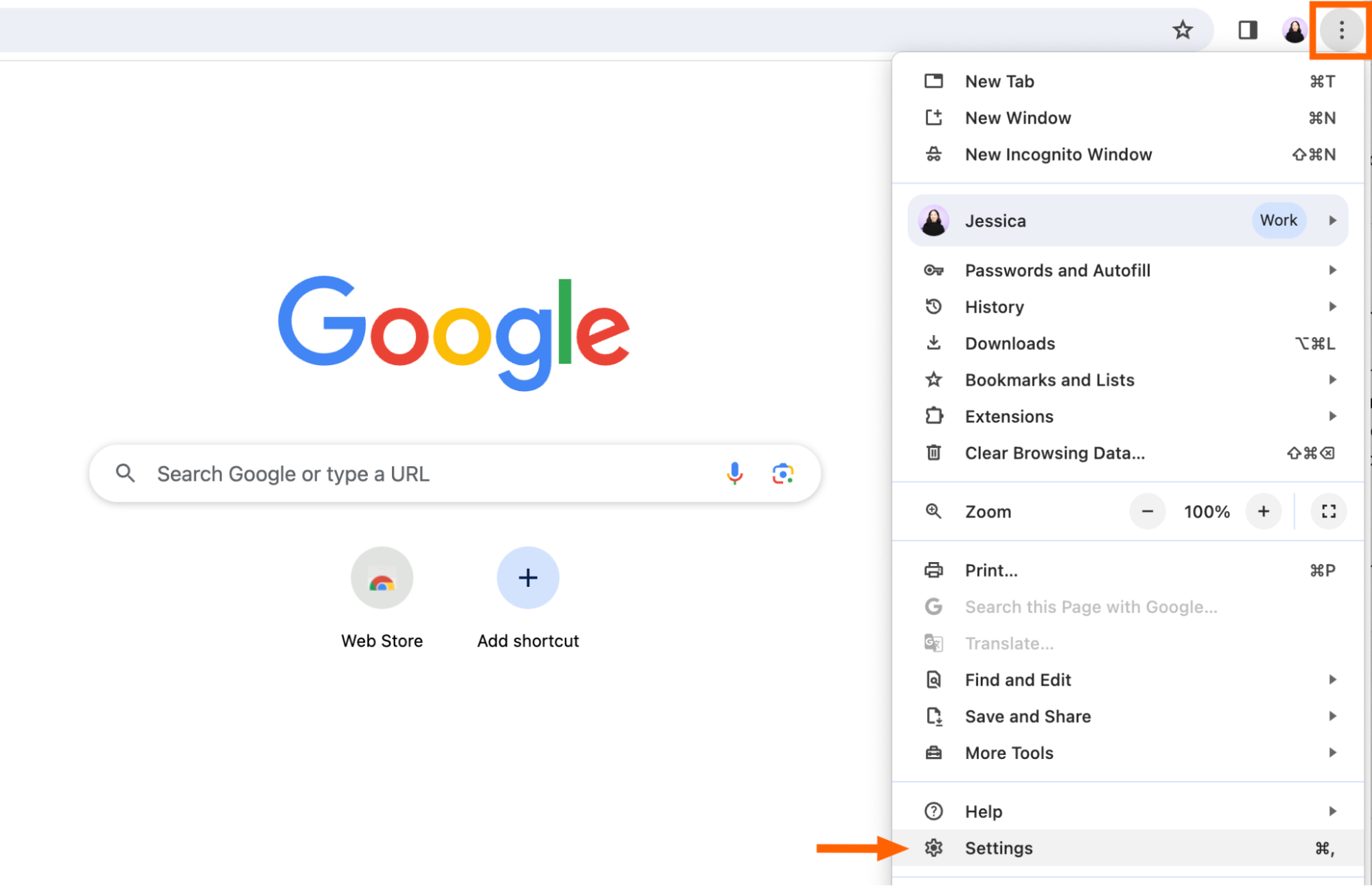
How to add a custom search engine to Chrome
Step 5: Access Proxy or System Settings Click on the result labeled “Open proxy settings” or similar, which will redirect you to your operating system’s internet options panel for further configuration.

How to Use Chrome Browser Proxy Settings
In one practical scenario, a user in a restricted corporate network followed these steps to set up a proxy, successfully accessing blocked educational resources and boosting productivity during remote work. Another case involved a student troubleshooting slow connections; by clearing cache via the privacy settings found this way, they reduced loading times by 40% on research sites. Finally, a privacy-conscious individual used the process to enable site isolation features, preventing cross-site tracking and enhancing data security during online shopping sessions.
