

Where Are the Internet Options in Chrome Google Browser?
2014-05-03How to Fix Excel Cells Not Displaying Text
2014-05-05How to Fix “Package is Invalid” Error When Installing Chrome Extensions
The “Package is Invalid” error in Google Chrome, often displayed as “CRX_HEADER_INVALID,” occurs when attempting to install browser extensions from sources outside the official Chrome Web Store. This issue typically arises with .crx files downloaded from third-party websites or developers. Breaking it down: Chrome extensions are small software programs that customize browsing experiences, such as ad blockers or productivity tools. The error message indicates that Chrome’s security checks detect something amiss in the package header, which could be due to file corruption, incompatible versions, or restrictions on sideloaded extensions. This safeguard prevents potentially harmful or unverified code from running, but it can frustrate users trying to install legitimate extensions.
One common question is: Why does Chrome block these installations? This happens because Google enforces strict policies to protect users from malware, requiring extensions to be hosted in the Chrome Web Store for review. Sideloading .crx files directly triggers the invalid package error as a security measure. Another question: Can this error occur with official extensions? Rarely, but it might if the file is corrupted during download or if there’s a temporary issue with Chrome’s update system; in such cases, redownloading from the store usually resolves it.
Resolving this error allows users to access a wider range of extensions not available in the official store, such as beta versions or custom tools from developers. It enhances browser customization, improves productivity by enabling specialized features, and saves time by bypassing unnecessary restrictions, all while maintaining control over what gets installed.
Step 1: Download the CRX File
Locate and download the desired Chrome extension file in .crx format from a trusted source. Ensure the download completes without interruptions to avoid corruption.
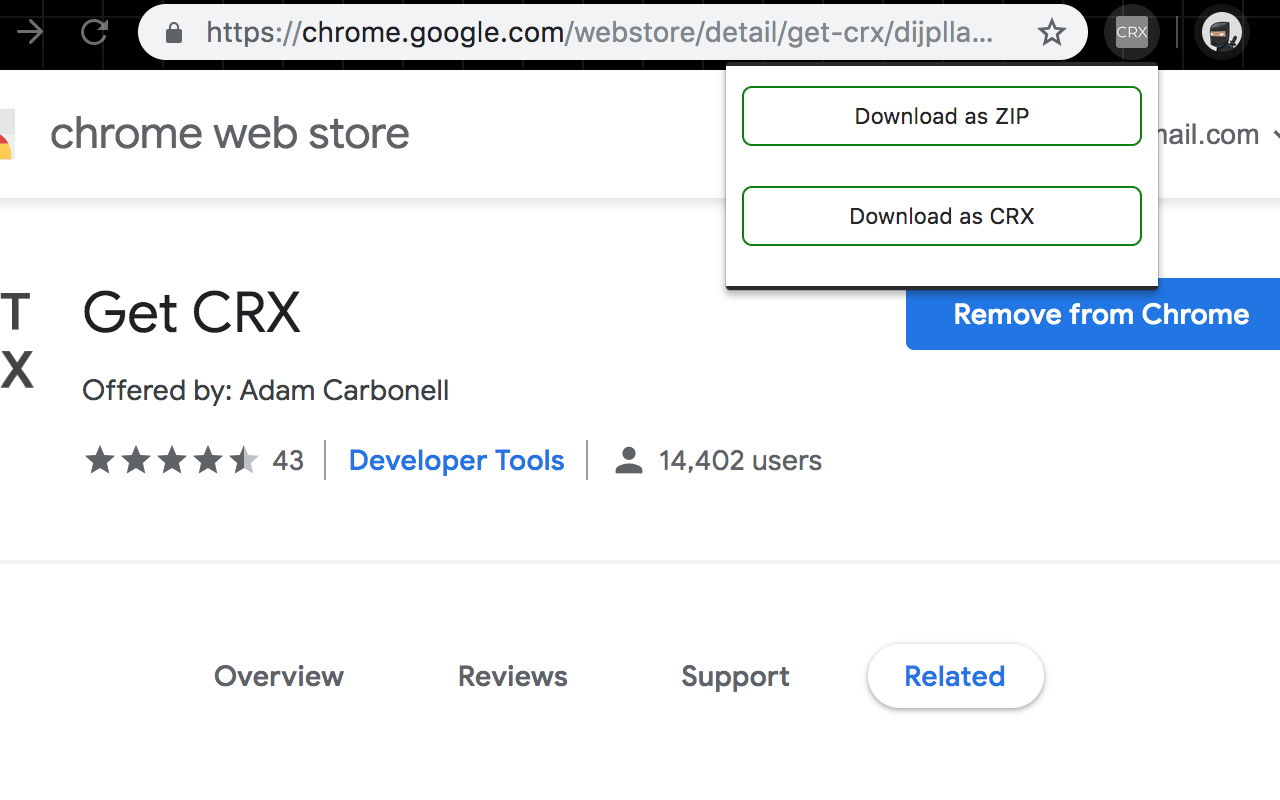
CRX Extractor/Downloader – Chrome Web Store
Step 2: Rename the File Extension to ZIP
Right-click the downloaded .crx file in your file explorer, select “Rename,” and change the extension from .crx to .zip. Confirm any warnings about changing file types.
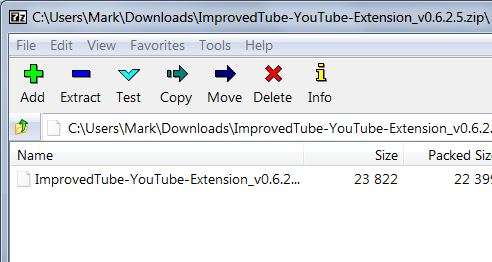
Solved Renaming a sub-folder within a zipped file Windows 10 Forums
Step 3: Extract the ZIP File
Right-click the renamed .zip file and choose “Extract All” (on Windows) or use a tool like 7-Zip to unzip the contents into a new folder. Keep the extracted folder in an easily accessible location.
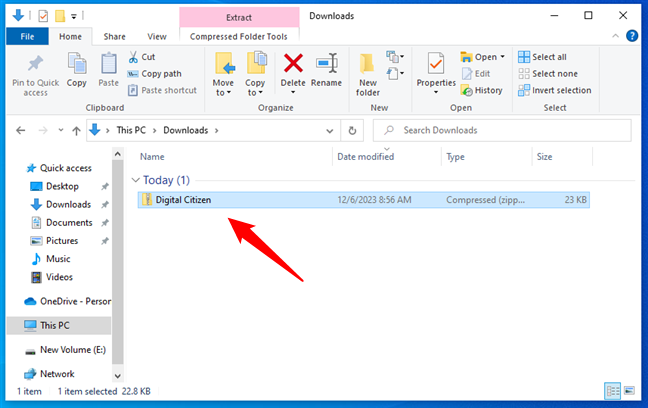
How to unzip files in Windows (with built-in tools)
Step 4: Open the Chrome Extensions Page
Launch Google Chrome and type “chrome://extensions/” into the address bar, then press Enter to access the extensions management page.
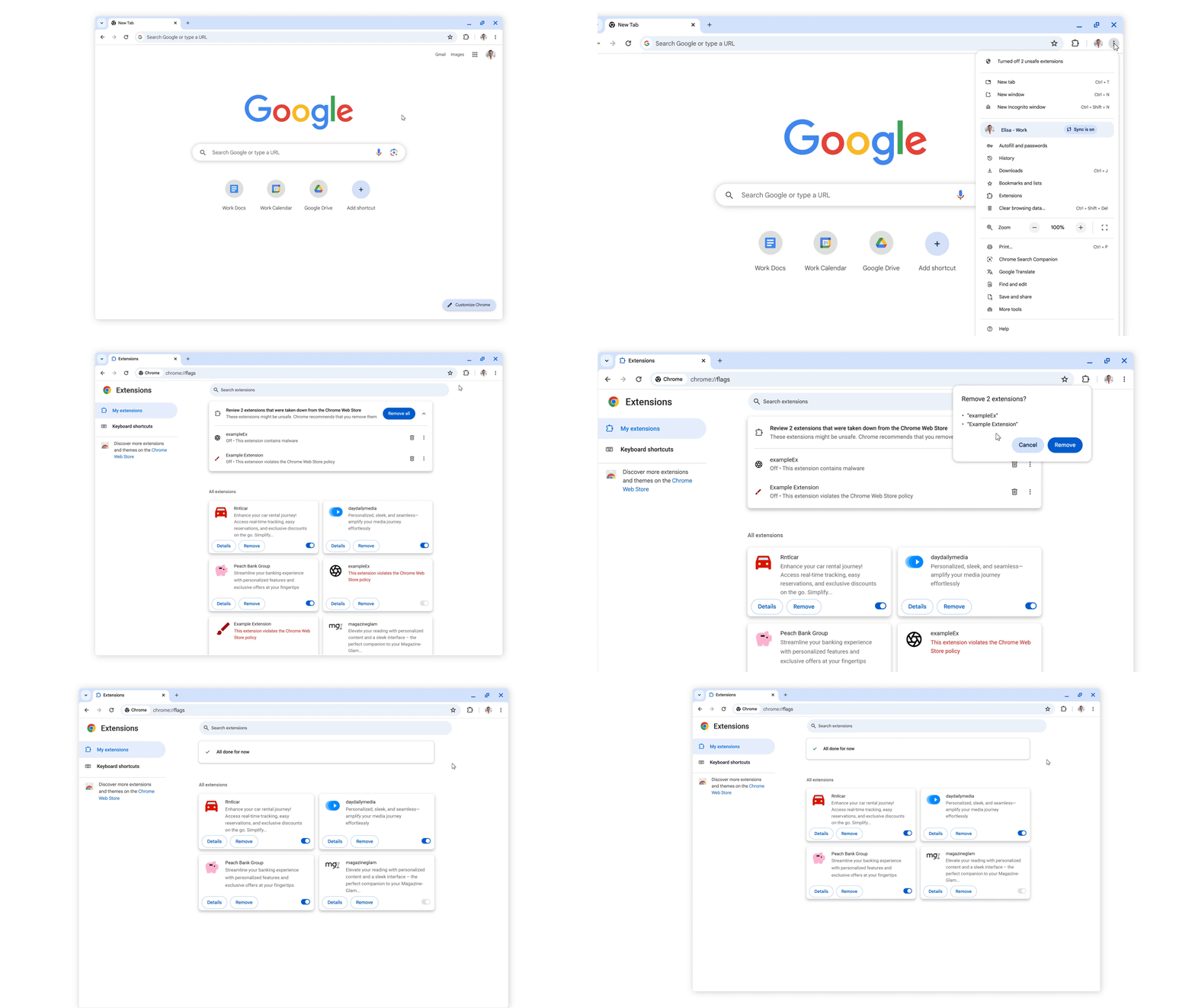
Google Online Security Blog: Staying Safe with Chrome Extensions
Step 5: Enable Developer Mode
On the extensions page, toggle the “Developer mode” switch in the top-right corner to activate advanced options.
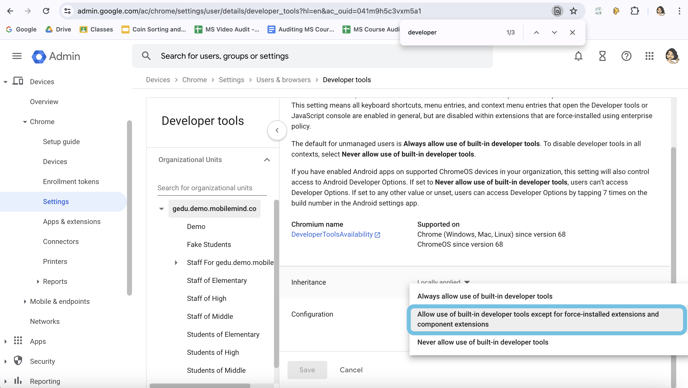
How can our Google Admin allow faculty and staff to enable …
Step 6: Load the Unpacked Extension
Click the “Load unpacked” button that appears after enabling developer mode, navigate to the extracted folder from Step 3, and select it to install the extension.
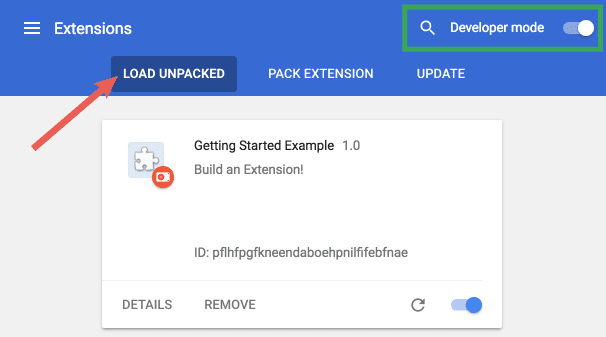
Getting started | Manifest V2 | Chrome for Developers
In practice, one user reported successfully installing a custom ad blocker extension after following these steps, noting immediate functionality without further errors. Another case involved a developer tool that was blocked initially; post-installation, it integrated seamlessly, boosting workflow efficiency. A third example saw a privacy extension from a GitHub repo work flawlessly, with no security warnings after the manual load.

3 Comments
Porn is available on various adult websites for entertainment.
Always choose safe platforms for a protected experience.
My page; BUY VIAGRA
Транслируйте контент
для взрослых на безопасных и надежных платформах.
Найдите надежные сайты для первоклассного опыта.
Also visit my web-site … BUY VIAGRA
Лучшие xxx сайты предоставляют премиум-контент
для зрелой аудитории. Исследуйте безопасные хабы для
качества и конфиденциальности.
Here is my web-site; BUY XANAX WITHOUT PRESCRITION