

How to Fix “Package is Invalid” Error When Installing Chrome Extensions
2014-05-04How to Fix Printer Display Errors?
2014-05-06How to Fix Excel Cells Not Displaying Text
Excel is a powerful spreadsheet tool, but sometimes users encounter an issue where text in cells doesn’t appear as expected. This problem, often referred to as “text not displaying” or “hidden text in cells,” can stem from several underlying causes. Breaking it down: First, the row height might be too small, causing text to be clipped if it’s wrapped or multi-line. Second, formatting issues like font color matching the background can make text invisible. Third, hidden rows, columns, or filters might conceal the content entirely. Fourth, merged cells or conditional formatting rules could override visibility. Finally, data validation or protection settings might restrict display. Understanding these elements helps pinpoint the root cause efficiently.
One common question is: Why does text disappear when I enter it into a cell? This often happens because the cell’s row height isn’t automatically adjusted for wrapped text. To resolve it, enable text wrapping and manually or automatically resize the row. Another question: What if the text shows in the formula bar but not in the cell? This indicates a formatting problem, such as white font on a white background or zero-height rows. Check and adjust the font color or unhide the rows to make it visible.
Addressing this issue improves productivity by ensuring all data is accessible, reduces errors from overlooked information, enhances collaboration as team members can view complete spreadsheets, and prevents data loss perceptions that might lead to unnecessary rework.
Step 1: Identify the Affected Cells Select the cell or range where text isn’t showing. Look in the formula bar to confirm the text exists but isn’t visible in the grid.
Clicking a cell in Excel is not showing it’s outline in recording …
Step 2: Adjust Row Height Double-click the row header boundary to auto-fit the height, or right-click the row number, select “Row Height,” and enter a larger value. This reveals wrapped or multi-line text.
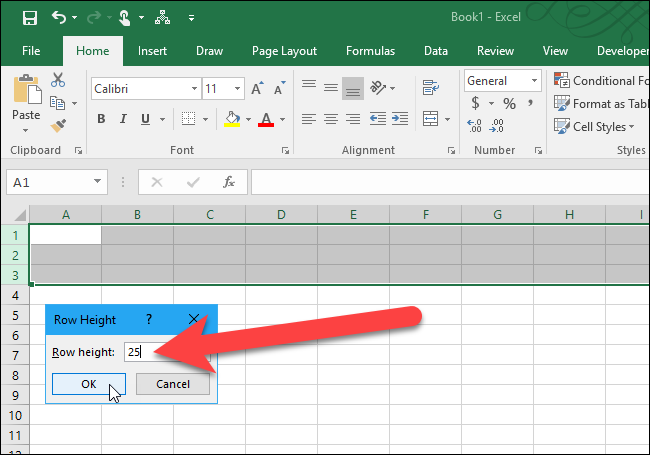
How to Set Row Height and Column Width in Excel
Step 3: Check and Change Font Color Highlight the cells, go to the Home tab, and click the font color dropdown. If it’s the same as the background (e.g., white on white), change it to black or another contrasting color.
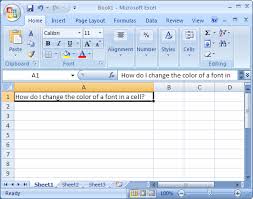
MS Excel 2007: Change the font color in a cell
Step 4: Clear Cell Formatting Select the cells, navigate to the Home tab, click “Clear” in the Editing group, and choose “Clear Formats” to reset any problematic styles without deleting data.
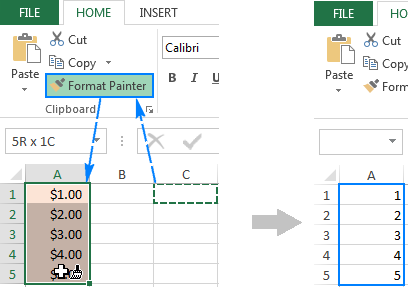
Clear formatting in Excel: how to remove all formats in a cell
Step 5: Unhide Rows or Columns If entire rows or columns are hidden, right-click the adjacent headers, select “Unhide,” or use Format > Hide & Unhide from the Home tab to reveal them.
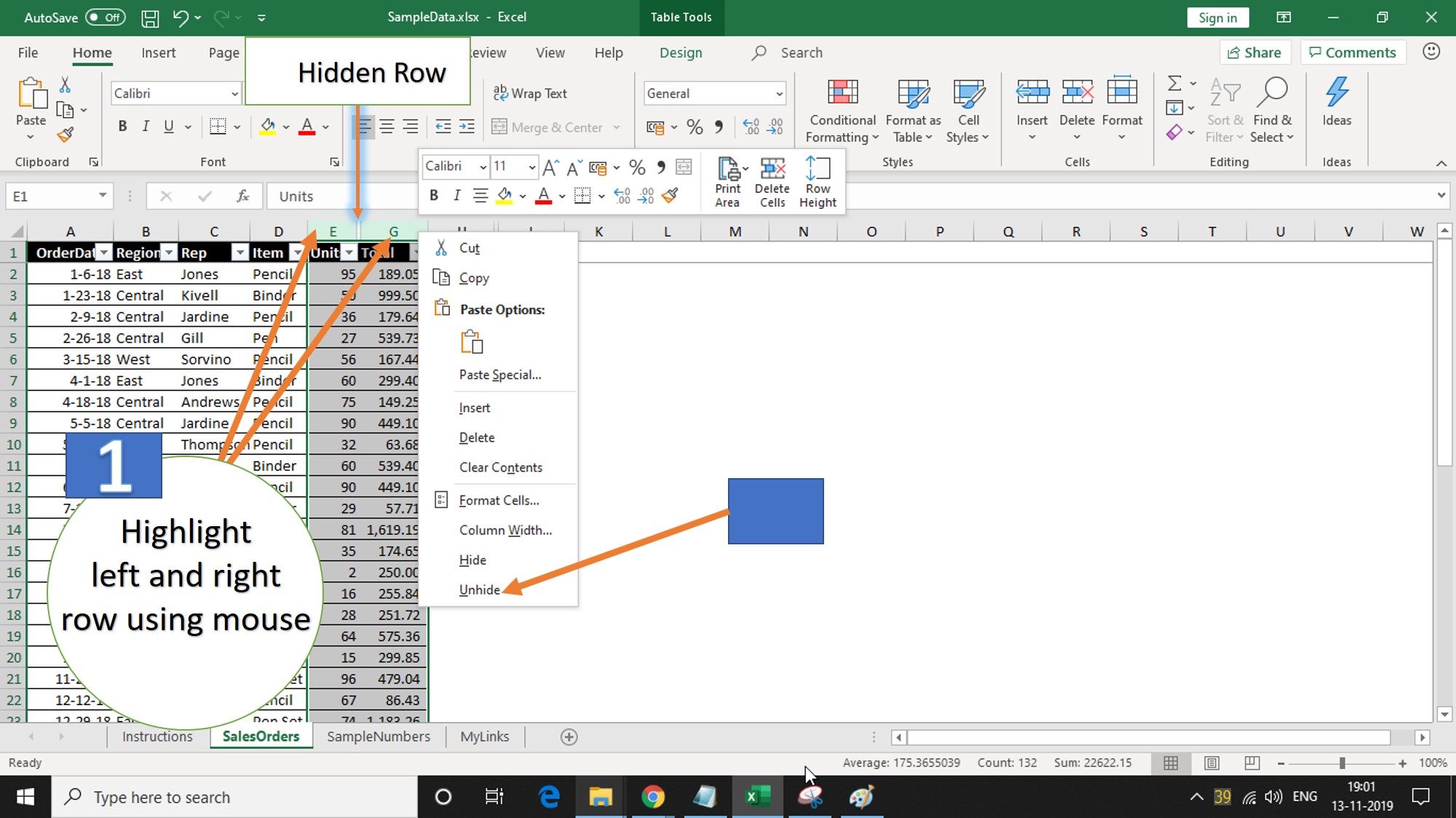
How to hide or unhide rows & columns in Excel
Step 6: Remove Filters If filters are applied, click the Filter button on the Data tab to clear them, or select “Clear” from the Sort & Filter group to show all data.
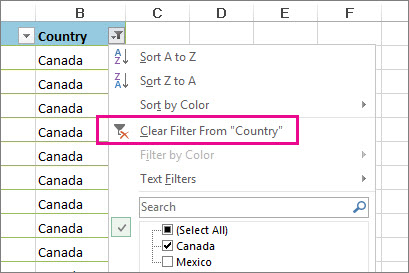
Clear or remove a filter
In one practice scenario, a financial analyst fixed hidden budget notes in a quarterly report by adjusting row heights, allowing the team to review details and avoid a $5,000 miscalculation. Another case involved a student whose assignment spreadsheet showed blank cells due to font color issues; clearing formatting restored the text, improving the submission grade. Finally, in a project management file, unhiding filtered rows revealed overdue tasks, enabling timely completion and preventing delays.
