

How to Fix Excel Cells Not Displaying Text
2014-05-05Win10 Boot Blue Screen 0xc000021a Error: Causes Analysis and Repair Methods
2014-05-07How to Fix Printer Display Errors?
Printer display errors are notifications or codes that appear on a printer’s screen or control panel, signaling an issue preventing normal operation. These errors can stem from hardware malfunctions, such as jammed paper or low ink levels, software glitches like outdated drivers, or connectivity problems between the printer and the connected device. Common examples include “Paper Jam,” “Ink Low,” “Error Code E02,” or “Offline” status. Understanding these errors involves recognizing their categories: mechanical errors (e.g., physical blockages), supply-related errors (e.g., depleted consumables), and system errors (e.g., firmware or network issues). By breaking them down, users can identify whether the problem is user-fixable or requires technical support.
One common question is: What are the most frequent causes of printer display errors? These often arise from simple oversights like loose cables, incorrect paper loading, or environmental factors such as dust accumulation, but they can also result from more complex issues like corrupted print queues or incompatible software updates. Another question is: How can I decode specific error codes on my printer? Most manufacturers provide online manuals or support pages where you can look up the code; for instance, HP’s “E3” might indicate a paper jam, while Canon’s “1688” signals low ink—always refer to your model’s documentation for accurate interpretation.
Resolving printer display errors offers several advantages, including saving money on unnecessary service calls, reducing downtime for important printing tasks, and extending the lifespan of your printer by addressing issues early. It also empowers users with basic troubleshooting skills, minimizing frustration and improving overall efficiency in home or office setups.
Step 1: Check Power and Connections Ensure the printer is properly plugged in and all cables (power, USB, or network) are securely connected. Turn it on and verify if the display lights up without errors. If using Wi-Fi, confirm the printer is on the same network as your device.
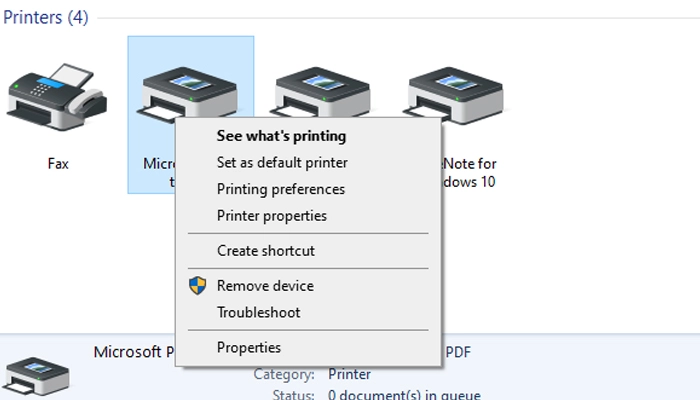
Get Your Printer Back Online NOW: 11 Tips That Actually Work
Step 2: Inspect for Paper Jams or Supply Issues Open the printer’s access panels and carefully remove any stuck paper or debris. Check ink or toner levels and replace if low. Reload paper trays correctly, ensuring the paper type matches the settings.
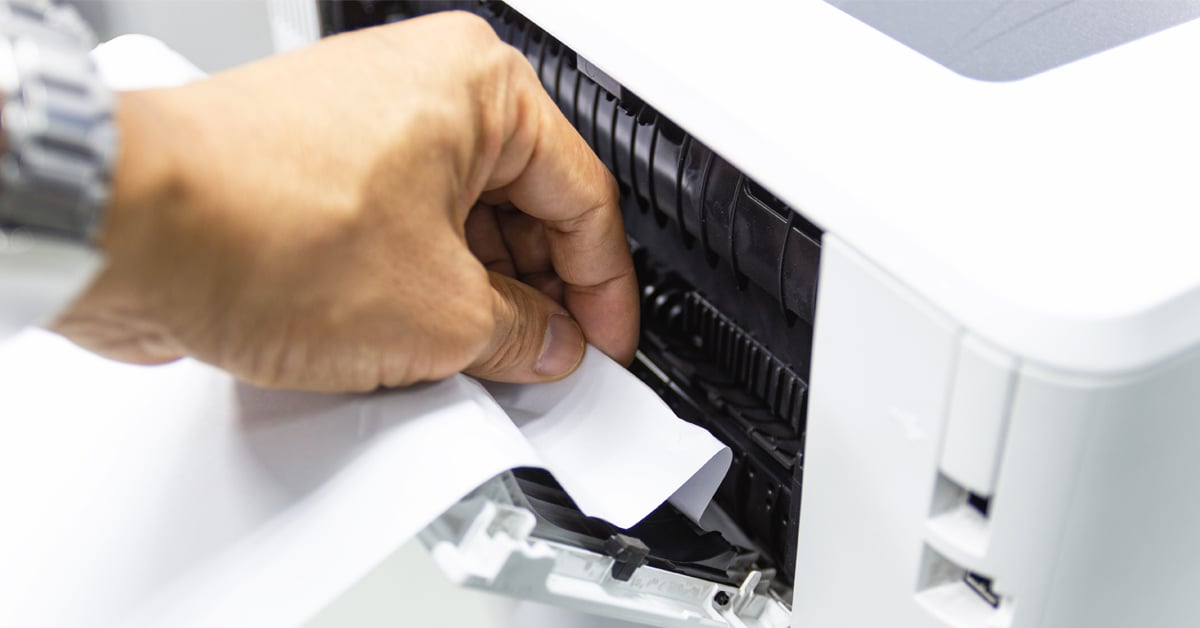
How to Fix a Printer Paper Jam
Step 3: Restart the Printer and Connected Devices Power off the printer, unplug it for at least 30 seconds, then plug it back in and turn it on. Also, restart your computer or router to clear temporary glitches.
Get Your Printer Back Online NOW: 11 Tips That Actually Work
Step 4: Update Printer Drivers Visit the manufacturer’s website (e.g., HP, Epson) to download the latest drivers for your model. Install them on your computer and restart both devices to apply changes.
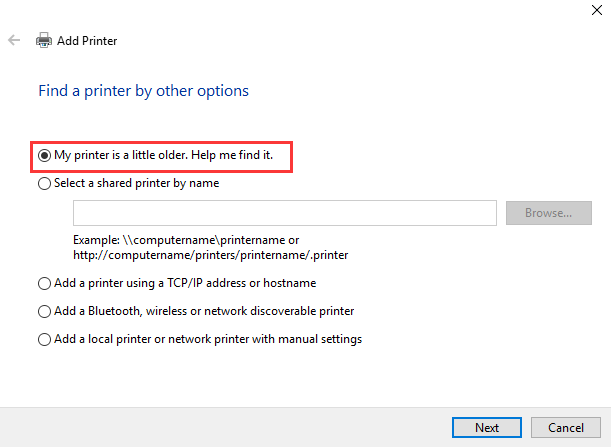
4 Solutions to Fix Printer Not Working Error after Windows 10
Step 5: Run the Built-in Troubleshooter On Windows, go to Settings > Devices > Printers & Scanners, select your printer, and click “Run the troubleshooter.” Follow the on-screen prompts to diagnose and fix issues.
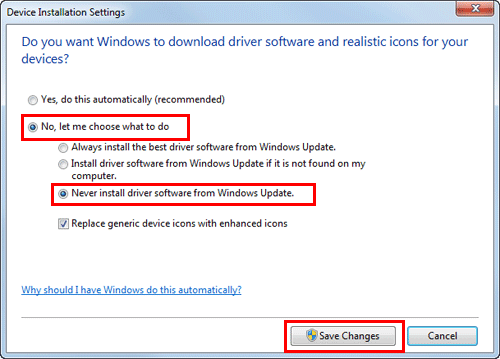
Step 6: Contact Support if Needed If errors persist, note the exact code and contact the manufacturer’s support with your model details for advanced assistance or repairs.
Printing
In one practical case, a home user with an HP printer displaying “Paper Jam” error followed the steps and cleared a hidden jam in Step 2, resuming printing within minutes without professional help. Another example involved an office Epson model showing “Offline” status; updating drivers in Step 4 resolved the issue, preventing workflow delays for a team. Finally, a Canon printer with persistent “E02” code was fixed by running the troubleshooter in Step 5, avoiding a costly service visit and restoring functionality immediately.
