

How to Fix Printer Display Errors?
2014-05-06What to Do If Excel Can’t Sort?
2014-05-08Win10 Boot Blue Screen 0xc000021a Error: Causes Analysis and Repair Methods
The 0xc000021a error is a critical Blue Screen of Death (BSOD) that appears during the Windows 10 boot process, preventing the system from loading properly.
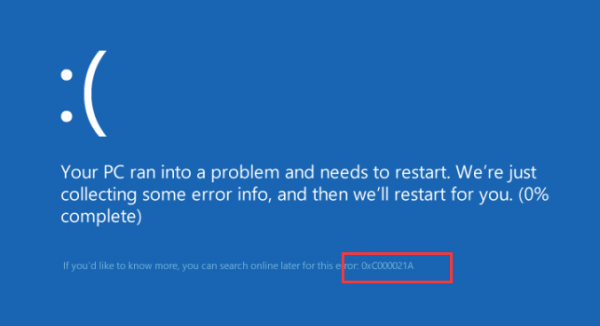
Error 0xC000021A Blue Screen of Death on Windows 10 & 8
This stop code indicates that essential system processes have failed, specifically Winlogon.exe, which manages user authentication and session handling, or Csrss.exe, which oversees client-server runtime operations essential for graphical interfaces and threading. When these processes crash or become corrupted, Windows enters a protective shutdown to avoid further damage, often resulting in a boot loop where the system repeatedly fails to start.
Breaking down the concept further, this error falls under the category of kernel-level failures in Windows, where the operating system detects an unrecoverable issue in core components. Common triggers include mismatched or damaged system files that disrupt the boot sequence, leading to instability. For instance, Winlogon.exe might fail due to registry corruption or third-party software interference, while Csrss.exe issues often stem from driver conflicts or incomplete updates that alter critical dependencies. Additionally, hardware-related factors like faulty RAM or storage drives can exacerbate the problem by causing data read errors during boot.
Question 1: What are the primary causes of the 0xc000021a error? The main causes include corrupted system files (such as those affecting Winlogon.exe or Csrss.exe), failed Windows upgrades or updates that leave the system in an inconsistent state, incomplete software installations that modify core components, malware infections compromising system integrity, and occasionally hardware incompatibilities or driver issues.
Question 2: Can the 0xc000021a error be fixed without reinstalling Windows? Yes, in most cases, it can be resolved using built-in recovery tools like Startup Repair, System File Checker (SFC), Deployment Image Servicing and Management (DISM), and boot configuration repairs, which address file corruption and boot issues without requiring a full OS reinstall.
Addressing the 0xc000021a error through proper repairs offers several advantages. It restores full system access, allowing you to retrieve important files and resume normal operations without data loss. By fixing underlying corruptions, it enhances overall stability, reducing the likelihood of recurring crashes and improving performance. Additionally, these methods are cost-effective and time-saving compared to a complete Windows reinstall, which could involve backing up data and reconfiguring applications. Finally, successful repairs can prevent escalation to more severe hardware failures by identifying and mitigating related issues early.
Step 1: Boot into the Windows Recovery Environment
If your system is stuck in a boot loop, power on the computer and repeatedly press F8, F11, or Shift + Restart (if accessible) to enter the recovery mode. Alternatively, create a bootable Windows 10 USB installation media using another PC, insert it, and boot from it by changing BIOS boot order (press Del or F2 during startup to access BIOS). Once in recovery, you’ll see options like “Troubleshoot” on a blue screen.
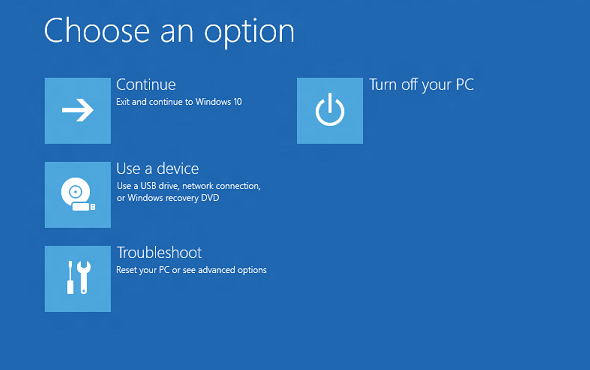
Windows Recovery Environment (Windows RE) | Microsoft Learn
Step 2: Run Startup Repair
From the recovery screen, select “Troubleshoot” > “Advanced options” > “Startup Repair.” This automated tool scans for boot problems and attempts to fix them, such as corrupted boot files or configuration errors. Allow it to complete, which may take several minutes, and restart if prompted.
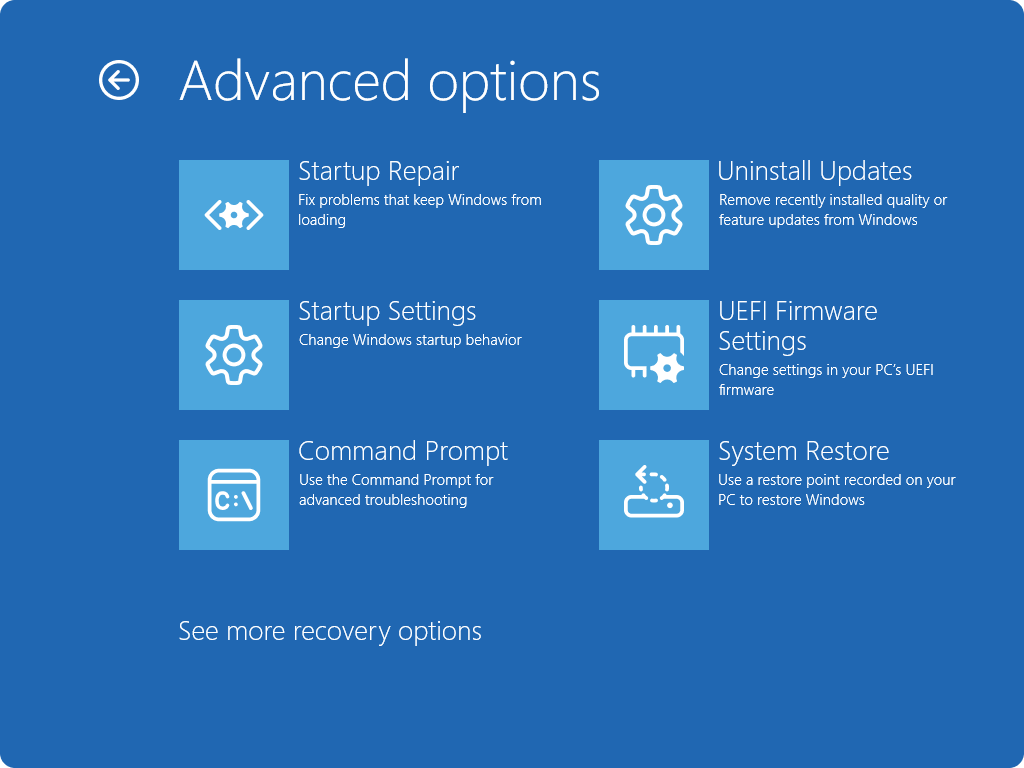
Startup Repair
Step 3: Access Command Prompt
If Startup Repair doesn’t resolve the issue, return to “Advanced options” and choose “Command Prompt.” This opens a black window where you can execute repair commands. Ensure you’re working on the correct drive (usually C:) by typing “dir C:” to verify Windows files.
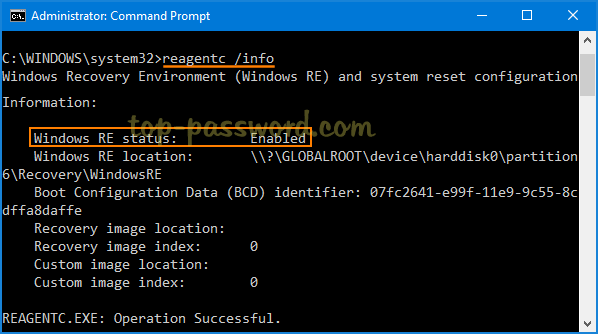
Enable or Disable Windows Recovery Environment (WinRE) in Windows …
Step 4: Run DISM and SFC Scans
In Command Prompt, first enter “DISM /Online /Cleanup-Image /RestoreHealth” and press Enter to repair the Windows image. Once finished, type “sfc /scannow” to scan and replace corrupted system files. These commands can take time but are crucial for fixing file integrity issues causing the error.
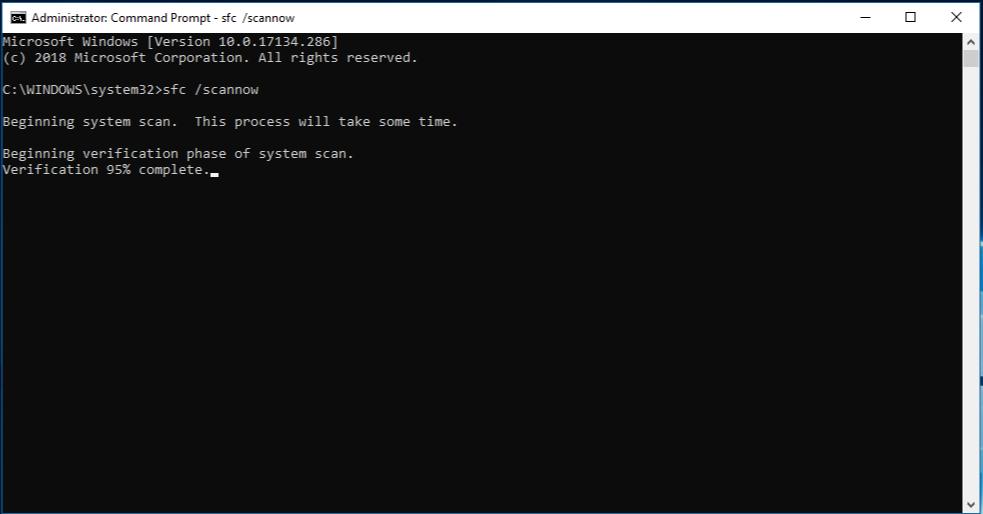
Use the System File Checker tool to repair missing or corrupted …
Step 5: Repair Boot Configuration Data
Still in Command Prompt, run the following one by one: “bootrec /fixmbr” (repairs master boot record), “bootrec /fixboot” (fixes boot sector), and “bootrec /rebuildbcd” (rebuilds boot configuration data). These rebuild the boot environment, addressing errors in the startup sequence.
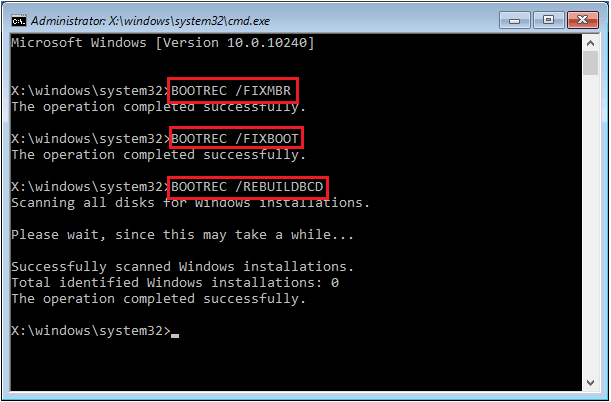
How to Fix Windows 10 Boot Errors Using CMD
Step 6: Perform System Restore (If Necessary)
If previous steps fail, go back to “Advanced options” > “System Restore.” Select a restore point from before the error occurred (e.g., prior to a recent update), and follow the prompts to revert system changes while keeping personal files intact.
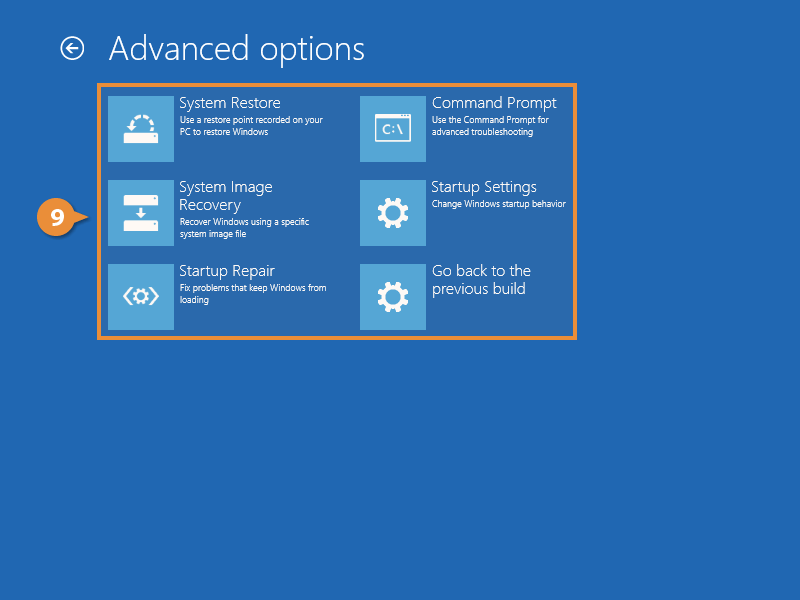
System Restore Windows
In practice, one user reported that after encountering the error following a power outage, running the bootrec commands from a Windows USB allowed the system to boot successfully, with no further issues after updates. Another case involved a failed software installation; using SFC and DISM repaired the corrupted files, restoring normal operation and preventing data loss. A third example came from an AVG update conflict, where System Restore rolled back changes, and the PC booted slowly at first but stabilized after additional updates.
