

What to Do If Photoshop’s Color Settings Cannot Be Synchronized and Won’t Run?
2014-05-09How to Fix Error 0x80070057?
2014-05-11How to Fix Photoshop When It Can’t Complete a Request Due to a Program Error
The “Could not complete your request because of a program error” message in Photoshop indicates an internal glitch preventing the software from executing a command, such as opening a file, saving, or applying an effect. Breaking this down, the error often stems from hardware-software mismatches, like incompatible graphics processing units (GPUs) that fail to handle rendering tasks. It can also arise from corrupted user preferences files, which store custom settings and become unstable over time. Additionally, outdated software versions introduce bugs fixed in later updates, while plugin conflicts overload the program. System resource limitations, such as low RAM or disk space, exacerbate the issue by hindering smooth operation.
What are the primary causes of this program error in Photoshop? The main triggers include GPU incompatibility, where the graphics card doesn’t align with Photoshop’s requirements, leading to rendering failures. Corrupted preferences files from repeated crashes or improper shutdowns also play a role, as do outdated Photoshop versions harboring unresolved bugs or third-party plugins that interfere with core functions.
Is it safe to reset preferences when encountering this error? Yes, resetting preferences is a standard troubleshooting step that reverts Photoshop to default settings without affecting your files or projects. It only clears custom configurations like tool presets or workspace layouts, which can be reconfigured later, and often resolves the error without data loss.
Addressing this error restores full access to Photoshop’s features, boosting productivity by eliminating interruptions during editing sessions. It prevents potential workflow delays, reduces frustration from repeated failures, and can enhance overall performance by optimizing settings and removing conflicts, ultimately saving time on creative tasks.
Step 1: Update Photoshop to the Latest Version
Open the Adobe Creative Cloud desktop app, navigate to the Apps section, and check for Photoshop updates. If available, click Update to install the latest version, then restart the application. This ensures any known bugs causing the program error are patched.
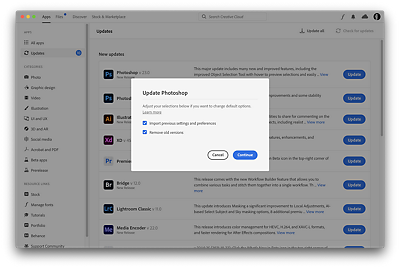
Keep Adobe Photoshop up to date
Step 2: Disable Use Graphics Processor
In Photoshop, go to Edit > Preferences > Performance. Uncheck the box for “Use Graphics Processor,” adjust the cache level if needed (e.g., to 6), and restart the program. This switches to CPU processing, bypassing GPU-related issues.

Step 3: Reset Photoshop Preferences
Close Photoshop, then relaunch it while holding Ctrl + Alt + Shift (Windows) or Cmd + Option + Shift (Mac) to prompt the reset dialog. Confirm to delete the preferences file, or manually remove the Photoshop Settings folder from your app data directory for a clean reset.
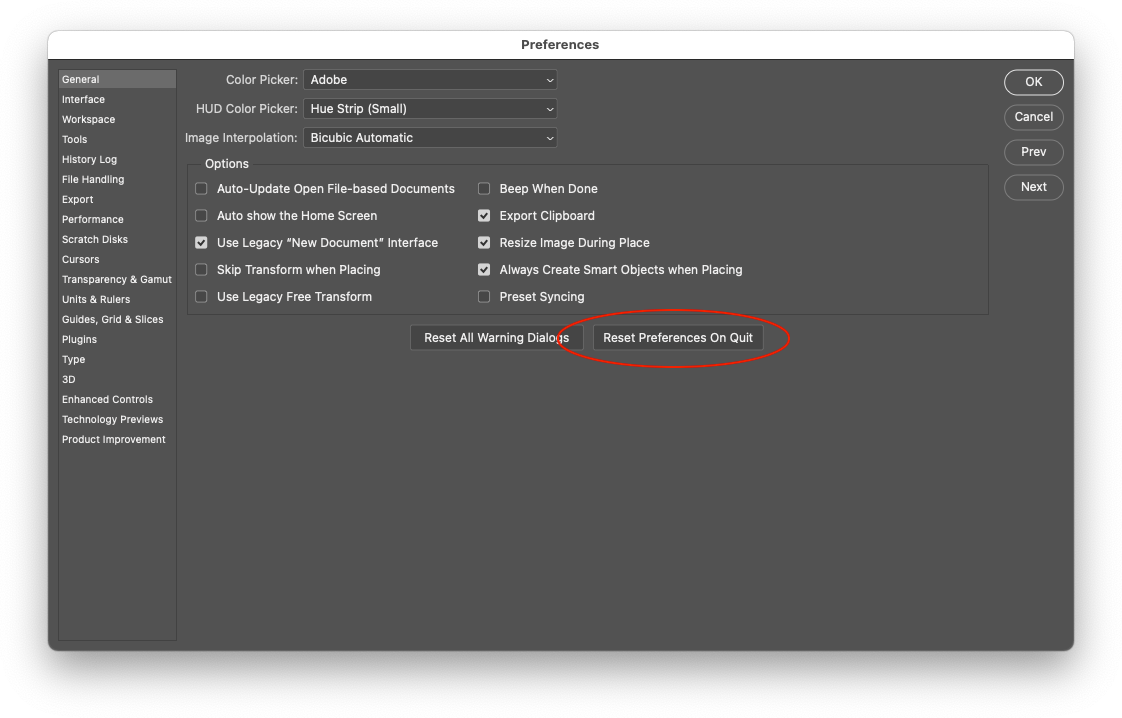
Solved: Deleting Photoshop settings file
Step 4: Update Your Graphics Drivers
Access your device’s graphics control panel or Device Manager (on Windows), locate your GPU (e.g., NVIDIA or AMD), and check for driver updates. Download and install the latest version from the manufacturer’s website, then reboot your computer.
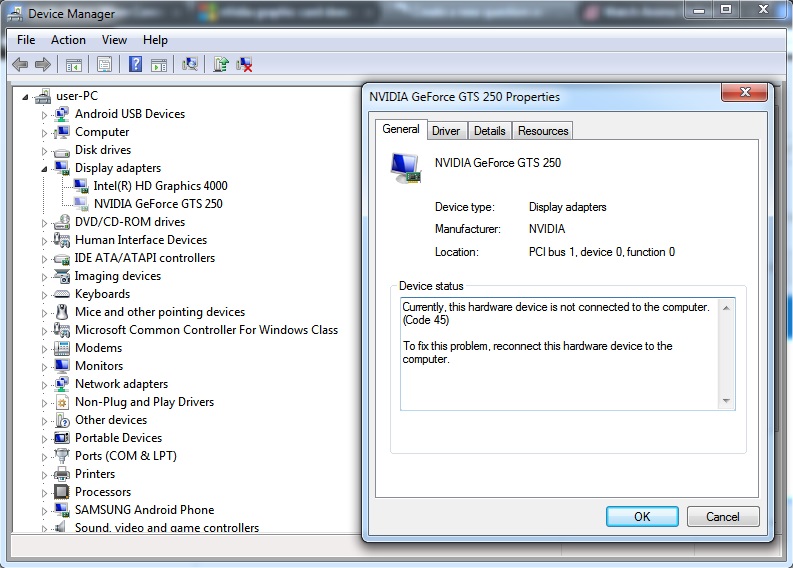
Nvidia Graphics Card Does Not Show Up In Device Manager
Step 5: Disable Third-Party Plugins
From the Photoshop menu, go to Edit > Preferences > Plug-ins. Uncheck or remove any third-party plugins, or disable the Generator plugin if present. Restart Photoshop to test if the error persists without these add-ons.
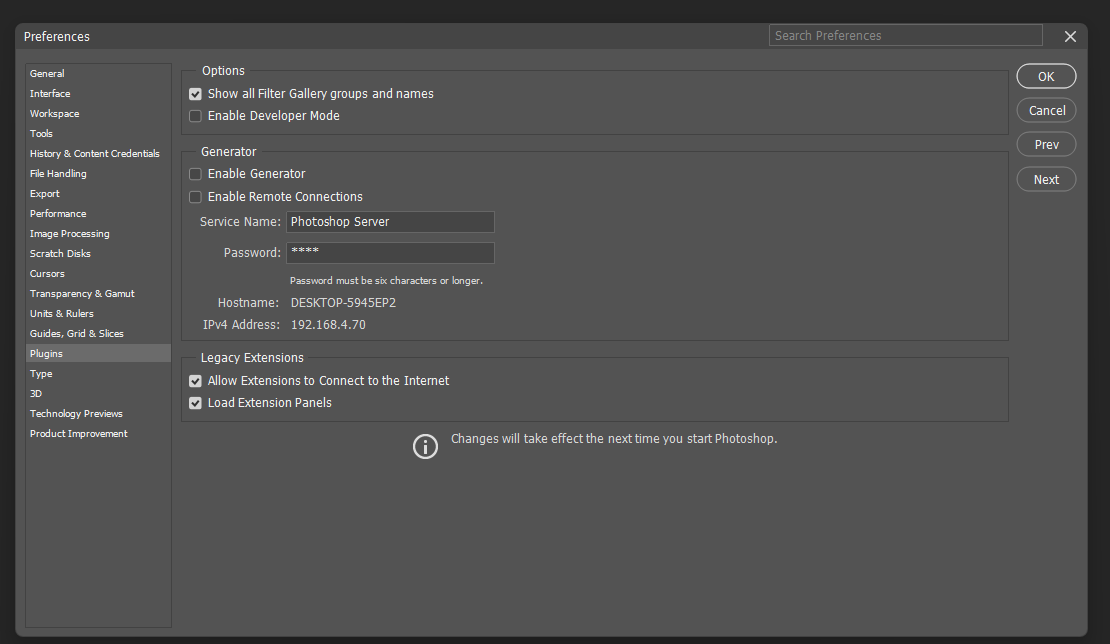
Solved: Re: Plugin Menu gray – Adobe Product Community
In one practical case, a Reddit user updated their NVIDIA drivers and re-enabled GPU usage, resolving file-opening errors that had plagued Photoshop 2021 sessions. Another instance from Adobe forums involved resetting preferences, which fixed saving issues for a designer working on large PSD files without needing a full reinstall. Finally, a YouTube tutorial demonstrated that disabling the GPU allowed a photographer to complete batch edits interrupted by the error, restoring smooth operation within minutes.
