

How to Fix Photoshop When It Can’t Complete a Request Due to a Program Error
2014-05-10
How to Convert CDR to PS
2014-05-12How to Fix Error 0x80070057?
The error code 0x80070057 is a Windows-specific issue that typically means “The parameter is incorrect.” It often appears during tasks like installing updates, performing backups, copying files, or running system restores. Breaking it down, this error can stem from corrupted system files that disrupt normal operations, hard drive errors such as bad sectors or file system inconsistencies, insufficient disk space preventing temporary files from being created, or registry problems where incorrect entries confuse the system. In essence, it’s a signal that something in the input parameters for a Windows process is invalid, often linked to underlying hardware or software integrity issues.
What are the common causes of error 0x80070057? This error frequently arises from damaged system files due to malware or abrupt shutdowns, disk errors from wear and tear on storage devices, low storage space that blocks necessary operations, or outdated drivers conflicting with Windows processes. Is error 0x80070057 harmful to my computer? While not directly destructive, it can prevent critical updates or backups, potentially leading to vulnerabilities or data access issues if left unresolved, though it doesn’t inherently cause hardware damage.
Resolving error 0x80070057 improves system stability by allowing uninterrupted updates and installations, reduces the risk of further errors or crashes, enhances data protection during backups, and optimizes overall performance by addressing underlying issues like disk corruption.
Step 1: Run System File Checker (SFC) Scan
Open Command Prompt as administrator by searching for “cmd” in the Start menu, right-clicking it, and selecting “Run as administrator.” Type “sfc /scannow” and press Enter. This tool scans and repairs corrupted system files automatically. Wait for the process to complete, then restart your computer.
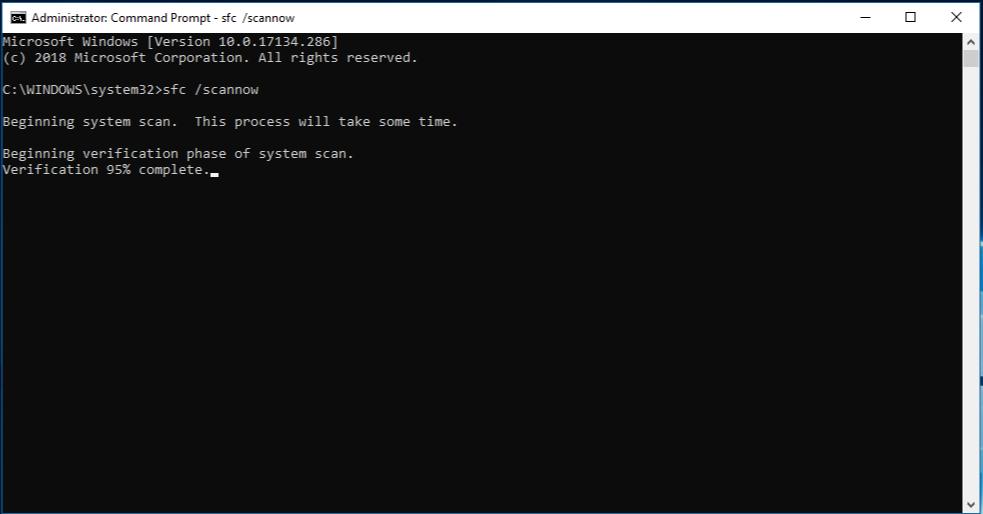
Use the System File Checker tool to repair missing or corrupted
Step 2: Run Check Disk (CHKDSK)
In the same elevated Command Prompt, type “chkdsk C: /f /r” (replace C: with your system drive if different) and press Enter. If prompted, type “Y” to schedule the scan on restart. Restart your PC to let CHKDSK scan and fix disk errors. This addresses bad sectors or file system problems that might trigger the error.
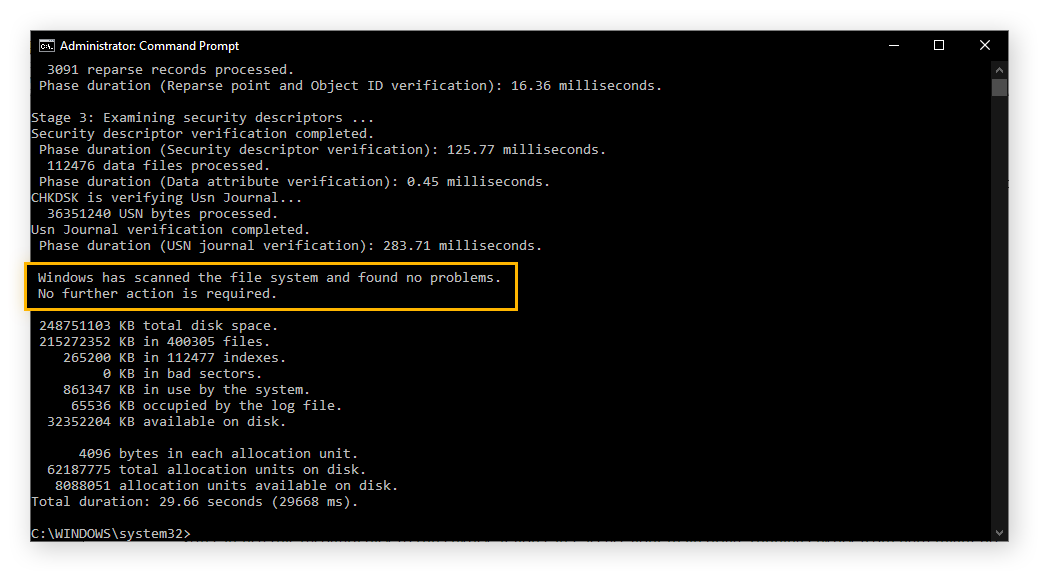
CHKDSK /F /R /X Commands to Scan & Fix Hard Drives
Step 3: Check for Windows Updates
Go to Settings > Update & Security > Windows Update, then click “Check for updates.” Install any available updates, as they often include fixes for known errors like 0x80070057. Restart if required after installation.
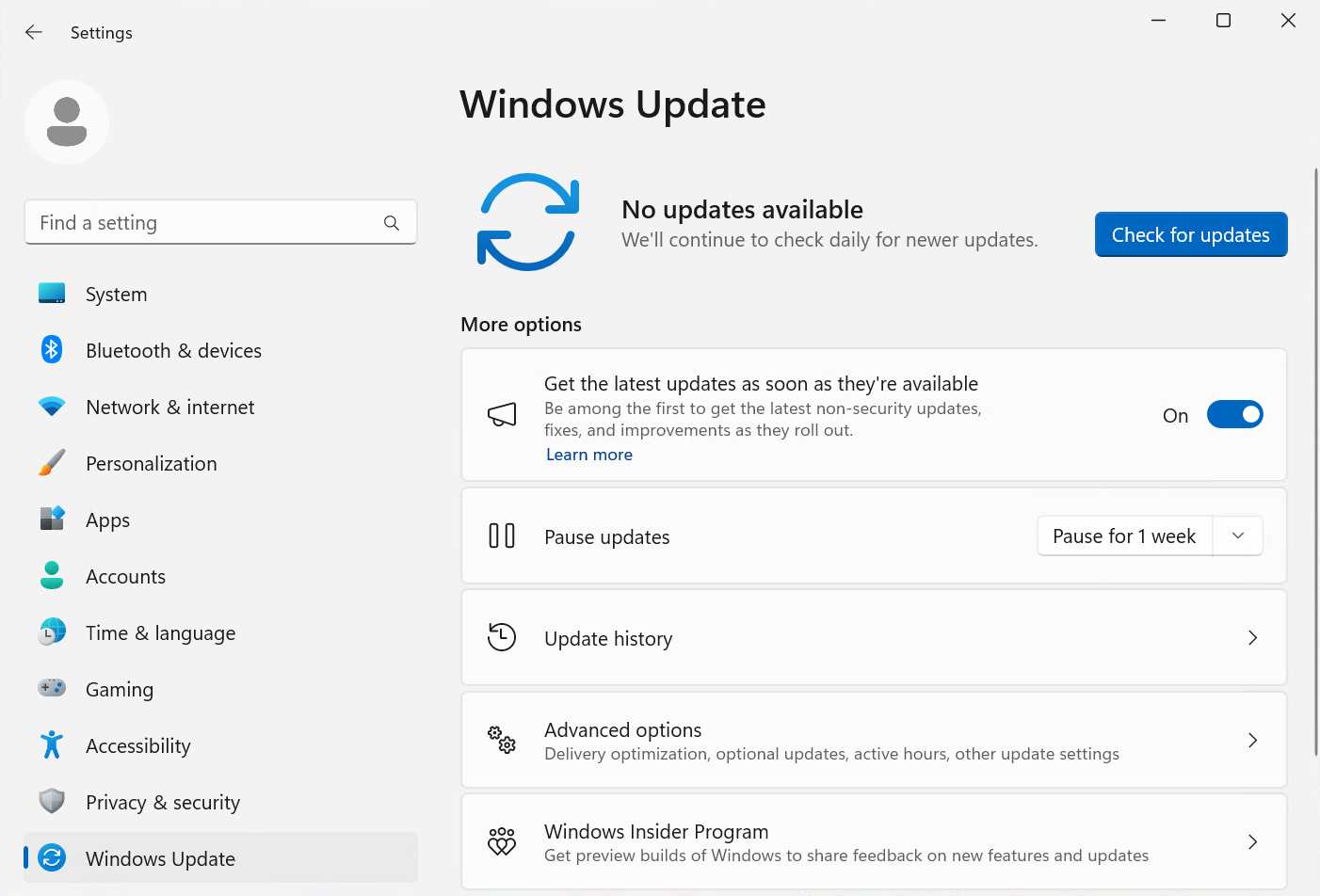
Configure Windows Update client policies
Step 4: Free Up Disk Space
Search for “Disk Cleanup” in the Start menu and run it. Select your system drive, check items like temporary files or recycle bin contents, and click “OK” to delete them. This ensures enough space for operations that might otherwise fail with this error.
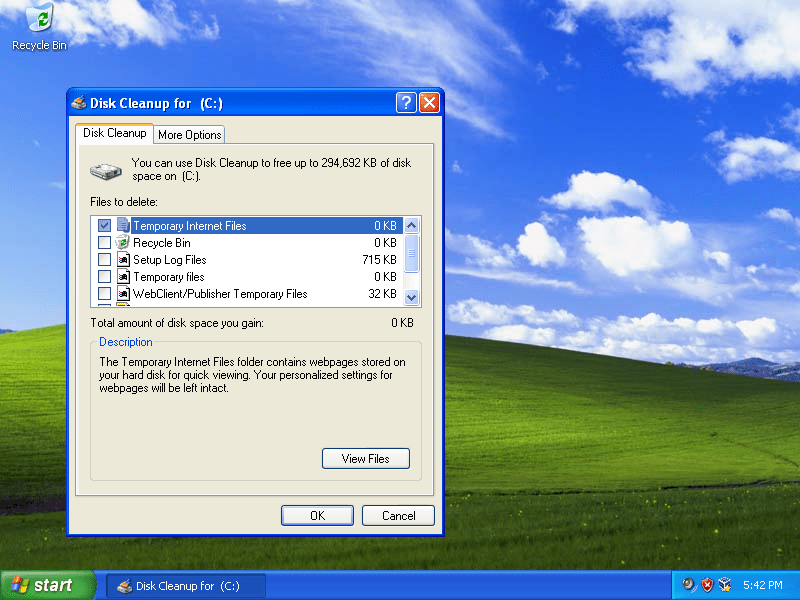
Disk Cleanup – Guide for Windows XP, Vista, 7, 8, 8.1, 10NeoSmart
In one practice case, a user encountering the error during a Windows 10 update ran the SFC scan and CHKDSK, resolving it within 30 minutes and allowing the update to complete successfully without further issues. Another instance involved a backup failure on Windows 11; after freeing up disk space and checking updates, the backup proceeded smoothly, preventing potential data loss. A third example saw the error during file copying on an older PC—combining all steps fixed corrupted files and disk errors, restoring normal functionality after a restart.
