


How to Convert CDR to PS
2014-05-12How to Fix ‘Reboot and Select Proper Boot Device’ Black Screen Error
2026-01-15How to Change Desktop Font Color in Windows 11
In Windows 11, the desktop font color refers to the text color of icon labels (names) on your desktop background. By default, Windows automatically sets this color—typically black on light backgrounds or white on dark ones—for optimal readability, using shadow effects for contrast. However, users often want to customize it manually for aesthetic reasons, such as matching a wallpaper theme or improving visibility on specific images. The color isn’t directly adjustable through a simple slider in settings; it ties into system themes, accent colors, and background modes (light/dark). When the desktop is light, text defaults to black with a white shadow; in dark mode, it shifts to white. True custom colors (like red, blue, or any hex value) require workarounds, such as registry edits or third-party tools, because Microsoft removed direct control in modern Windows versions to maintain consistency.
One common question is: Why can’t I find a direct option to change desktop icon text color in Windows 11 Settings? Microsoft streamlined personalization options, linking icon text color tightly to the overall theme and background for accessibility and uniformity; no built-in toggle exists for arbitrary colors, pushing users toward indirect methods or tools. Another frequent doubt: Will changing the desktop font color affect system stability or cause issues? Basic theme switches are completely safe, while registry modifications or third-party apps carry minor risks if done incorrectly (e.g., wrong key deletion), but following verified steps and backing up the registry minimizes problems—most users experience no issues.
Customizing desktop icon font color offers several advantages. It enhances visual appeal, allowing your desktop to better match personal wallpapers, themes, or branding. Improved readability on busy or low-contrast backgrounds reduces eye strain during long sessions. It adds a personalized touch without altering core system files heavily, boosting user satisfaction and making the interface feel more tailored to individual preferences.
To change the desktop font color in Windows 11, follow these steps, starting with the simplest built-in options and moving to advanced methods if needed.
First, open Settings by pressing Windows + I, then go to Personalization > Colors. Toggle between Light and Dark mode under Choose your mode, or enable Transparent effects and select an Accent color—these influence icon text appearance indirectly (dark mode often sets white text).
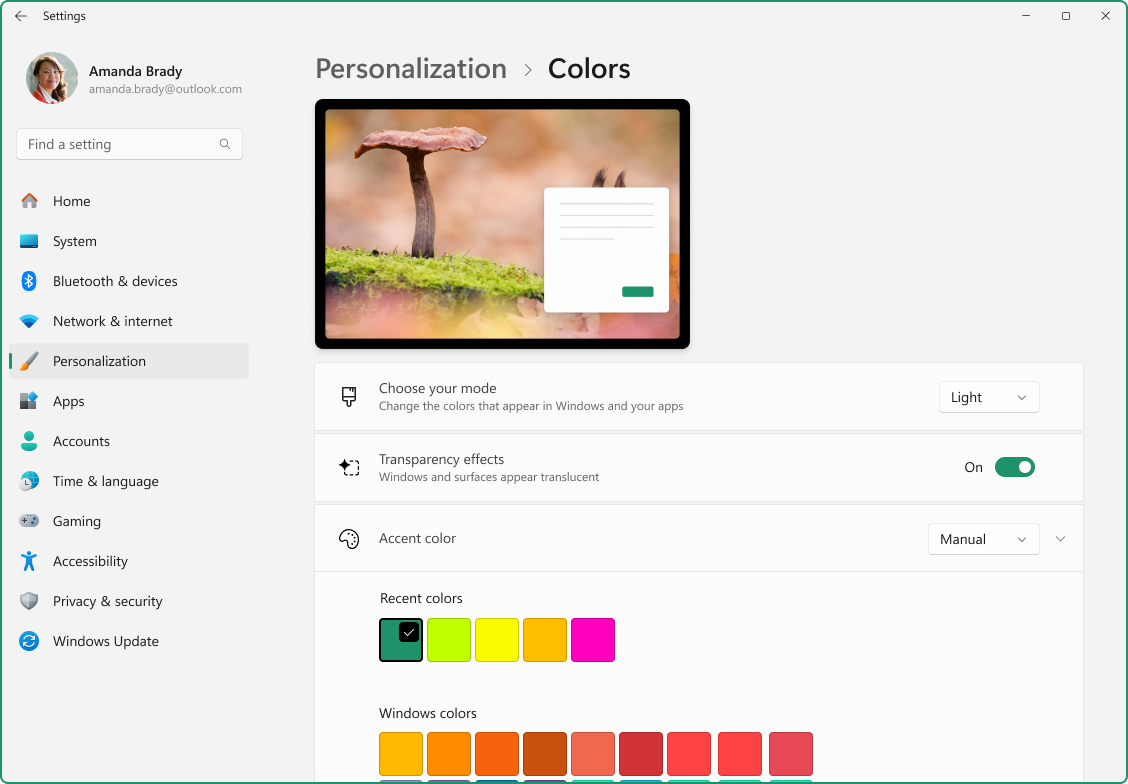
Personalize Your Colors in Windows
For better contrast on light backgrounds, right-click the desktop, select View, and check (or uncheck) “Show desktop icons” to refresh; alternatively, enable dark mode for white text on most wallpapers.
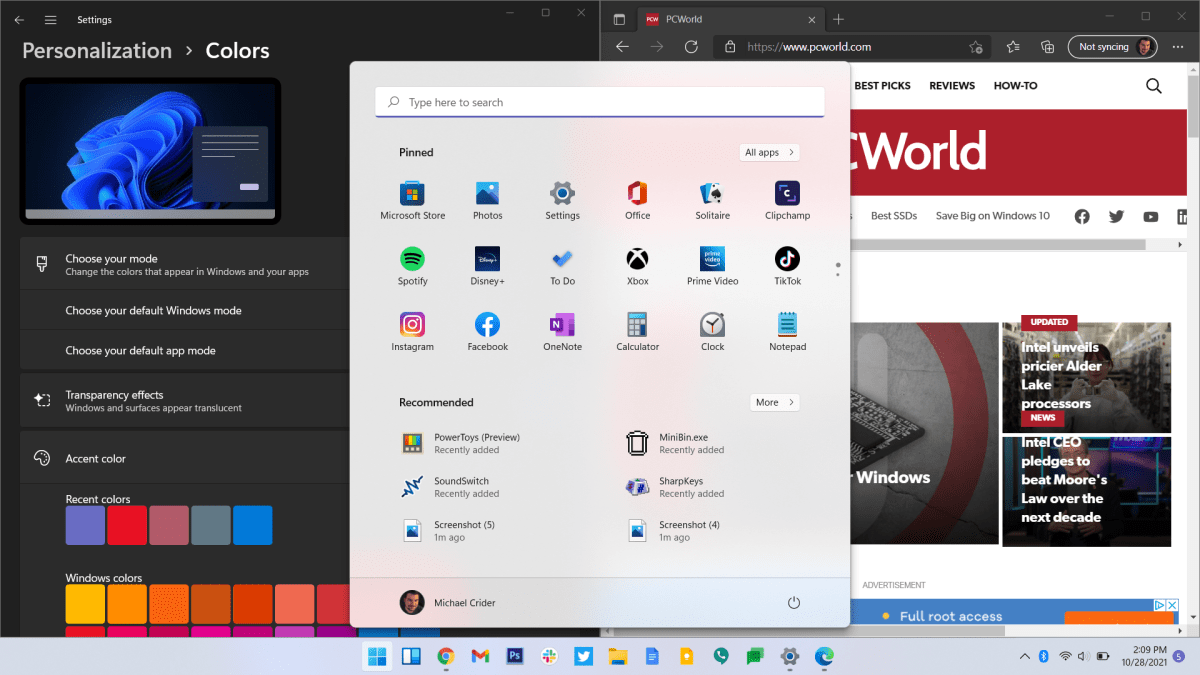
How to turn on Dark Mode in Windows 11
If you need a specific custom color (e.g., always white or black regardless of background), use a third-party tool like Desktop Icon Toy or Winaero Tweaker. Download and install a trusted tool such as Winaero Tweaker, open it, navigate to Appearance > Icons > Desktop Icon Text Color, and pick your desired color from the picker or enter a hex code.
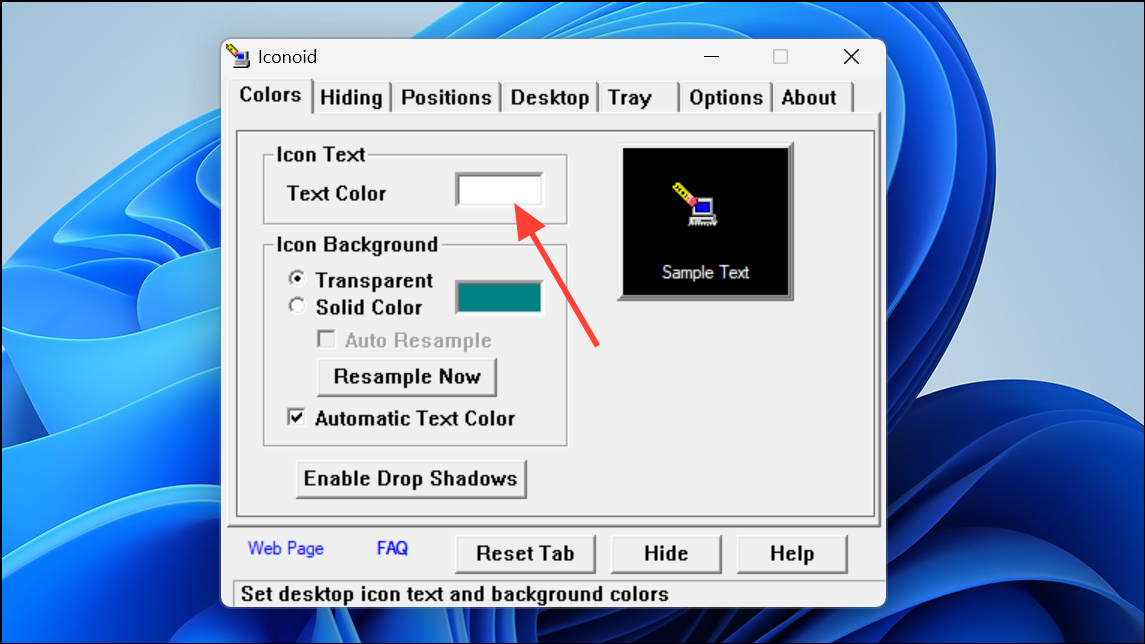
How To Change The Desktop Icon Font Color in Windows 11
Alternatively, for a registry method: Press Windows + R, type regedit, and navigate to HKEY_CURRENT_USER\Software\Microsoft\Windows\CurrentVersion\Explorer\Advanced. Create a new DWORD (32-bit) value named ListviewShadow, set it to 0 to remove shadows (helping custom colors show clearly), then restart explorer.exe or your PC. For advanced color tweaks, additional keys may be needed with tools.
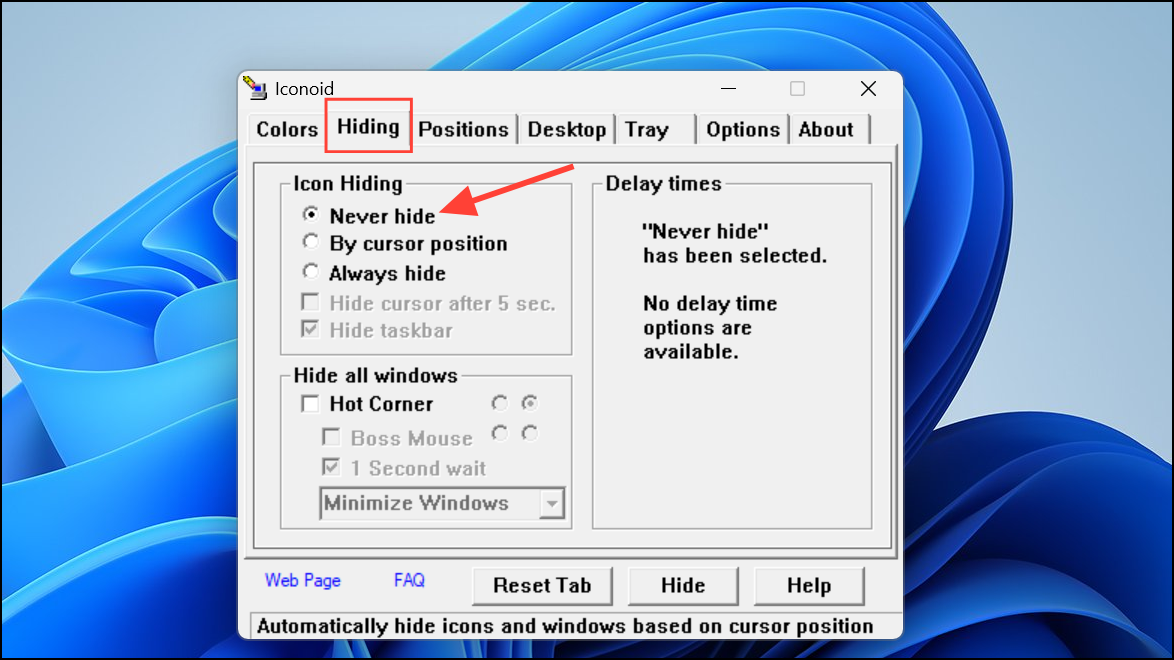
How To Change The Desktop Icon Font Color in Windows 11
In practice, one user with a scenic wallpaper found black text hard to read; switching to dark mode instantly made the icons white with shadows, improving clarity without extra software. Another customized their work desktop to always use white text by applying a simple registry tweak via Winaero Tweaker, reporting perfect visibility on colorful backgrounds and no performance impact after months of use. A third case involved a gamer who wanted red icon labels—using a third-party tool achieved this, making the desktop more vibrant and thematic, though they noted occasional need to reapply after major Windows updates.Welcome to WordPress. This is your first post. Edit or delete it, then start writing!

1 Comment
Hi, this is a comment.
To get started with moderating, editing, and deleting comments, please visit the Comments screen in the dashboard.
Commenter avatars come from Gravatar.